Guides · Updated October 20, 2026
From segmentation masks to YOLO and COCO polygons
To turn segmentation masks into YOLO or COCO polygons, you split each mask into classes, find the connected regions of every class, trace the outline of each region, simplify it, and write one polygon with its bounding box per region. Each step has a setting that changes the labels: which pixels count as connected, how far a polygon may stray from the pixels, and how small a region may be before it counts as noise.
This guide explains those settings with measured numbers. It also shows what polygons cannot carry over from a mask and how to name files so that each label lands next to its image.
Binary, semantic and instance masks
A mask is an image whose pixel values are labels. Three kinds are common:
| Mask | A pixel value means | Objects |
|---|---|---|
| Binary | Object or background (0/255, 0/1 or alpha) | Each connected region is one object |
| Semantic | A class, as gray value (id) or color | Each connected region of a class is one object; touching objects merge |
| Instance | One object (an id), sometimes plus a class | Each id is one object, even where objects touch |
Only an instance mask records where one object ends and the next begins. A semantic mask of a crowded shelf says "these pixels are bottles", not how many bottles there are, so turning it into object polygons means inferring the objects from connectivity.
Background needs a convention too: usually 0, often with 255 reserved for "ignore" (unlabeled or uncertain border pixels). Neither belongs in the annotation files as a class.
Connected regions: 4- or 8-neighborhood
With the 4-neighborhood, two pixels of a class are connected only if they share an edge; with the 8-neighborhood, a shared corner is enough.
This matters most for thin diagonal shapes. A one-pixel diagonal line of 40 pixels is one object with 8 neighbors but 40 one-pixel objects with 4, and a minimum size of 20 px² then deletes all of them. Conversely, two objects that touch at a single corner merge with 8 neighbors.
- Use 8 neighbors as the default and for thin or diagonal shapes such as cracks, wires, vessels or roads.
- Use 4 neighbors when separate objects often touch only diagonally, for example cells or grains in dense, pixel-painted masks.
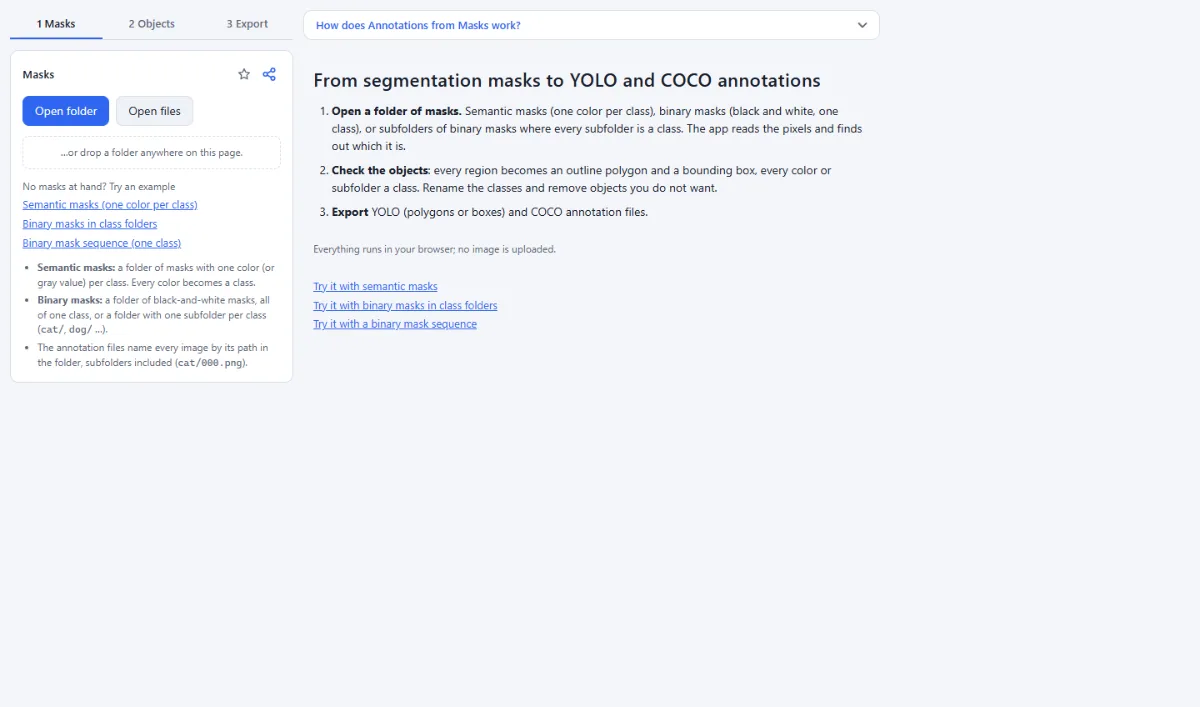
In Annotations from Masks this is the setting "Pixels belong together when they touch", with "along edges and corners (8 neighbors)" as the default.
Tracing the outline and simplifying it
An outline can run through the pixel centers or along the pixel edges, half a pixel apart on every side. A 10 × 10 pixel square traced through its centers has an area of 81 instead of 100, 19 % less; at 20 × 20 pixels it is still 10 % less. The app traces along the pixel edges, so the unsimplified polygon of a region without holes has exactly its pixel area, and the box is as wide as the region (10 px, not 9).
The traced outline is a staircase with a vertex at every step. Douglas–Peucker simplification drops vertices as long as the polygon stays within a tolerance, in pixels, of the outline. The tolerance is absolute, so it hurts small objects most. Measured with the extraction code of the app on discs:
| Object | Tolerance 0 | 1 px | 1.5 px (default) | 3 px |
|---|---|---|---|---|
| Disc, radius 4 px (52 px²) | 20 points | 8 points, area +8 % | 4 points, area −23 % | 4 points, area −23 % |
| Disc, radius 10 px (316 px²) | 44 points | 12 points, area +4 % | 8 points, area −3 % | 4 points, area −31 % |
| Disc, radius 50 px (7,860 px²) | 236 points | 20 points, area +0.2 % | 16 points, area −0.5 % | 16 points, area −0.5 % |
Below 1 px most of the staircase stays (204 of 236 points for the large disc at 0.5 px), which only makes files larger. Choose the tolerance from your smallest objects: about 1 px if they are under 10 px across, 1.5 to 3 px for objects of 40 px and more, where the area changes by less than 6 %.
The slider is called "Simplify the outline". "At most … points per polygon" raises the tolerance until a polygon fits, and "Convex hull (wraps the object)" under "Polygon" suits compact objects, not a hand or the letter C.
Holes, touching objects and specks
Holes. Neither format can describe a hole in a polygon: a YOLO line is one outline, and COCO fills the union of the polygons of an annotation. The app writes the outer contour, so a hole becomes part of the object. For a ring with radii of 50 and 25 px, the mask has 5,884 pixels, while the polygon and its COCO area cover 7,822 px², a third more. Where holes matter (tires, frames), keep the masks or store the objects as COCO RLE.
Touching objects. Two objects of one class that touch are one region and become one polygon. "Split objects that touch each other" cuts regions at narrow necks: pixels whose distance to the background exceeds "Splitting sensitivity" times the largest distance in the region become seeds, which then grow back out (a watershed on the distance transform). Regions thinner than 5 px are never cut, and two overlapping objects without a neck stay one. The sensitivity trades neck width against object size: two discs of radius 30 px overlapping by 5 px were split at 0.6 and 0.9 but not at 0.3, while a disc of radius 40 px touching one of radius 14 px was split only at 0.3. Test it on a few crowded masks first.
Instance masks avoid the guess. The app reads every gray value or color as a class, so give all instance values the same class name: each value is still traced separately, which keeps touching instances apart, and the export merges equal names into one class. This works up to 32 gray values or 64 colors per mask; if the masks are read as binary, choose "Semantic masks: every color is a class" under "Read the masks as".
Specks. Stray pixels from brush slips, compression or resizing become tiny objects that teach the model noise. "Ignore objects smaller than" (20 px² by default) removes them; set it just below your smallest real object, since it removes small real objects just as reliably. "Ignore objects touching the image border" helps with tiles whose border objects are cut off.
Anti-aliasing, JPEG and class colors
A mask must hold exact values, and two things destroy them:
- Anti-aliasing. Drawing or resizing a mask with smoothing puts blend colors on every edge. Resize masks only with nearest-neighbor interpolation.
- JPEG. Lossy compression shifts values, so a gray value of 3 comes back as 2 or 4, and a pure red as dozens of reds. Save masks as PNG.
The app absorbs part of this: black-and-white JPEG masks are recognized as binary, unknown colors take the nearest class color, and noisy masks whose folder or name marks them as masks (masks/, _mask) are read through their main colors. But a handful of blend colors in an otherwise clean mask become classes of their own. If the class list in "2 Objects" shows entries such as "maroon" or "red 2" next to "red", tick "ignore" for them, which shrinks the objects by about a pixel. Giving them the name of the real class does not help here: each color is traced on its own, so the edge would become an extra object around the real one.
Ids versus colors: in the app, black is background and ignored, a gray value below 64 is named after its value ("class 1", "class 2" and so on), and colors get the nearest basic color name. The exported id is not the pixel value: the classes that occur and are not ignored are numbered in the order of the class list, from 0 for YOLO and from 1 for COCO. Compare classes.txt with your own id table, and tick "ignore" for a 255 "ignore" value, which is listed as "white" and not excluded automatically.
File names, pairing and checking the result
A YOLO label needs the stem of its image in the mirrored labels folder; a COCO file_name must match the image path including the extension. Masks are often named differently, for example masks/train/a_mask.png for images/train/a.jpg.
The app drops mask folders such as masks/ from the path, "Cut “_mask”, “_seg”, “_label” … from mask names" removes the suffix, and "Extension of the images" turns .png into .jpg (only COCO needs this, since YOLO pairs by stem). Subfolders stay, so cat/000.png and dog/000.png are two images. The example ends up as labels/train/a.txt and as the COCO file_name train/a.jpg, relative to images/. Only annotation files are written.
- Open the masks in Annotations from Masks, then check "Read the masks as" and the class list in "2 Objects".
- Set the neighborhood, "Ignore objects smaller than" and "Simplify the outline" from your smallest objects, and review a few masks, crowded ones included.
- Click "Check all … masks" and compare the totals per class with what you expect.
- In "3 Export" tick YOLO and/or COCO, choose what "YOLO lines contain" and a "Target", and click "Export … images".
- Put the images into images/ with the same relative paths. Check in the Annotation Studio that every polygon sits on its object, and in Dataset Insights look for "Label files without image" or "COCO image entries without file" (naming), "Polygons with more than 500 points" (tolerance 0) and "Polygons with a very uneven outline".
Tip: To keep pixel masks for semantic segmentation instead, open the images with their masks/ folder in the Annotation Studio: it reads gray values as class ids and 255 as unlabeled, and exports grayscale PNGs or COCO RLE.
Tools for this
- Annotations from Masks: Segmentation masks → COCO / YOLO
- Annotation Studio: Boxes, polygons, keypoints & masks
- Dataset Insights: Label errors, balance, leakage