Photo Effects
Film, vintage, cinematic, manga and more, every effect shown on your own photo: pick one, set the strength and save one photo or a whole folder.
Photo Effects tutorial
Functionality
Photo Effects gives your photos a new look with one click: film, vintage, cinematic, noir, manga and many more. Every effect is shown as a small preview of your own photo, so you see the result before you choose.
Pick an effect, make it stronger or weaker with the slider and save one photo or all of them at once. Everything happens in your browser; your photos are never uploaded, and there is no account and no watermark.
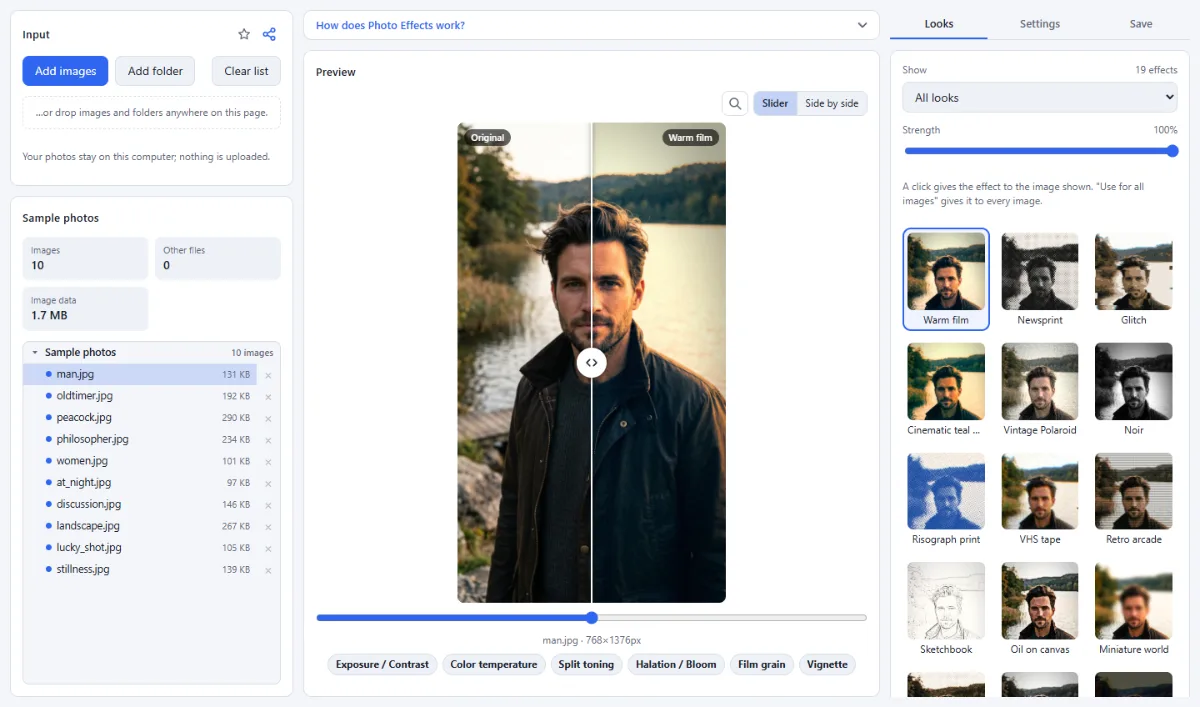
- Three tabs: The right side has three tabs: "Looks" for the gallery, "Settings" for the parameters of the look of the image shown, and "Save" to save one photo or all of them.
- Effects on your own photo: The gallery shows every effect applied to the selected photo, so you compare real results instead of sample pictures. The dropdown above it shows all looks, only your custom looks or only the built-in ones.
- A look for every photo: A click on an effect gives it to the photo selected in the list; every photo can have its own. Photos without a choice use the default look. "Use for all images" gives every photo the look and strength of the one shown. When you save all photos, each one gets its own look.
- Settings per photo: The "Settings" tab shows the operators of the look of the photo shown, with their parameters. The photo gets a copy of the look: changing a parameter changes only this photo, never the look itself or the other photos. The operators themselves cannot be added, removed or reordered here; that is what the Filter Lab is for. "Reset all settings of this image" copies the look again.
- Strength: The "Strength" slider blends the effect of the photo shown with the original, from a light touch to the full effect. The preview and the saved photo always match.
- Before and after: The large preview shows the original and the effect with a slider or side by side.
- One photo or many: Save the selected photo or every loaded photo, for example a whole holiday folder, as a ZIP or into a folder. The "Save" tab says how many photos have a look of their own.
- Your own effects: Looks you create in the Filter Lab appear here under "My looks", ready to use with one click.
How To Use The App
- Open your photos: Click "Open images" or "Open folder", or drop photos onto the page. No photo at hand? Try the sample photos.
- Pick an effect for a photo: Select a photo in the list on the left, then click an effect in the gallery on the right; the large preview shows it on that photo. Do the same for the next photo with another effect, or click "Use for all images" to give every photo the same.
- Adjust the strength: Move the "Strength" slider until the effect looks right.
- Fine-tune the effect: Open the "Settings" tab to change the parameters of the effect for this photo only, for example the amount of grain or the contrast.
- Save: In the "Save" tab, click "Export current image" for the selected photo. For all of them, choose a "Target" ("Choose output folder" in Chrome and Edge, or "ZIP download") and click "Process all … images"; each photo is saved with its own look.
Tips
- Effects with grain, blur or halftone dots are shown slightly stronger on the small previews than on the saved photo.
- The looks and settings you choose for single photos are not saved for the next visit; the default look and strength ("Use for all images") are.
- For your own effect, open the Filter Lab: combine filters, save the look, and it appears in Photo Effects.
Frequently asked questions
- Which effects are included?
- Photo Effects comes with 19 built-in looks: film and color looks such as "Warm film", "Vintage Polaroid", "Golden hour", "Cinematic teal & orange" and "Noir", retro looks such as "VHS tape", "Glitch" and "Retro arcade", and art styles such as "Sketchbook", "Oil on canvas", "Comic book" and "Manga Overlay". Looks you build in the Filter Lab appear next to them.
- Are my original photos changed?
- No. The results are saved as new files: as a download, as a ZIP or into an output folder that you choose ("Choose output folder", in browsers such as Chrome and Edge). The app does not accept the folder of the originals as output folder, so the originals cannot be overwritten.
- In which format and size are the photos saved?
- In their full pixel size, in the format chosen under "Format": "Same as source" (the default), "PNG (lossless)", "JPEG" or "WebP"; "Quality (JPEG/WebP)" starts at 92. With "Same as source", camera RAW photos are saved as JPEG and TIFF as PNG, because browsers cannot write those formats. EXIF data such as date, camera and GPS position is not carried over.
- How can I add or remove filters of an effect?
- In the Filter Lab: click "Edit in Filter Lab" below the gallery, and the effect opens there together with your photos. There you can add, remove and reorder filters; to keep the original look, click "Duplicate" first. Looks are saved in this browser and show up in Photo Effects. The "Settings" tab here only changes the values of the filters a look already has.
- Can I leave single photos without an effect?
- Yes. Select the photo in the list and set its "Strength" to 0%: the effect is blended out completely for this photo, while the other photos keep theirs. When you save all photos, it is saved along with them and looks like the original.
Related tools
- Text & Meme Maker: Memes · Captions · Quotes
- Filter Lab: Own looks · 35+ filters · LUTs
- Social Media Studio: All formats · Carousels · Grids
- Before / After: Sliders · Wipe videos · GIF