Screenshot Beautifier
Paste a screenshot and get a polished image: gradient background, padding, rounded corners, a soft shadow and an optional browser window frame. For posts, docs and slides.
Screenshot Beautifier tutorial
Functionality
The Screenshot Beautifier turns a plain screenshot into an image you can show: on a gradient, on the blurred screenshot itself or on a picture of your own, with padding, rounded corners, a soft shadow and, if you like, a browser window frame.
Paste the screenshot with Ctrl+V (Cmd+V on a Mac), pick a style and save. Useful for social posts, documentation, slides and app store pages. The screenshot never leaves your computer, which matters for screenshots with private content.
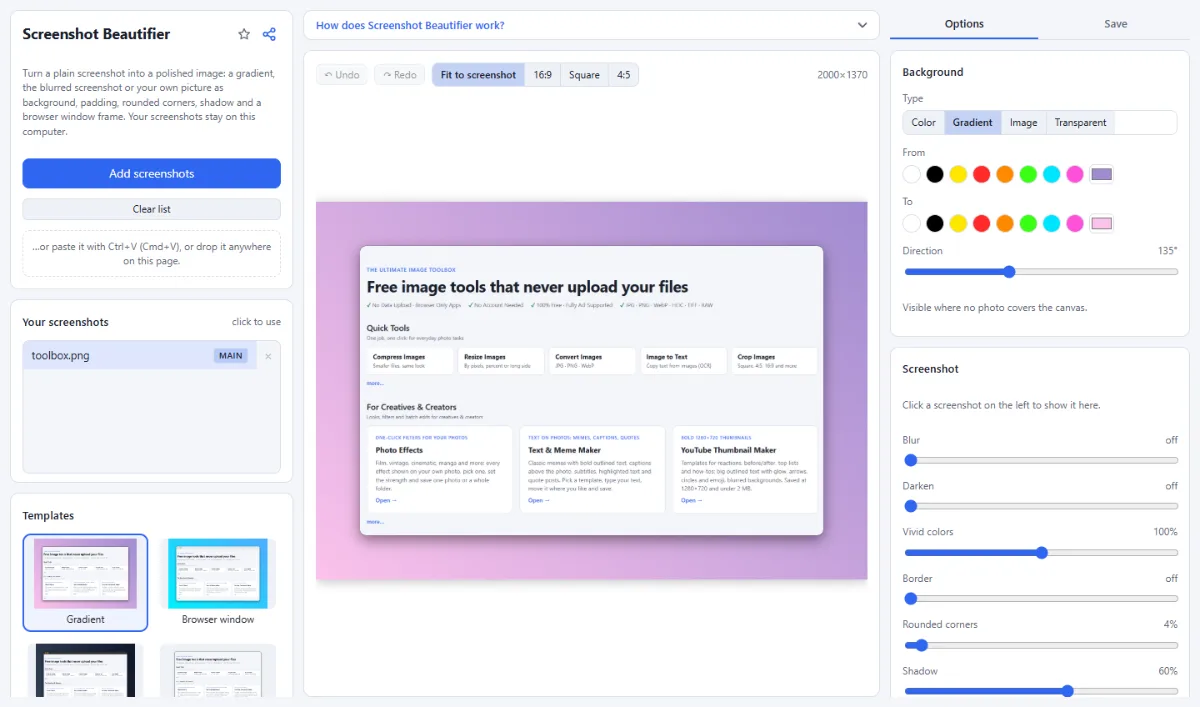
- Paste and go: Ctrl+V pastes a screenshot straight from the clipboard; opening or dropping a file works too.
- Templates: 15 templates, each shown with your screenshot: gradients such as Ocean, Mint, Peach and Neon, plain Clean, Paper and Graphite, Browser window, Dark, Blurred screenshot, Own background, and two with a headline above the screenshot.
- Image backgrounds: In the "Options" tab, "Background" offers "Color", "Gradient", "Image" and "Transparent". "Image" shows the screenshot itself, blurred, behind the sharp one, or "Own image": a photo, texture or wallpaper you choose with "Choose image …". "Blur" and "Darken" make the window stand out. Your image stays in this browser for the next visit and is never uploaded.
- Window frame: A light or dark title bar with the three window buttons makes a screenshot look like an app window.
- Padding, corners, shadow: The "Options" tab holds all settings: "Background", "Screenshot" with corners, shadow, border and window frame, "Padding" for the space around it, and "Add" for texts and shapes. A text or shape you click on the canvas shows its settings at the top.
- Sizes: "Fit to screenshot" keeps its shape; 16:9, square and 4:5 fit it into a fixed size for slides and social posts.
- Sharp text, small files: Saved as PNG by default, so text in the screenshot stays perfectly sharp. WebP makes much smaller files for websites and documentation, JPG suits places that accept nothing else.
How To Use The App
- Add your screenshot: Take a screenshot and press Ctrl+V on this page, or click "Open screenshot". No screenshot at hand? Try the sample.
- Pick a template: Choose a template on the left; the canvas shows it with your screenshot.
- Fine-tune: In the "Options" tab on the right, change the background (for your own picture: "Image", then "Own image" and "Choose image …"), the corners, shadow and window frame under "Screenshot", and the "Padding".
- Save: Open the "Save" tab, choose JPG, PNG or WebP and click "Save image".
Tips
- Hide private details first with the Blur & Redact tool.
- For X, LinkedIn and slides, 16:9 fits best; for Instagram, use 4:5 or square.
Frequently asked questions
- How large is the finished image?
- "Fit to screenshot" makes it 2000 pixels wide, with a height that follows the shape of the screenshot and the padding; a very long page screenshot makes the image narrower instead, so it stays at most 32767 pixels high, which browsers can still save. The fixed sizes are "16:9" with 1920×1080, "Square" with 1600×1600 and "4:5" with 1600×2000 pixels; there the screenshot keeps its own shape and is centered.
- Why does the text in my screenshot look blurry?
- Small screenshots are enlarged to fill the frame: with "Fit to screenshot" and the default "Padding" of 8%, the screenshot is drawn 1680 pixels wide (less for very long page screenshots, see above). Take the screenshot at a higher zoom level of the page, or raise "Padding" so it is enlarged less. Keep PNG as the format, since JPG compression blurs the edges of letters.
- Why does Ctrl+V not add my screenshot?
- The clipboard has to contain an image. On Windows, Win+Shift+S copies a screen area to it; on a Mac, Cmd+Ctrl+Shift+4 does, while Cmd+Shift+4 saves a file instead. Pasting is ignored while the cursor is in a text field, so click an empty spot of the page first. Saved screenshot files can be opened with "Open screenshot" or dropped onto the page.
- Can I save the screenshot with a transparent background?
- Yes. In the "Options" tab, set "Type" under "Background" to "Transparent" and save as PNG or WebP. The rounded corners and the soft shadow are kept, which is useful for slides and documents with a colored background. A JPG gets a white background instead.
- Can I use my own picture as the background?
- Yes. In the "Options" tab, set "Type" under "Background" to "Image", choose "Own image" and click "Choose image …", or start from the "Own background" template. "Blur" softens the picture and "Darken" makes the window stand out. The picture stays in this browser for your next visit and is never uploaded; "Remove" deletes it. "Screenshot" instead of "Own image" puts the screenshot itself, blurred, behind it.
- Can I show two screenshots in one image?
- Yes. Put them side by side or one above the other with Combine Images first, then open the combined image here: padding, frame and shadow go around both. Alternatively, "+ Photo" under "Add" in the "Options" tab adds a second frame; click a screenshot in your list to fill it, then move and resize the frame yourself.
Related tools
- Blur & Redact: Hide faces, plates, text
- Crop Images: Each photo its own crop
- YouTube Thumbnail Maker: 1280×720 · Bold text · Arrows
- Compress Images: Smaller files, same look