Profile Picture Maker
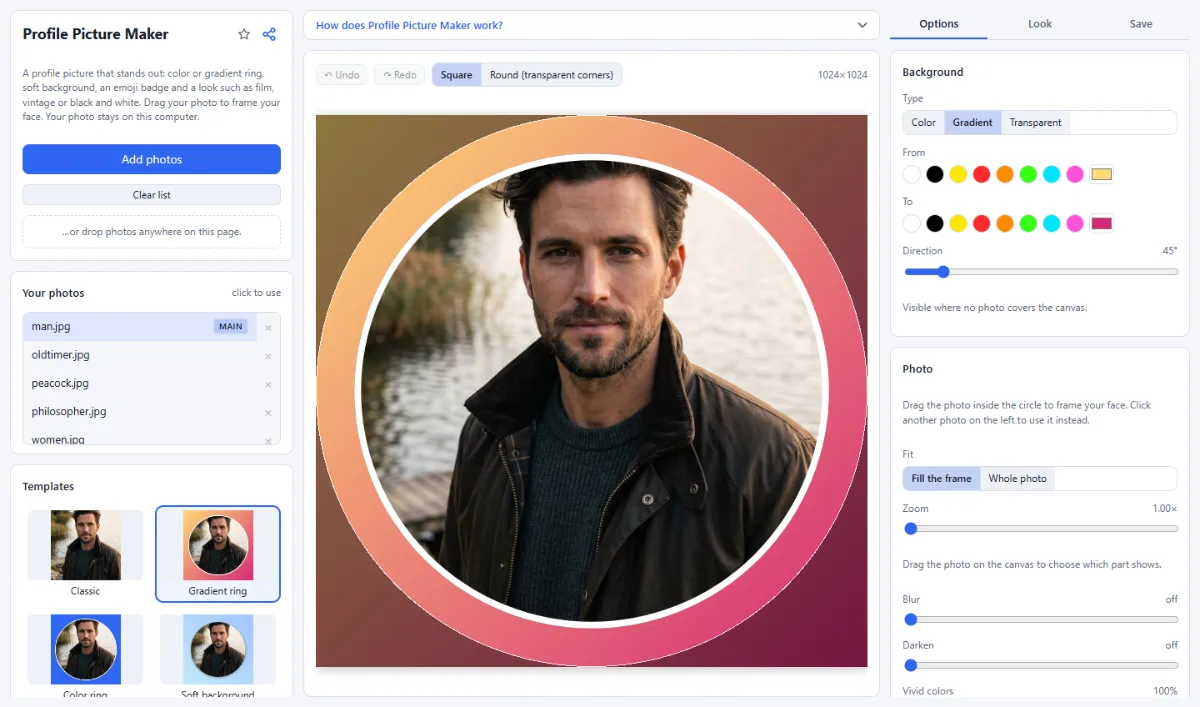
A profile picture with a color or gradient ring, a soft background or an emoji badge, framed for the round crop. Square or round with transparent corners.
Profile Picture Maker tutorial
Functionality
The Profile Picture Maker turns a photo into a profile picture that stands out: with a color or gradient ring, on a soft background, with an emoji badge, and with a look such as film, vintage or noir on the photo.
Most platforms show profile pictures as a circle. The editor shows that circle, so you can frame your face exactly; save the picture square, or round with transparent corners. Your photo is never uploaded.
- Styles: 17 styles, from Classic, Gradient ring and Black & white to Neon, Sparkles and Name tag, each shown with your photo.
- Frame your face: Drag the photo to move it inside the circle, and use "Zoom" under "Photo" in the "Options" tab to get closer.
- Ring and background colors: "Background" in the "Options" tab sets its color or gradient; the ring is the background around the round photo.
- Looks: The "Look" tab offers the looks of Photo Effects and the Filter Lab, such as Warm film, Vintage Polaroid or Noir, each shown on your photo, plus your own looks from the Filter Lab. A look changes the photo only: ring, background and badges keep their colors. "Strength" blends it with the original, "No look" removes it, and it stays when you switch the style.
- Square or round: "Square" is what the platforms expect; they crop the circle themselves. "Round (transparent corners)" cuts out the circle; saved as PNG, the preselected format, the corners are transparent, for example for websites and slides.
- Large enough everywhere: 1024×1024 pixels: platforms scale it down to their size without losing sharpness.
How To Use The App
- Open your photo: Click "Open photos" or drop a photo onto the page. No photo at hand? Try the sample photos.
- Pick a style: Choose a style on the left.
- Frame your face: Drag the photo on the canvas until your face sits in the middle of the circle. If it does not move, raise "Zoom" under "Photo" in the "Options" tab first.
- Choose colors: Change the ring or background color under "Background" in the "Options" tab. For another emoji, click it on the canvas, click "Delete" and add a new one under "Add".
- Add a look: Open the "Look" tab and click a look; "Strength" makes it subtler.
- Save: Open the "Save" tab, click "Save image" and upload the file as your new profile picture.
Tips
- Keep your face in the middle third: the round crop and small sizes cut away the edges.
- A plain or blurred background behind you makes the ring stand out.
Frequently asked questions
- Why are the corners of my round picture white instead of transparent?
- Because it was saved as JPG, which cannot store transparency, so the app fills those areas with white. Choose "Round (transparent corners)" and save as PNG, which this app preselects.
- Why can I not move my photo inside the circle?
- A photo can only be moved where it is larger than its frame. A square photo fills a round frame exactly, so there is nothing to move: raise "Zoom" first, then drag the photo to center your face. Portrait and landscape photos can be moved along their longer side right away.
- How do I change the emoji of the badge?
- Click the emoji on the canvas and then "Delete", and click another emoji under "Add" in the "Options" tab. The new one appears in the middle: drag it onto the white disc and make it smaller with the corner handle. The disc is a shape of its own; select it to change its color.
- Can I add my name to the picture?
- Yes. The "Name tag" style puts your name in a colored box near the bottom edge; click the text and type your name. In other styles, "+ Text" under "Add" in the "Options" tab adds a text with its own font, color and outline. Keep texts well inside the circle, because platforms that show the picture round cut off the corners.
- Can I give my photo a film, vintage or black-and-white look?
- Yes. The "Look" tab shows the looks of Photo Effects and the Filter Lab on your photo, from Warm film and Vintage Polaroid to Noir, and your own looks from the Filter Lab. A click applies one to the photo only: the ring, the background and badges keep their colors. "Strength" blends it with the original, and "No look" removes it again.
- Does the app keep a copy of my photo?
- No. The photo is only held in this browser tab while you work and is never uploaded. For your next visit, the app remembers the design in this browser, such as style, colors, framing and texts, but not the photo itself.
Related tools
- Photo Effects: Film · Vintage · Noir · Manga
- Crop Images: Each photo its own crop
- Sticker Maker: WhatsApp & Telegram · 512×512
- Social Media Studio: All formats · Carousels · Grids