Before / After
Turn two images, or a photo plus a Filter Lab look, into a comparison slider, side-by-side or a looping wipe video (MP4, GIF) for Reels, TikTok and portfolios.
Before / After tutorial
Functionality
Before / After turns two images into a comparison: a still image with a divider, a side-by-side or stacked layout, or a looping wipe video as MP4 or GIF for Reels, TikTok, Shorts and portfolios. The video holds the before image, wipes to the after image, holds it and wipes back.
Instead of a second image you can also use a look from the Filter Lab: the app renders the after image from your photo at full resolution. Everything is rendered and encoded on your device; the images are never uploaded.
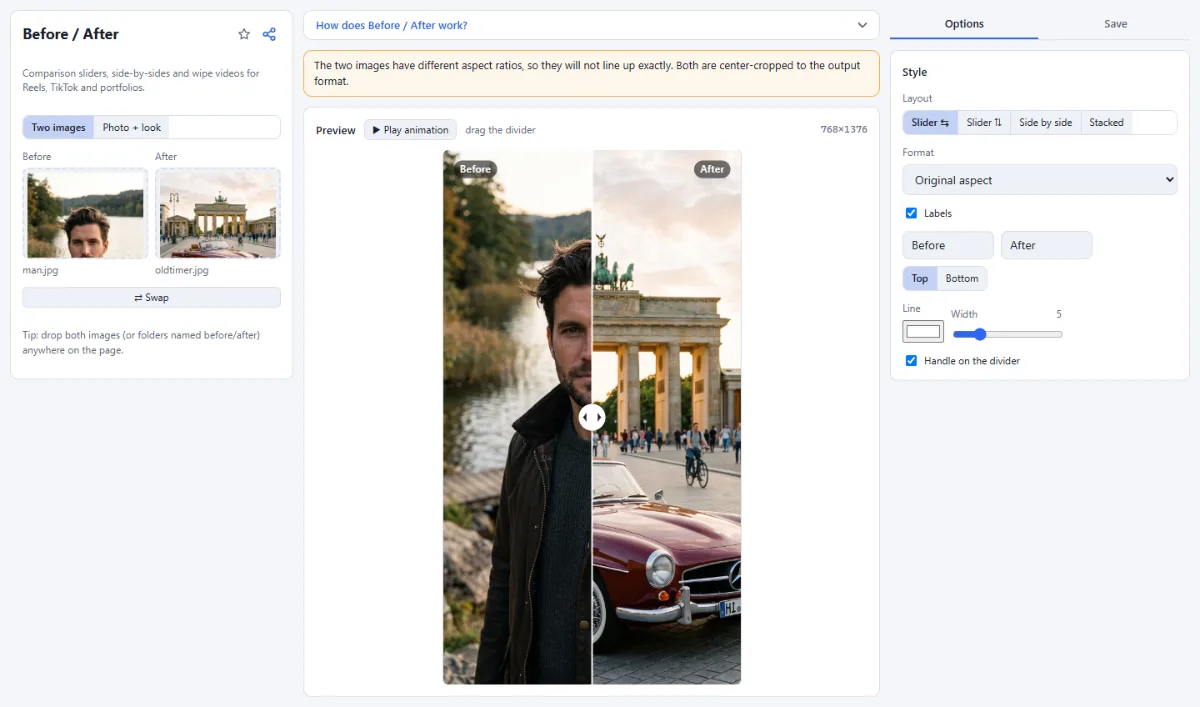
- Two images or photo + look: "Two images" compares a before and an after file. "Photo + look" takes one photo and applies a look from "Look from the Filter Lab", either one of your own looks or a built-in look.
- Automatic pairing: When you drop several images onto the page, pairs are found by folders named before and after or by name markers such as _before, original, _after, edited or final. With exactly two unmarked images, the first name becomes the before image.
- Four layouts: "Slider ⇆" splits the image left and right, "Slider ⇅" top and bottom, "Side by side" places both images next to each other and "Stacked" puts them one above the other.
- Output formats: Choose "Original aspect" (long side up to 2160 px) or a fixed size: 1:1 (1080×1080), 4:5 (1080×1350), 9:16 (1080×1920) for Reels and TikTok, or 16:9 (1920×1080). Images with another aspect ratio are center-cropped to fit.
- Labels and divider style: Turn "Labels" on to show your own text (default "Before" and "After") at the "Top" or "Bottom"; with "Slider ⇅" the before label is always at the top and the after label at the bottom. Slider layouts let you set the line color and width and add a "Handle on the divider"; side-by-side layouts have a "Gap" and a "Background" color.
- Video, GIF or image: Slider layouts export as "Video (MP4)" with a loop length of 3 to 12 seconds at 30 or 60 fps, as "GIF", or as a still "Image" in JPG or PNG. Side-by-side and stacked layouts are still images.
How To Use The App
- Choose the input mode: Click "Two images" to compare two files, or "Photo + look" to compare a photo with its Filter Lab version.
- Add the images: Click the "Before" and "After" slots or drop a file onto each, or drop both images anywhere on the page. Use "⇄ Swap" if they are the wrong way round. In "Photo + look" mode, add the photo and pick a look from "Look from the Filter Lab".
- Pick layout and format: In "Style", choose a "Layout" and a "Format", for example 9:16 for Reels and TikTok. The preview shows the output size in pixels.
- Style labels and divider: Edit the label texts or untick "Labels", then set the line color, width and handle, or the gap and background for side-by-side layouts.
- Check the preview: Drag the divider in the preview to set its position for a still image, or click "▶ Play animation" to watch the wipe loop.
- Export: Open the "Save" tab. Under "Export", choose "Video (MP4)", "GIF" or "Image", set the "Loop length" and frame rate for videos, then click "Export video", "Export GIF" or "Export image". The file is downloaded and named after the before image, for example photo-before-after.mp4.
Tips
- Video export needs a browser that can encode video (WebCodecs). Chrome or Edge on a desktop create H.264 MP4s; browsers without H.264 encoding use VP9, which does not play on iPhones and iPads.
- GIFs are limited to 256 colors, 540 px width and 12 fps to keep the file small. Use MP4 where you can.
- When the two images have different aspect ratios, a warning appears: both are center-cropped, so details may not line up exactly.
- With the divider selected, the arrow keys move it by 1 % (Shift: 10 %), and Home and End move it to the edges.
Frequently asked questions
- Do the before and after images need the same size?
- No. The same aspect ratio is enough: both images are scaled to the output size, which with "Original aspect" follows the before image. An edited version exported at a smaller size still lines up with the full-size original; it is only scaled up. Images with different aspect ratios are center-cropped and may not line up.
- Can I get an interactive slider for my website?
- No. The app exports a still image (JPG or PNG), an MP4 video or a GIF. The divider you drag in the preview only sets its position in the still image. For movement on a website or in a post, use the wipe video or the GIF, which loop by themselves.
- How is the wipe video timed?
- Each loop shows the before image for 14 % of the "Loop length", wipes to the after image over 36 %, holds it for 14 % and wipes back. With the default 6 seconds that is a 0.84-second hold and a 2.16-second wipe. The last frame leads into the first, so the video repeats without a jump.
- Can I make comparisons for many photo pairs at once?
- No. The app makes one comparison at a time. If you drop several pairs, the first recognized pair is loaded; then put the next pair into the "Before" and "After" slots, or drop it onto the page, and export again. Your style and export settings stay as they are.
- Does the exported video have sound?
- No. The MP4 contains only the video track, and GIFs never have sound. Add music in the app where you post the video, such as Instagram or TikTok, or in a video editor.
Related tools
- Filter Lab: Own looks · 35+ filters · LUTs
- Social Media Studio: All formats · Carousels · Grids
- Combine Images: Side by side, stacked, grid
- LUT Creator: Color grades as .cube LUTs