Annotations from Masks
Turn semantic segmentation masks or binary masks (one folder per class) into COCO or YOLO annotations: a polygon and a bounding box for every object, classes from colors or folders, checked before you export.
Annotations from Masks tutorial
Functionality
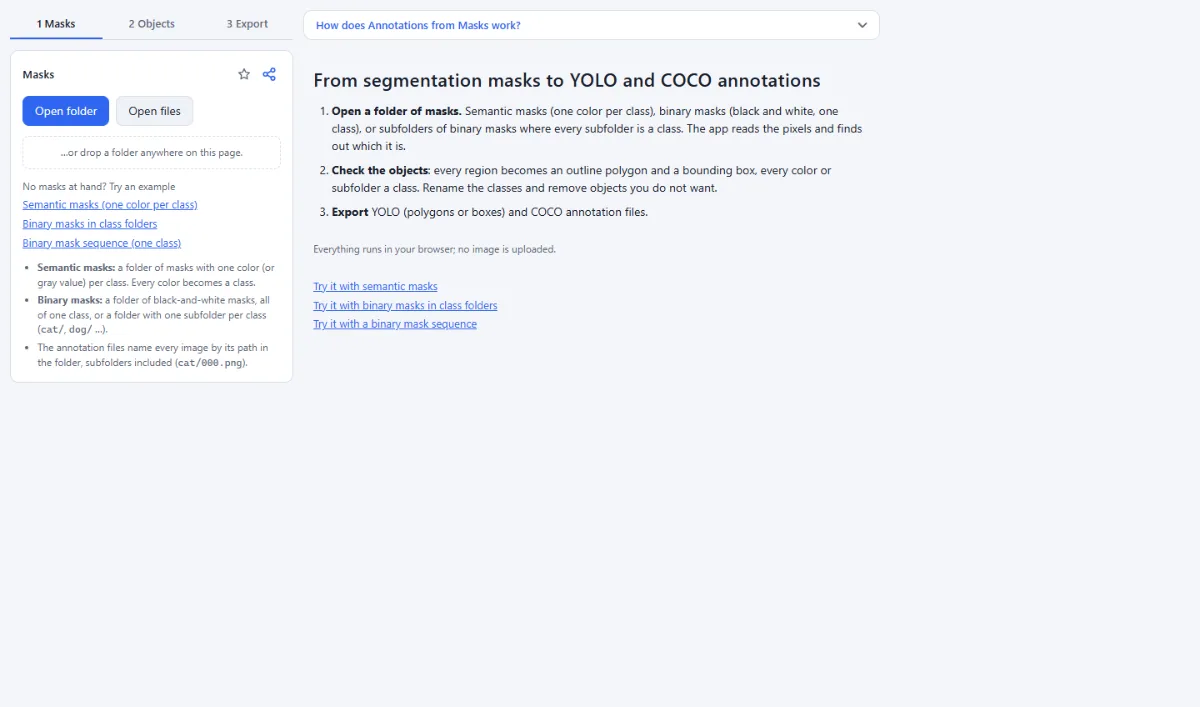
Annotations from Masks turns segmentation masks into YOLO and COCO annotation files. Open a folder of semantic masks (one color or gray value per class), of binary masks (black and white, one class), or a folder with one subfolder of binary masks per class. Every separate region becomes one object with its outline polygon and its bounding box, every color or class folder becomes a class, and you check the objects before anything is written.
The app reads the pixels of every mask to find out whether the masks are semantic or binary, and creates the classes from the colors or from the subfolders. Everything runs in your browser; nothing is uploaded.
- Semantic masks: Every color of a semantic mask is a class, and so is every gray value of masks that store class ids (0, 1, 2 …, named "class 1", "class 2" …). Black is taken as background and ignored. Every exact color counts: in a mask with up to 64 colors (32 gray values), the blend colors of anti-aliased edges become classes of their own, so tick "ignore" for them. In masks with more colors, such as noisy JPEGs in a mask folder (masks/, labels/ …) or named _mask/_label, at most 64 main colors become classes and every other pixel takes the nearest one; other images with that many colors are skipped as "not a mask".
- Binary masks, one class or a folder per class: Black-and-white masks in one folder (for example the frames of a sequence) are one class, "object". A folder with subfolders (cat/, dog/ …) makes every subfolder a class; choose "Include subfolders" when asked. Mask folders such as masks/ and split folders such as train/ and val/ are not taken for classes.
- Detected automatically: As soon as one mask has colors or more than two gray values (a few anti-aliased edge pixels around black and white do not count), the masks are read as semantic masks; otherwise as binary masks. For class-id masks with a very small class, set "Read the masks as" to "Semantic masks". "Read the masks as" switches between the two. Images with too many colors for a mask (photos) are listed as "not a mask" and skipped. Masks with transparency use the alpha channel, and noisy black-and-white JPEG masks are recognized as well.
- Polygons and boxes for every object: Connected regions become objects (touching along edges and corners, or along edges only). Small and large objects can be ignored, objects at the border skipped, touching objects split apart with a watershed. The outline is the exact contour or the convex hull, simplified to a tolerance in pixels and optionally limited to a number of points.
- Classes you can rename: Rename classes, change their display color, ignore them, or give two classes the same name to merge them.
- Check before you export: The gallery shows every mask in its class colors. Open one to see the mask file and its classes as a "Slider" or "Side by side", with the outlines and boxes of the objects and a list on the right. Click an object to remove it from the annotations; click it again to bring it back. "Check all N masks" finds the objects of every mask, shows the counts in the gallery and the totals per class.
- YOLO and COCO: COCO stores the polygon and the bounding box of every object in one annotation (one instances file per split). YOLO writes polygon lines (segmentation), box lines (detection) or both, in labels/ and labels_detect/, with data.yaml and classes.txt.
How To Use The App
- Open your masks: In the "1 Masks" tab, click "Open folder" (or "Open files"), or drop a folder anywhere on the page. For binary masks of several classes, open the folder that holds the class folders. "Add folder" adds another folder, for example a further class. To try the app first, click one of the examples. The counts show how many semantic and binary masks were found; untick a mask to exclude it from the export.
- Check the classes: Open "2 Objects". "Read the masks as" shows what was detected; change it if needed. Under "Classes" rename the classes in the name field and tick "ignore" for classes that should not be exported, such as the blend colors of anti-aliased edges (the background is ignored already).
- Set up how objects are found: Under "Finding the objects" set "Ignore objects smaller than" to drop specks, choose "Split objects that touch each other" if needed, and pick the "Polygon" type and the "Simplify the outline" tolerance.
- Review the objects: Open a mask: outlines and dashed boxes show every object, the "Objects" list on the right shows class, size and number of points. Click an object (on the mask or in the list) to remove it; click again to restore it. "← Previous" and "Next →" (or the arrow keys) go to the neighboring mask. To look only at some masks, return to the gallery with "← All images", tick them there (or click "Select all") and click "View selected": the viewer then steps through the selected masks only. For binary masks with black objects on white, choose "the dark pixels" under "The objects are". Click "Check all N masks" to see the counts in the gallery.
- Choose the annotation format: Open "3 Export". Tick "YOLO" and/or "COCO". For YOLO, "YOLO lines contain" decides between polygons, bounding boxes, or both (boxes in labels_detect/). Under "Image names in the annotation files" choose how mask names become image names ("Cut “_mask”, “_seg”, “_label” … from mask names", "Extension of the images").
- Export: Choose "Choose output folder" (Chrome and Edge) or "ZIP download", then click "Export N images". The result has labels/ and data.yaml for YOLO and annotations/instances.json (one file per split such as instances_train.json) for COCO. Your masks are never changed.
Tips
- Holes inside objects are part of the object; the polygon is the outer contour only. COCO and YOLO polygons cannot describe holes.
- A semantic mask with JPEG noise is read through its main colors when it lies in a mask folder (masks/, labels/, gt/ …) or its name ends in _mask or _label; save semantic masks as PNG to be safe.
- The annotations name the image a mask belongs to by its path in the opened folder, subfolders included (cat/000.png and dog/000.png are two images); only mask folders such as masks/ are left out. Set the extension of your images under "Extension of the images" if they are JPEGs and the masks PNGs.
- Chrome and Edge can open a folder and write the export straight into a folder. Firefox and Safari work as well and save the export as a ZIP.
- "Clear list" in the "1 Masks" tab removes all masks and starts anew. If you have removed objects, renamed classes or excluded masks, the app asks first.
Frequently asked questions
- How do I convert binary masks to COCO or YOLO?
- Open the folder with the masks. Every connected white region becomes one object with an outline polygon and a bounding box. Masks in one folder are one class; with one subfolder per class (cat/, dog/ …) every class folder becomes a class (choose "Include subfolders" when asked). The annotation files name every image with its subfolder (cat/000.png). In the Export tab choose COCO (polygon and box in instances.json, one file per split), YOLO segmentation (polygons) or YOLO detection (boxes), and save into a folder or a ZIP.
- How are semantic segmentation masks read?
- Each color (or each gray value, for masks that store class ids) becomes one class. Black is taken as background and ignored. You can rename the classes, give two classes the same name to merge them, and switch single classes off with "ignore". In a mask with up to 64 colors (32 gray values) every exact color counts, so the blend colors of anti-aliased edges become classes of their own; ignore them. Only masks with more colors, such as noisy JPEGs in a mask folder (masks/, labels/ …) or named _mask/_label, are reduced to at most 64 main colors, and every other pixel takes the nearest one; other images with that many colors are skipped as "not a mask".
- How does the app know whether my masks are binary or semantic?
- It reads the pixels. If one mask has colors or more than two gray values (a few anti-aliased edge pixels around black and white do not count), all masks are read as semantic masks; if all are black and white, as binary masks. For class-id masks with a very small class, set "Read the masks as" to "Semantic masks". You can switch it under "Read the masks as". Images with too many colors for a mask, such as photos, are skipped.
- Does a YOLO file contain polygons and boxes?
- A YOLO label line is either a polygon (segmentation) or a box (detection). You can write polygons, boxes, or both in two folders (labels/ and labels_detect/). COCO stores the polygon and the bounding box of every object in the same annotation.
- Are my masks uploaded?
- No. Masks are read from your disk, processed in your browser and the annotation files are written back to your disk. Nothing is sent to a server.
Guides
Related tools
- Annotation Studio: Boxes, polygons, keypoints & masks
- Dataset Insights: Label errors, balance, leakage
- Image Augmentation: Randomly augmented training data
- Color Palette: Colors from any image