Blur & Redact
Pixelate, blur or black out faces, number plates, names and account numbers in photos and screenshots before sharing. Irreversible and private.
Blur & Redact tutorial
Functionality
Blur & Redact hides faces, number plates, names, addresses and account numbers in photos and screenshots before you share them. You draw boxes over the sensitive areas and choose for each box whether it is pixelated, blurred or blacked out.
The redaction is irreversible: pixelate and blur reduce the area to coarse blocks in the saved file, and black boxes replace the pixels completely. Metadata and embedded preview images are removed as well. Everything runs locally in your browser, so the unredacted originals are never uploaded.
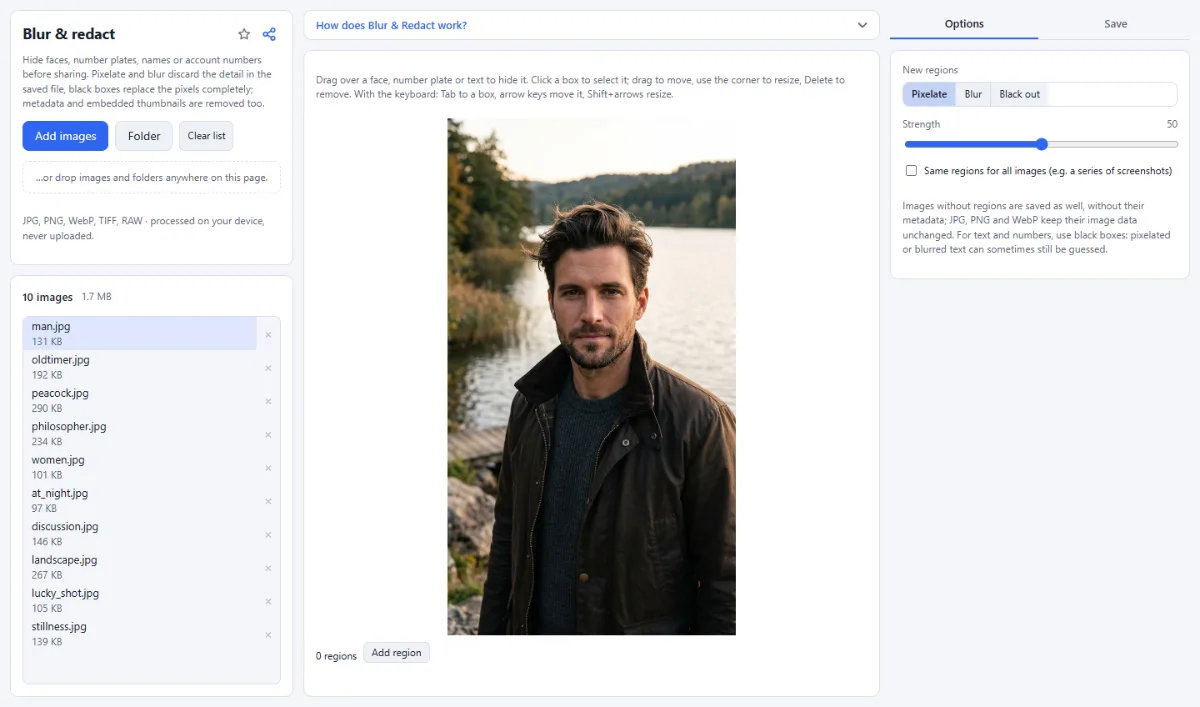
- Draw and edit boxes: Drag over the image to draw a box. Click a box to select it, drag it to move it, and drag the handle at its bottom-right corner to resize it; "Add region" places a new box in the middle of the image.
- Three redaction modes: "Pixelate", "Blur" and "Black out" are available for every box. The choice under "New regions" applies to the boxes you draw next, and a selected box can be switched with the buttons below the image.
- Strength and color: For pixelate and blur, "Strength" sets the block size; fine detail is gone at every setting, but large text can keep its outline at a low strength. Check the boxes in the editor, which shows them as they will be saved. "Black out" fills the box with the "Color" you pick, black by default.
- Per image or for all images: Normally each image gets its own boxes. With "Same regions for all images (e.g. a series of screenshots)", one set of boxes is applied at the same relative position to every image, for example to hide a name that sits in the same spot on many screenshots.
- Clean output files: All loaded images are saved, including those without boxes, and none of them keep metadata such as the GPS location or camera details. The source format is kept where possible; RAW becomes JPG and TIFF becomes PNG.
- Keyboard control: Press Tab to focus a box, then move it with the arrow keys and resize it with Shift + arrow keys; hold Alt for fine steps. Delete or Backspace removes the selected box.
How To Use The App
- Add your images: Click "Choose images" or "Folder", or drop photos and screenshots onto the page. The first image opens in the editor; click another file in the list to switch to it.
- Choose the redaction mode: Under "New regions", pick "Pixelate", "Blur" or "Black out", and set the "Strength" or the "Color".
- Draw boxes: Drag over each face, plate or line of text you want to hide, then move and resize the boxes as needed. "Remove" deletes the selected box and "Clear all" deletes all boxes on the image.
- Cover the other images: Select the next image in the file list and draw its boxes. If the sensitive areas are in the same place on every image, tick "Same regions for all images" and draw them only once; while it is ticked, boxes drawn on single images are hidden and not applied.
- Choose the target: Open the "Save" tab. For several images, choose "ZIP download" or, in Chrome and Edge, "Choose output folder" under "Target". A single image goes straight to your downloads.
- Save the redacted images: Click "Save & download"; with several images the button shows the count, for example "Save … images". At least one box must be drawn before you can save.
Tips
- Use "Black out" for text and numbers: pixelated or blurred text can sometimes still be guessed.
- Boxes are kept only while the page is open: clearing the file list or reloading the page discards them. Adding more images to the list keeps the boxes already drawn.
- Draw boxes slightly larger than the area you want to hide, so no edges of letters or faces remain visible.
Frequently asked questions
- Does the tool find faces and number plates automatically?
- No. You mark every area yourself by dragging a box over it, so check each image in the file list before saving. For screenshots with the same layout, "Same regions for all images" saves drawing the boxes again.
- Can a pixelated or blurred area be made readable again?
- No. The area is reduced to coarse blocks, from 1.5% to 6% of the shorter image side depending on "Strength" and never under 10 pixels, and the saved file contains only those blocks, so fine detail is gone rather than softened. Large text can still keep its outline at a low strength, and a guessed word can be checked against it. The image in the editor shows the boxes exactly as they will be saved, so check them there; for text and numbers, "Black out" is the safer choice.
- Why does changing "Strength" not change the boxes I already drew?
- Because "Strength" and "Color" are settings for new boxes: each box keeps the values it was drawn with. To change an existing box, select it and switch between "Pixelate", "Blur" and "Black out" below the image, or remove it and draw it again.
- How does "Same regions for all images" handle images of different sizes?
- Each box is placed at the same position relative to the width and height of every image. That fits screenshots of the same window or phone, but on images with another layout or shape a box can miss the area, so click through the file list before saving.
- Are the unredacted originals still on my computer?
- Yes. The tool never changes your files: it saves redacted copies as a download, a ZIP or, in Chrome and Edge, into an output folder, which must not be the source folder. Delete or move the originals yourself if they should not stay on the computer.
Guides
Related tools
- Remove EXIF & GPS: Share photos without location
- Watermark Images: Text, logo, frame & copyright
- Crop Images: Each photo its own crop
- Combine Images: Side by side, stacked, grid