Guides · Updated October 20, 2026
What your photos reveal: EXIF, GPS and the other metadata in image files
A photo from a phone or camera usually contains much more than the picture: the date and time to the second, the device and its settings, and, if location was enabled, GPS coordinates precise enough to point to a single building. Anyone who receives the original file can read all of it with free tools in seconds.
How far that data travels depends on how you share the file. This guide covers what is stored, which ways of sharing remove it, why one tag should survive any cleanup, how to check and clean files, and why screenshots need a different kind of care.
What is stored in a photo file
EXIF is a standard of the Japanese camera industry associations JEITA and CIPA. It stores tags in a small TIFF-style structure: in a JPG near the start of the file, in WebP and PNG in places of their own. Editing programs add further blocks, mainly XMP and IPTC. A photo can contain:
| Data | Stored in | What it reveals |
|---|---|---|
| GPS coordinates | EXIF | Where the photo was taken, often with the altitude and the direction the camera faced |
| Date and time | EXIF | When, to the second, on phones often with the time zone offset |
| Make, model, lens, software | EXIF | The device, and on phones often the system or camera software version |
| Serial number | EXIF | Common on dedicated cameras, rare on phones; links all photos from one camera, even across accounts |
| Embedded thumbnail | EXIF | A small preview of the picture, kept as a separate image |
| Editing history, keywords, ratings | XMP | Which programs touched the file, and IDs that link an edited copy to its original |
| Captions, creator, contact details | IPTC | Names, e-mail addresses and place names, mostly from photographers and agencies |
| Content credentials | C2PA | A signed record of origin and edits, which can embed the original EXIF, location included |
| Extra images | MPF | Larger previews, depth maps or HDR gain maps |
| A short video | After the end of the JPG data | The Motion Photo clip of many Android phones |
| Color profile | ICC | The color space of the picture, normally nothing personal |
The parts people overlook
GPS is the obvious risk. Other parts are less known and can be just as revealing:
- If an editor crops or retouches the main image but leaves the embedded thumbnail as it was, the uncropped original is still in the file at preview size.
- XMP document IDs can tie a cropped or retouched copy to its original file, even after renaming.
- A Motion Photo hides a clip of a few seconds, usually starting before you pressed the shutter, behind the end of the JPG data. Most viewers ignore it, but the clip can show people and surroundings that are not in the still, and it can include sound. iPhone Live Photos keep their video in a separate file instead.
- Content credentials (C2PA) are added by some cameras, phones, editors and AI image generators. They help prove origin, but because the record can carry the original metadata, deleting the location from the visible EXIF alone is not enough.
- Extra images in the Multi-Picture Format (MPF) hold depth maps or, on Android phones with Ultra HDR, the gain map that makes the photo brighter on HDR screens. Removing them is fine for privacy, but the HDR effect goes with them.
Which ways of sharing remove metadata
Many services strip metadata on upload, but there is no rule you can rely on: the same app can treat photos and files differently, and services change. This much is well established:
| How the photo is sent | Metadata | Why |
|---|---|---|
| Public post on a large social network | Usually removed from the copy others see | The image is re-encoded for display; what the service keeps from your upload is up to it |
| Chat app, sent as a normal photo | Often removed, not always | Apps that shrink photos usually drop it; others send the original |
| Chat app, sent as a document or file | Kept | The file arrives byte for byte as you sent it |
| E-mail attachment at original size | Kept | The file is attached unchanged |
| Cloud storage link or file transfer service | Kept | The recipient downloads your original file |
| Direct transfer to a nearby phone | Kept, unless you opt out | On an iPhone, tap "Options" at the top of the share sheet and turn off "Location" |
| Forums, marketplaces, small websites | Varies | Some keep the uploaded file as it is |
To test a service, upload a photo that has a location, download it the way another visitor would, and load the downloaded file into Remove EXIF & GPS. If "GPS location" appears in the list, the service passes it on. Simpler and safer: remove the metadata before the file leaves your device.
Tip: On an iPhone, Settings > Privacy & Security > Location Services > Camera > "Never" stops new photos from being geotagged. Most Android camera apps have a location switch in their own settings.
Why the orientation tag matters
Many cameras and phones save the pixels as the sensor recorded them, however you held the device, and add an orientation tag that tells viewers how to turn the picture. A portrait photo from a 12-megapixel iPhone is stored as 4032 × 3024 pixels with orientation 6: turn 90° clockwise and show it as 3024 × 4032.
- 1: show as stored. 3: turn 180°. 6: turn 90° clockwise. 8: turn 90° counterclockwise.
- 2, 4, 5 and 7 add a mirror image and are rare.
Browsers have applied the tag by default since about 2020, and so do current photo apps. Trouble comes from three directions:
- A cleaner that deletes all EXIF, orientation included, turns portrait photos sideways in every program.
- An editor that rotates the pixels but keeps the old tag makes viewers turn the photo a second time.
- Old software and some upload pipelines ignore the tag and show the stored, sideways pixels.
Remove EXIF & GPS therefore writes back a minimal tag that holds only the orientation. If a photo must look the same everywhere, old programs included, open it in Rotate & Flip with "0°" and no flip: the orientation is then baked into the pixels and no tag is needed any more, at the cost of one re-compression for JPG.
How to check and remove metadata with this site
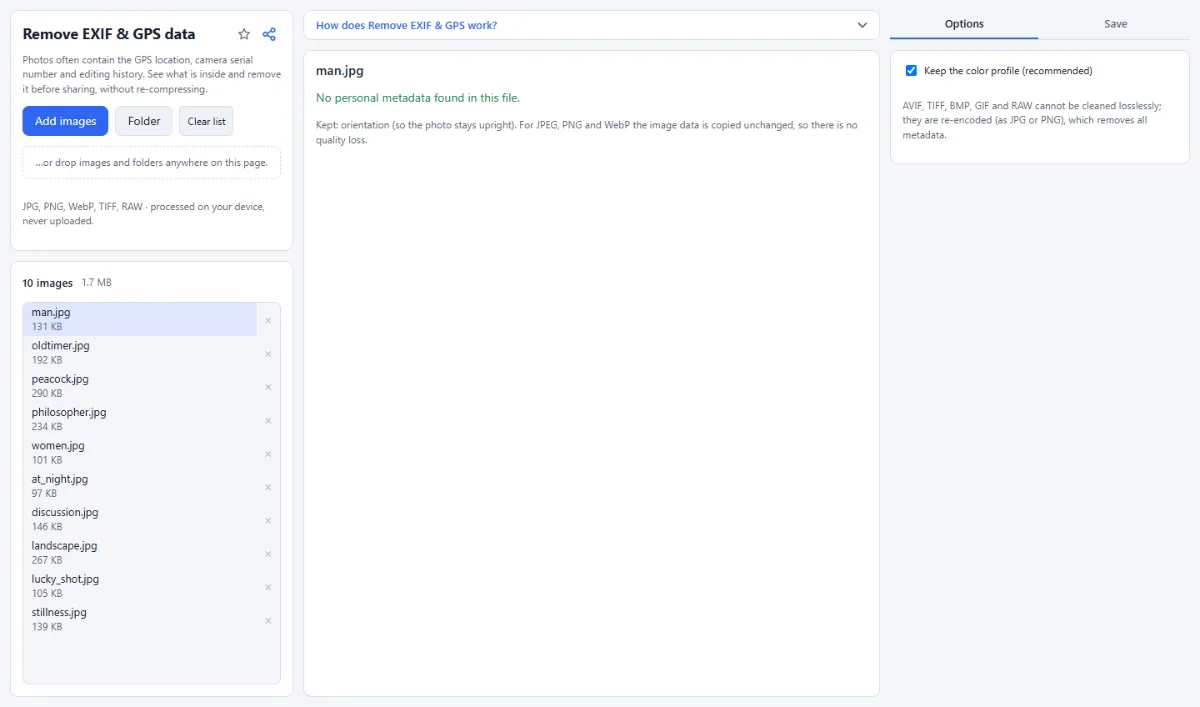
- Open Remove EXIF & GPS and add photos with "Choose images" or "Folder", or drop them on the page. They are read in the browser and not uploaded.
- Click a file. The preview shows how much metadata was found and lists it, marking entries such as "GPS location", "Serial number" or "Embedded preview image" as "private". For coordinates, "Show on map" opens the spot on OpenStreetMap.
- Leave "Keep the color profile (recommended)" switched on, so the colors stay as they were.
- Click "Remove metadata & download". With several files the button reads for example "Remove metadata from 12 images", and "Target" decides between a ZIP and an output folder.
- To verify, drop a cleaned copy into the tool: it should report "No personal metadata found in this file."
For JPG, PNG and WebP the image data is copied unchanged, so there is no quality loss. Only the orientation tag and, if kept, the color profile remain; Motion Photo clips, MPF extras and content credentials go too. AVIF, TIFF, RAW and GIF files cannot be cleaned that way: they are re-encoded as JPG or PNG, which removes everything.
Tip: The metadata list reads JPG, PNG and WebP files. For other formats, such as AVIF, TIFF or RAW, the tool says that their metadata is not listed here and that the cleaned copy, saved as JPG or PNG, contains none.
Tools that redraw the image, such as Resize Images or Convert Images, also save without metadata. That saves a step when you shrink or convert photos anyway.
Screenshots: the risk is in the pixels
Screenshots rarely carry a location or camera data, so removing metadata does little for them. What leaks is what was on the screen: names and profile pictures in a chat list, notification banners from other apps, account and order numbers, an address bar with a personal link, and barcodes. The barcode on a boarding pass, for example, encodes your name and booking reference, which can be enough to open the booking online.
To hide such details with Blur & Redact:
- Load the screenshots and drag a box over every sensitive area. For a series from the same app and device, tick "Same regions for all images (e.g. a series of screenshots)", and still check each image.
- Use "Black out" for text and numbers. Pixelated or blurred text can be guessed: the font and the block grid are often known, so someone can render candidate words, pixelate them the same way and compare. That works best on short strings with few possibilities, such as account numbers. For faces, "Pixelate" or "Blur" is enough.
- Make the boxes generous. A partly covered line can still reveal the length of a name or the shape of its letters.
- Save. The result is a new file that contains only the redacted image: no metadata, no embedded thumbnail, nothing behind the image data.
Two traps are worth knowing. A highlighter in a markup tool is semi-transparent, so the text often stays readable underneath. And in 2023 a flaw nicknamed aCropalypse in two widely used screenshot editors left the uncropped original data at the end of cropped files. Both have been fixed, but files saved before the fix still contain it: the file you share should be written fresh from the redacted pixels.
Tools for this
- Remove EXIF & GPS: Share photos without location
- Blur & Redact: Hide faces, plates, text