YouTube Thumbnail Maker
Templates for reactions, before/after, top lists and how-tos: big outlined text with glow, arrows, circles and emoji, blurred backgrounds. Saved at 1280×720 and under 2 MB.
YouTube Thumbnail Maker tutorial
Functionality
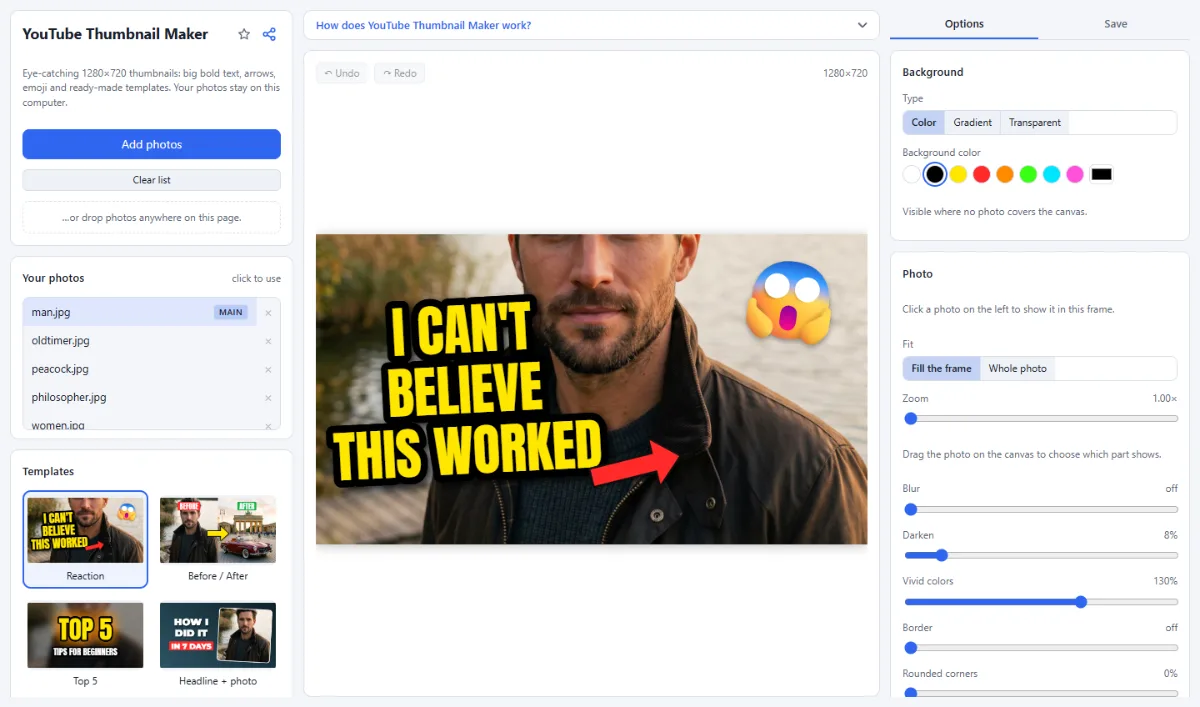
The YouTube Thumbnail Maker creates the small preview images that decide whether people click on a video: 1280×720 pixels with big, bold text, strong colors, arrows and emoji.
Start from a template (reaction, before/after, top list, headline with photo, how-to or vlog), add your photo and change the text. The thumbnail is saved at exactly 1280×720, the size YouTube recommends, and as JPG under its 2 MB limit. Your photos are never uploaded.
- Templates for typical videos: Reaction, Before / After with two photos, Top 5, Headline + photo, How-to and Vlog, each shown with your own photos.
- Text that stands out: Thick outlines, drop shadows and glow keep the text readable even as a tiny preview on a phone.
- Arrows, circles and emoji: Point at what matters with arrows, circles and frames in any color, or add an emoji reaction.
- Photo effects: Blur or darken the background photo, make colors more vivid, or place a photo in a frame with a border and rounded corners.
- Ready for YouTube: Saved at 1280×720; as JPG, the quality is lowered just enough to stay under the 2 MB limit.
How To Use The App
- Open your photos: Click "Open photos" or drop them onto the page. For "Before / After", open two photos.
- Pick a template: Choose a template on the left. Click a photo in your list to put it into the selected photo frame.
- Change the text: Click a text on the canvas and type in the "Options" tab. Keep it short: three to five words work best.
- Add arrows and emoji: Use the stickers under "Add", drag them into place and resize them with the corner handle.
- Save: Open the "Save" tab, click "Save image" and upload the file in YouTube Studio.
Tips
- Look at your thumbnail at a small size: if you cannot read the text, make it bigger or shorter.
- Faces with a clear emotion and strong contrasts often get more clicks.
- Ctrl+Z undoes any change, even switching to another template.
Frequently asked questions
- Which size and file format should a YouTube thumbnail have?
- YouTube recommends 1280×720 pixels (16:9) and accepts files up to 2 MB; this app always saves exactly 1280×720. Keep JPG, which is preselected: its quality is lowered step by step until the file is under 2 MB. PNG is not reduced and can exceed the limit with detailed photos; the message after saving then says so.
- Can I use a frame from my video as the background?
- Yes. Extract it first with Video to Sequence, which saves the frames of a time range as images, then open the image here. A frame from a 1080p or 4K video has enough pixels for 1280×720. If the frame is blurred by motion, "Blur" and "Darken" on the photo turn it into a calm background for the text.
- Can I reuse my design for the next video?
- Yes. The design, with template, texts, colors and stickers, is remembered in this browser. Open the photo for the next video: it takes the place of the main photo, and you only change the text before saving. The photos themselves are not kept, so after reloading the page open them again.
- Can I make thumbnails in other sizes?
- No. This app always saves 1280×720, the 16:9 shape YouTube uses. For a vertical 9:16 image or a square post with the same kind of bold text, use the Text & Meme Maker with "Story" (1080×1920) or "Square" (1080×1080); the Social Media Studio fits a photo into the formats of other platforms.
- Can I make a thumbnail with only text and no photo?
- Yes. Click the empty photo frame and then "Delete"; the settings then show "Background", where you choose a color or a gradient for the whole thumbnail. Texts, arrows and emoji are added as usual.
Related tools
- Text & Meme Maker: Memes · Captions · Quotes
- Photo Effects: Film · Vintage · Noir · Manga
- Social Media Studio: All formats · Carousels · Grids
- Before / After: Sliders · Wipe videos · GIF