Image Augmentation
Geometric, photometric, noise and occlusion operations with min/max ranges and probabilities. YOLO labels are transformed along.
Image Augmentation tutorial
Functionality
Image Augmentation turns a YOLO dataset into a larger, randomly varied training set. You pick from 20 geometric, photometric, noise and occlusion operations, give each one a probability and a min/max range for its values, and the app writes several random variants of every image together with matching YOLO labels.
Operations that move pixels (rotation, flip, affine, perspective, crop, scale) transform the boxes, polygons and pose keypoints along, so the labels stay correct. A fixed seed makes every run reproducible. All images are processed locally in your browser and never uploaded.
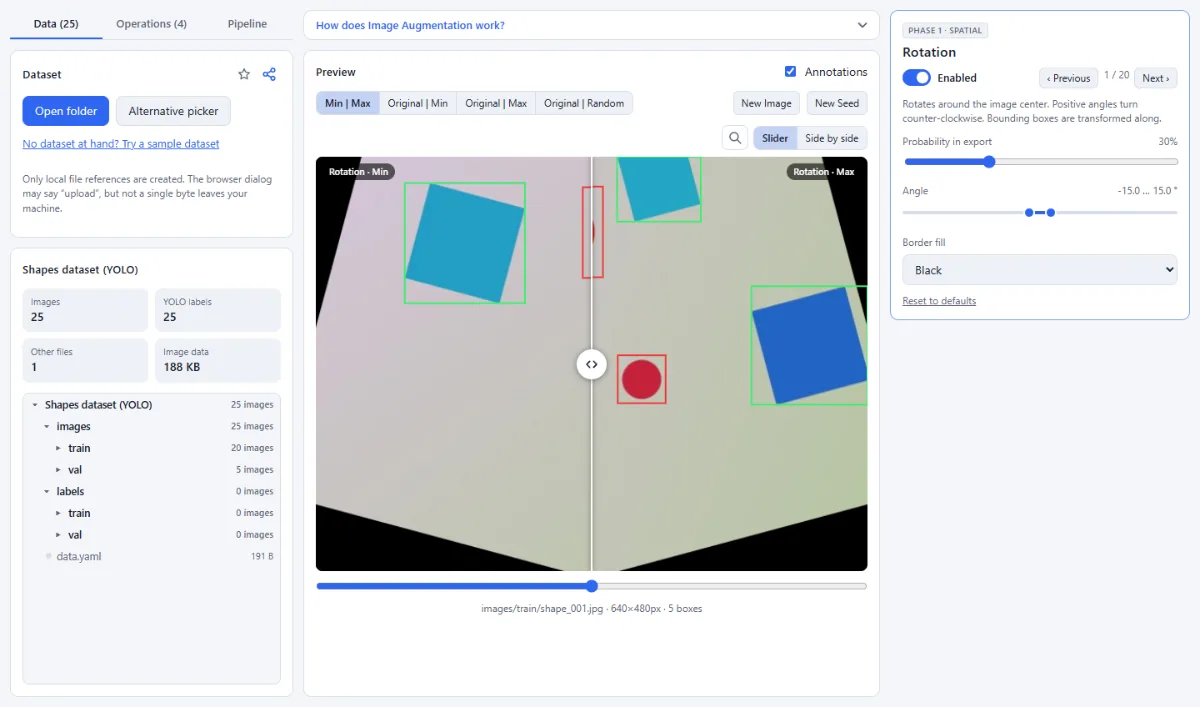
- Five fixed pipeline phases: Operations run top to bottom in a fixed order that mirrors how an image is formed: "1 · Spatial", "2 · Crop & scale", "3 · Photometric", "4 · Sensor artifacts & noise" and "5 · Occlusion". Each enabled operation fires independently with its own probability.
- Probabilities and value ranges: Every operation has a "Probability in export" slider, and its numeric parameters have a min/max range from which a random value is drawn for each variant. "Max operations / image" caps how many of the drawn operations are applied; 0 means only the probabilities decide.
- Labels transformed along: YOLO boxes and polygons are transformed exactly, without resampling. Pose keypoints are mapped point by point; on mirrored images the flip_idx from data.yaml swaps left and right keypoints, and without flip_idx they keep their order. "Min. box visibility" drops boxes that have mostly left the image.
- Min, max and random preview: The split view compares the selected operation at its extremes: "Min | Max", "Original | Min", "Original | Max" or "Original | Random". In the random view you can draw only the selected operation ("Operation only") or the whole pipeline exactly as the export will produce it ("Full pipeline").
- Reproducible with a seed: The "Seed (reproducible)" field fixes all random draws, so the preview and the export produce the same variants every time. "New Seed" draws a new one.
- Shareable pipeline: Under "Share" you can copy a link that contains the whole pipeline, or save it as augmentation.pipeline.json with "Export JSON" and load it again with "Import JSON". Operations, probabilities, ranges and the seed are included, so a team trains with identical settings.
How To Use The App
- Open a dataset folder: In the "Data" tab, click "Open folder" and choose a folder with images and YOLO label files (labels/*.txt, data.yaml for pose datasets). To try the app first, click "No dataset at hand? Try a sample dataset". The file tree then shows all images; click one to preview it.
- Enable the operations: Switch to the "Operations" tab. Tick the checkbox in front of an operation to enable it, and click its name to open it in the editor on the right. Flip, Rotation, Brightness and Contrast are enabled by default.
- Set probability and ranges: In the editor, set "Probability in export" and the min/max range of each value, for example the angle range of "Rotation" or the "Quality" range of "Compression artifacts (JPEG)". "Reset to defaults" restores the operation’s original settings.
- Check the effect in the preview: Use "Min | Max" to see both ends of the range side by side, then "Original | Random" with "Full pipeline" to step through the variants the export will create. "New Image" shows a random other image of the dataset.
- Configure the output: In the "Pipeline" tab, set "Variants per image" (1 to 50), "Max operations / image" and whether to "Also copy the unchanged originals". The summary line shows how many images the run will produce. Under "Pipeline rules" choose the "Image interpolation" and the "Min. box visibility".
- Generate the augmented dataset: Under "Export", choose "Choose output folder" (Chrome, Edge) or "ZIP download", pick a "Format" ("Same as source", PNG, JPEG or WebP) and keep "Include YOLO labels" ticked. Click "Generate … images": each variant and its label file get the same suffix, such as a_aug01.jpg and a_aug01.txt, and the folder structure is preserved.
Tips
- Keyboard: ↑/↓ select the operation, Space turns it on or off, 1–4 switch the view, ←/→ step through the variants, N shows a new image and S draws a new seed.
- Operations without value ranges (for example "Flip") compare the original against the operation in every view except "Full pipeline".
- The ZIP download is limited to 4 GB and 65,535 files. For large runs, export into a folder in Chrome or Edge.
Frequently asked questions
- Can I augment COCO annotations or segmentation masks?
- No. The app reads YOLO label files only: boxes, segmentation polygons and pose keypoints. Convert a COCO dataset to YOLO in the Annotation Studio first, and turn mask PNGs into YOLO polygons with Annotations from Masks; the polygons then follow every geometric operation.
- Are my validation and test images augmented too?
- Yes. Every image in the opened folder is augmented, whatever split it is in. To keep val and test untouched, open a folder that contains only the training split with its labels, for example train/ with images/ and labels/ inside, and copy the other splits over unchanged.
- Is data.yaml copied into the augmented dataset?
- Yes, with "Include YOLO labels": data.yaml (and other .yaml files), classes.txt and .names files in the opened folder go into the export unchanged, at their place in the folder structure of the source. Class ids are not changed and relative paths in data.yaml still fit; if data.yaml sets "path:" to the original dataset, point it to the output folder before training. kpt_shape and flip_idx of pose datasets are kept.
- What happens to labels when an image is rotated or cropped?
- Box corners are transformed and the new box encloses them, so after a rotation a box label is looser than the object; polygon labels get a tight box from their transformed outline. The transformed shape is first cut at the image edge, so an object pushed partly out of the image gets a box around its visible part. Labels are dropped when less than "Min. box visibility" of their area remains. Keypoints that leave the image are marked as not labeled.
- What happens to labels under Cutout and Random erasing?
- They are kept unchanged. A hole or erased rectangle can therefore cover an object completely while its box stays in the label file. Keep "Edge length" and "Area" small enough that objects remain recognizable, or lower the probability of these operations for datasets with small objects.
- Does it support Mosaic or MixUp?
- No. Every variant is made from a single image and its own labels; operations that combine several images, such as Mosaic, MixUp or Copy-Paste, are not included. Training frameworks such as Ultralytics YOLO apply Mosaic on the fly during training, so the two approaches complement each other.
Guides
Related tools
- Annotation Studio: Boxes, polygons, keypoints & masks
- Annotations from Masks: Segmentation masks → COCO / YOLO
- Dataset Insights: Label errors, balance, leakage
- Resize Images: By pixels, percent or long side