Comic Maker
Multi-page comics from your own photos: page layouts with 1 to 9 panels, speech, thought and shout bubbles, captions. Saved as a PDF or as images.
Comic Maker tutorial
Functionality
The Comic Maker turns your photos into a comic with as many pages as you like: holiday stories, birthday surprises, a photo story for a school project or a funny strip about your pet.
Pick a page layout with 1 to 9 panels, drag your photos into the panels and add speech bubbles, thought bubbles, shouts and captions. Save the comic as a PDF to print or share, or as one image per page. Everything happens in your browser; your photos are never uploaded.
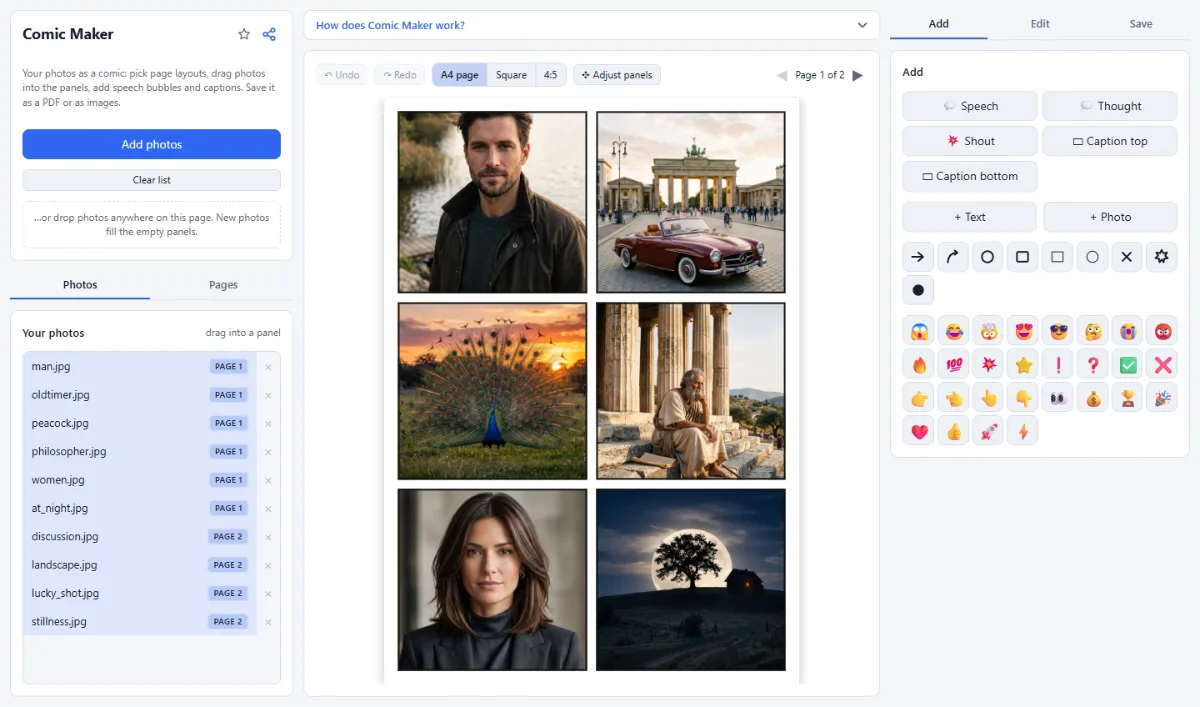
- Page layouts: 15 classic comic layouts from a single splash page to a 9-panel grid, with adjustable gutters and black panel borders.
- Photos in panels: Drag a photo from your list into a panel, or click it. New photos fill the empty panels automatically and add pages when needed. Drag a photo inside its panel to choose what shows.
- Speech bubbles: Speech, thought and shout bubbles with a tail you point at the speaker, and captions at the top or bottom of a panel, in a comic font.
- Many pages: Add, duplicate, reorder and delete pages; the page previews show the whole comic at a glance.
- Save: One PDF with all pages (A4 for printing, or square and 4:5 for social media carousels), or PNG or JPG images, one per page, in a ZIP (a single page is saved as one image).
How To Use The App
- Open your photos: Click "Open photos" and select the photos of your story. They fill the panels page by page, in the order of their file names.
- Choose layouts: In the "Pages" tab on the left, select a page and pick a layout under "Page layout". To put another photo into a panel, drag it there from the "Photos" tab.
- Add the words: Select a panel and click "Speech", "Thought", "Shout" or a caption under "Add". Type the text on the right and drag the red handle to point the tail at the speaker.
- Save: In the "Save" tab on the right, choose PDF or images and click "Save comic".
Tips
- Short texts read best: one or two sentences per bubble.
- The "Gutter" and "Border" sliders under "Panels" in the "Pages" tab apply to every page, so the whole comic keeps an even look.
- For an Instagram carousel, choose the 4:5 or square page size and save as images.
Frequently asked questions
- Which page sizes can I save, and at what resolution?
- "A4 page" is 1654 × 2339 pixels, which prints at 200 dpi on A4. "Square" (2048 × 2048) and "4:5" (1638 × 2048) suit social media carousels. In the "Save" tab you choose "PDF" for one file with all pages, or "PNG images" or "JPG images", which arrive as a ZIP when the comic has more than one page.
- How many photos and pages can a comic have?
- New photos fill the empty panels page by page and add pages with the "6 grid (classic)" layout as needed, up to 24 pages. Beyond that, add pages with "+ Page" in the "Pages" tab and drag the remaining photos into their panels. A page holds 1 to 9 panels, depending on its layout.
- Can I change the size of single panels?
- Yes. Click "Adjust panels" above the page and drag the gutters between the panels: the panels on both sides grow and shrink, down to a minimum of 6 % of the page. Texts and bubbles keep their position. Clicking a layout under "Page layout" resets the panels of the page.
- How do I turn my comic into a video?
- In the "Save" tab, click "Send to Video Maker". The pages are rendered as images and opened in the Slideshow Video Maker with the motion "Scroll (tall images)", so each page moves from top to bottom, with at least 5 seconds per page and the "Slide" transition. If the Slideshow Video Maker already holds photos, you are asked before they are replaced.
- What is kept when I close the page?
- Pages, layouts, texts and speech bubbles are kept in this browser, but the photos themselves are not stored. After a reload the panels are empty: open the same photos again and they fill the empty panels page by page.
Related tools
- Slideshow Video Maker: Photos to MP4 · Reels · Stories
- Collage Maker: Grids & mosaics · 2–9 photos
- Text & Meme Maker: Memes · Captions · Quotes
- Photo Effects: Film · Vintage · Noir · Manga