Crop Images
Crop a whole batch at lightspeed: every photo keeps its own frame and aspect ratio (1:1, 4:5, 16:9, 9:16 …), or one crop goes to all with a click.
Crop Images tutorial
Functionality
Crop Images crops a whole batch of photos at lightspeed. Every image keeps its own crop: click through your list, move and size the frame on each photo, pick its aspect ratio (such as 1:1, 4:5, 16:9, 9:16 or free), and save them all in one go, each with its own framing.
When one framing fits them all, "Apply crop to all" gives every image the crop of the photo you are looking at, adjusted to each one's shape. Cropping runs locally in your browser; your images stay on your device.
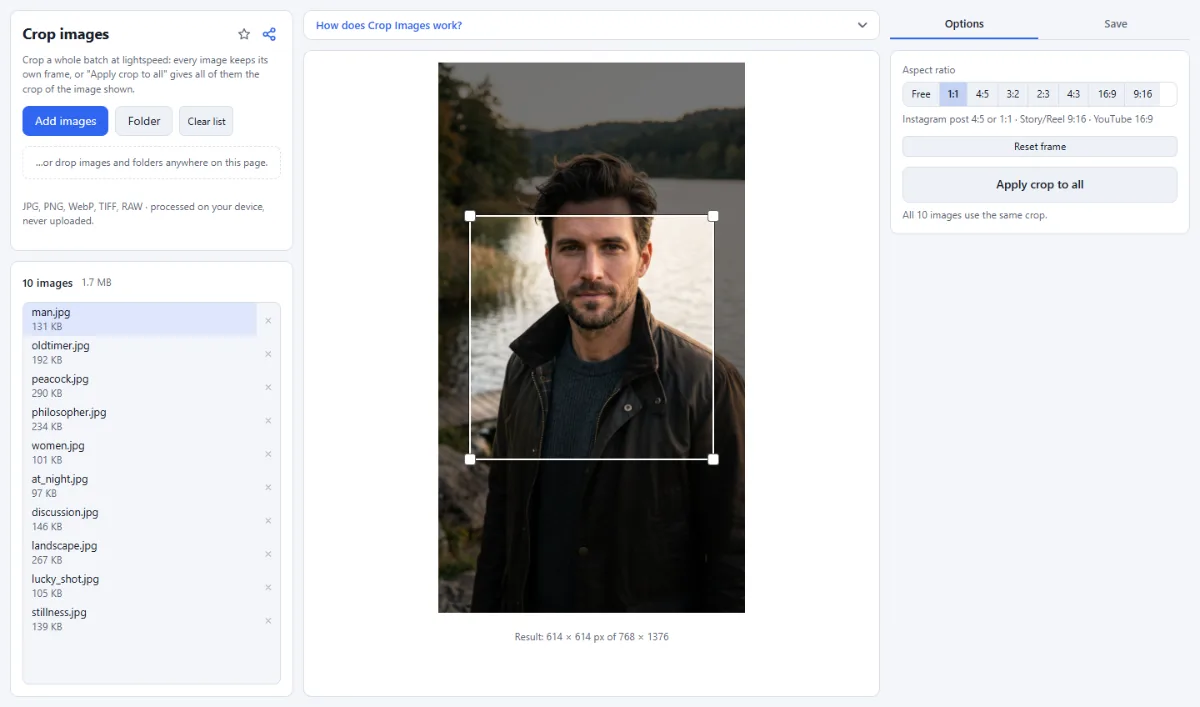
- Common aspect ratios: Under "Aspect ratio" choose "Free", "1:1", "4:5", "3:2", "2:3", "4:3", "16:9" or "9:16". A hint lists the usual choices: Instagram post 4:5 or 1:1, Story/Reel 9:16, YouTube 16:9.
- Interactive frame: Drag the frame to move it and drag its corners to resize it. With a fixed ratio, the frame keeps that ratio while you resize.
- Its own crop for every image: Change the frame or the aspect ratio of the image shown, and that image keeps its crop: switch to the next photo, crop it differently, and come back to find the first one as you left it. Images you have not touched use the shared crop.
- Apply crop to all: With several images loaded, "Apply crop to all" gives every image the crop of the image shown. With a fixed ratio, each image is cropped to exactly that ratio around the same center, adjusted to its own shape; with "Free", the same relative area is cut from every image. A line below the button says how many images have their own crop.
- Exact result size: Below the preview, the line "Result: … × … px of … × …" shows the pixel size of the crop for the selected image.
- Keyboard control: Select the frame with the Tab key, then use the arrow keys to move it and Shift plus the arrow keys to resize it. Hold Alt for finer steps.
- Format and quality: Under "Save as" keep the format ("Same") or choose "JPG", "PNG" or "WebP"; "Quality" applies to JPG and WebP.
How To Use The App
- Add your images: Click "Choose images" or "Folder", or drop files and folders onto the page.
- Choose an aspect ratio: Select a ratio under "Aspect ratio", for example "4:5" for an Instagram post, or "Free" for any shape.
- Position the frame: Drag the frame on the preview and pull its corners until the crop looks right. Click "Reset frame" to start this image again from the whole picture.
- Crop image by image, or all at once: Click the next file in the list and adjust its frame: every image remembers its own crop. If one framing fits all, click "Apply crop to all" instead.
- Set format and quality: In the "Save" tab, choose "Same", "JPG", "PNG" or "WebP" under "Save as" and adjust "Quality" for JPG and WebP.
- Crop and save: Open the "Save" tab in the right sidebar and click "Crop … images" (or "Crop & download" for one image). Several images go into a ZIP or, in Chrome and Edge, into an output folder, with the folder structure kept.
Tips
- The frame works on the upright image: photos with an EXIF orientation are cropped as they are displayed.
- Fastest workflow for a big batch: set the crop on a typical photo, click "Apply crop to all", then only fix the few photos that need a different framing.
- The aspect ratio is remembered in this browser for your next visit; new images always start with the centered frame. The crops of single images belong to the current list and start afresh with "Clear list".
- To crop and then bring every image to the same pixel size, run Resize Images on the result.
Frequently asked questions
- How do I crop to an exact pixel size such as 1080 × 1350?
- Use Resize Images for that: Crop Images sets the shape of the frame, not the pixel size. In Resize Images choose "Exact", enter 1080 and 1350 and select "Crop" under "When the shape changes"; you can drag the frame on each image there as well.
- Does cropping reduce the resolution of the photo?
- No. The pixels inside the frame keep their original size; the result simply has fewer of them, as the "Result" line below the preview shows. JPG and WebP files are saved again at the "Quality" setting, 92 by default, and PNG files are saved losslessly.
- Can I use a custom aspect ratio such as 5:7?
- No. Besides "Free", the tool offers 1:1, 4:5, 3:2, 2:3, 4:3, 16:9 and 9:16. For any other shape, use "Free" and check the pixel size in the "Result" line, or enter a matching width and height under "Exact" in Resize Images.
- Can I straighten a tilted photo?
- No. The crop frame is always level and the tool does not rotate images by small angles. To turn a photo by 90 or 180 degrees or to mirror it, use Rotate & Flip before cropping.
- Does the cropped photo still contain the cut-off parts or the EXIF data?
- No. The saved file holds only the pixels inside the frame and no metadata. That matters because many camera photos carry an embedded preview image in their EXIF data that would still show the uncropped picture; it is removed together with the GPS location and camera details.
Related tools
- Resize Images: By pixels, percent or long side
- Social Media Studio: All formats · Carousels · Grids
- Rotate & Flip: Fix sideways photos
- Combine Images: Side by side, stacked, grid