Images to PDF
Combine photos, scans and screenshots into one PDF in any order, as A4, Letter or image size. JPEGs are embedded without re-compression.
Images to PDF tutorial
Functionality
Images to PDF combines photos, scans and screenshots into a single PDF document, for example ID cards, receipts, contracts or handwritten notes. Each image becomes one page, in the order you choose, on A4, Letter or a page the size of the image.
By default, JPEG files are embedded without re-compression, so the pages keep their full quality and the PDF stays small. The PDF is created locally in your browser, which matters for personal documents: nothing is uploaded.
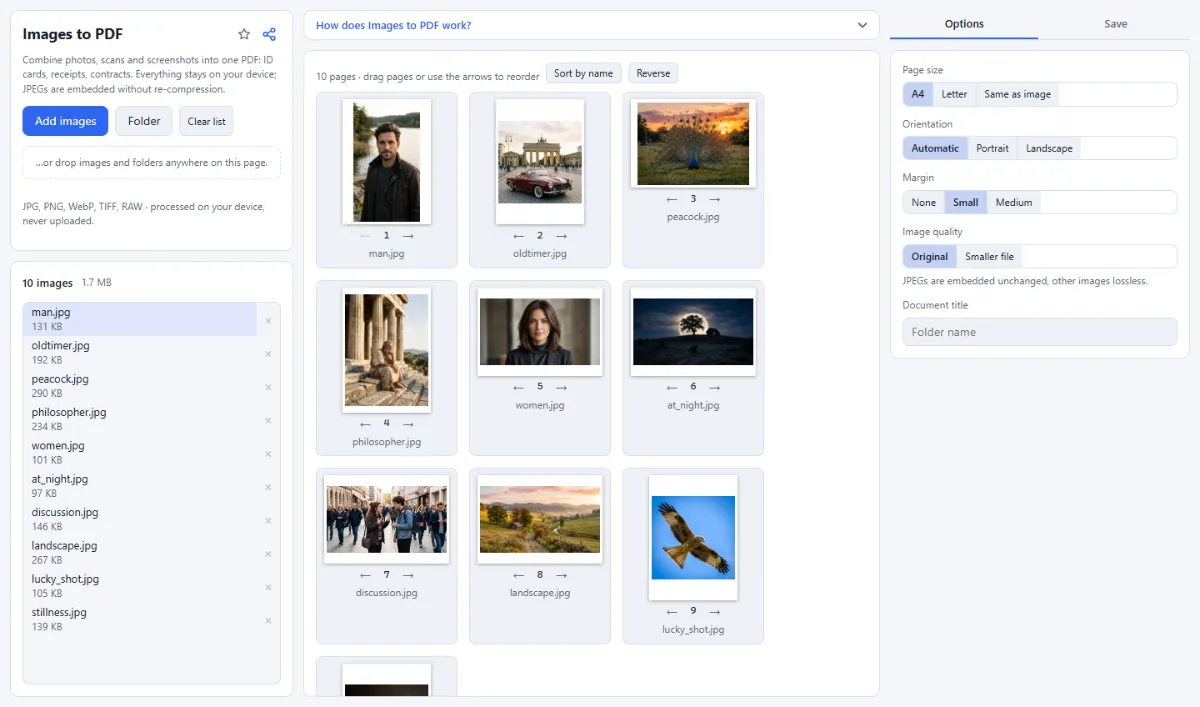
- Page order: All images appear as page thumbnails in the preview. Drag a page to a new position or use the arrow buttons below it; "Sort by name" and "Reverse" reorder all pages at once.
- Page size and orientation: "Page size" offers "A4", "Letter" and "Same as image". For A4 and Letter, "Orientation" can be "Automatic" (landscape images get landscape pages), "Portrait" or "Landscape"; each image is scaled to fit and centered on its page.
- Margins: "Margin" puts "None", "Small" or "Medium" white space around each image. The page thumbnails show the exact layout while you change these settings.
- Original or smaller file: With "Image quality" set to "Original", JPEGs are embedded unchanged and all other images lossless. "Smaller file" reduces every image to at most 2000 px on the long side and stores it as JPEG (small JPEGs stay as they are), which suits e-mail attachments.
- Clean, upright pages: GPS location, camera serial number and embedded thumbnails are removed from JPEGs before they go into the PDF. The orientation of phone photos is respected, and transparent areas become white like paper.
- Document title: The "Document title" is stored in the PDF properties and used as the file name. If you leave it empty, the name of the loaded folder is used, or a general name such as "Selection" for images added without a folder.
How To Use The App
- Add your images: Click "Choose images" or "Folder", or drop the files onto the page. Besides JPG, PNG and WebP, TIFF scans and camera RAW files work too.
- Arrange the pages: Drag the page thumbnails into the right order or move them with the ← and → buttons. Use "Sort by name" for numbered scans or "Reverse" to flip the order.
- Set up the pages: Choose "Page size", "Orientation" and "Margin". The thumbnails update immediately to show how each page will look.
- Choose the image quality: Keep "Original" for the best quality, or pick "Smaller file" when the PDF has to be small enough for e-mail.
- Name the document: Enter a "Document title". It becomes the title in the PDF properties and the file name, for example "Contract.pdf".
- Create the PDF: Open the "Save" tab in the right sidebar and click "Create PDF (… pages)". The PDF is saved directly to your downloads.
Tips
- "Automatic" orientation picks portrait or landscape for each page separately, so documents with mixed scans need no manual setting.
- "Same as image" makes every page as large as its image (at 96 dpi) plus the chosen "Margin", which suits screenshots and slides.
- Photos straight from a phone are often several megabytes each; "Smaller file" keeps a PDF of many pages manageable.
- Your page settings are remembered in this browser; the page order is kept only while the page is open.
Frequently asked questions
- Why is my PDF so large?
- With "Image quality" set to "Original", only JPEGs are embedded as they are; all other formats, such as PNG, WebP, TIFF or RAW, are stored lossless, which for photos can take many times the size of the source file. Choose "Smaller file": every image is limited to 2000 pixels on the long side and stored as JPEG at quality 82; a JPEG that is already smaller goes in as it is.
- Can I search or copy the text in the PDF?
- No. Each page holds a picture of the document, not text, so a PDF reader cannot search or select it. To get the text, run the same images through Image to Text and keep the text files alongside the PDF.
- Can I add pages from an existing PDF?
- No. The tool accepts images only. Turn the pages of the existing PDF into images with PDF to JPG first, then add those images here together with the others.
- In which order are the pages added?
- By name, with the numbers in the names compared by their value, so scan2.jpg comes before scan10.jpg; images in folders stay together. Once you change the order (by dragging, the arrows, "Sort by name" or "Reverse"), images added later are appended at the end.
- Why does a small image look blurry in the PDF?
- On "A4" and "Letter" pages every image is scaled to fill the page within the margins, so a small image is enlarged, for example a screenshot 600 pixels wide to the full page width. Choose "Same as image" to keep each page at the size of its image, or use a larger original.
- Can I create several PDFs at once?
- No. All images in the list go into one PDF, in the order shown. For the next document, click "Clear list", add its images and create the PDF again; your page settings stay as they are, including the "Document title", so change it for a new file name.
Related tools
- Convert Images: JPG · PNG · WebP
- Compress Images: Smaller files, same look
- Combine Images: Side by side, stacked, grid
- Rotate & Flip: Fix sideways photos