Convert Images
Convert between JPG, PNG and WebP, and from TIFF, AVIF and camera RAW. Batch conversion in your browser.
Convert Images tutorial
Functionality
Convert Images turns your pictures into JPG, PNG or WebP. Besides the common web formats it also opens TIFF files and camera RAW files, so you can bring almost any image into a format that every program and website accepts.
You can convert a single file or whole folders in one run. The conversion happens on your device, and no file is uploaded.
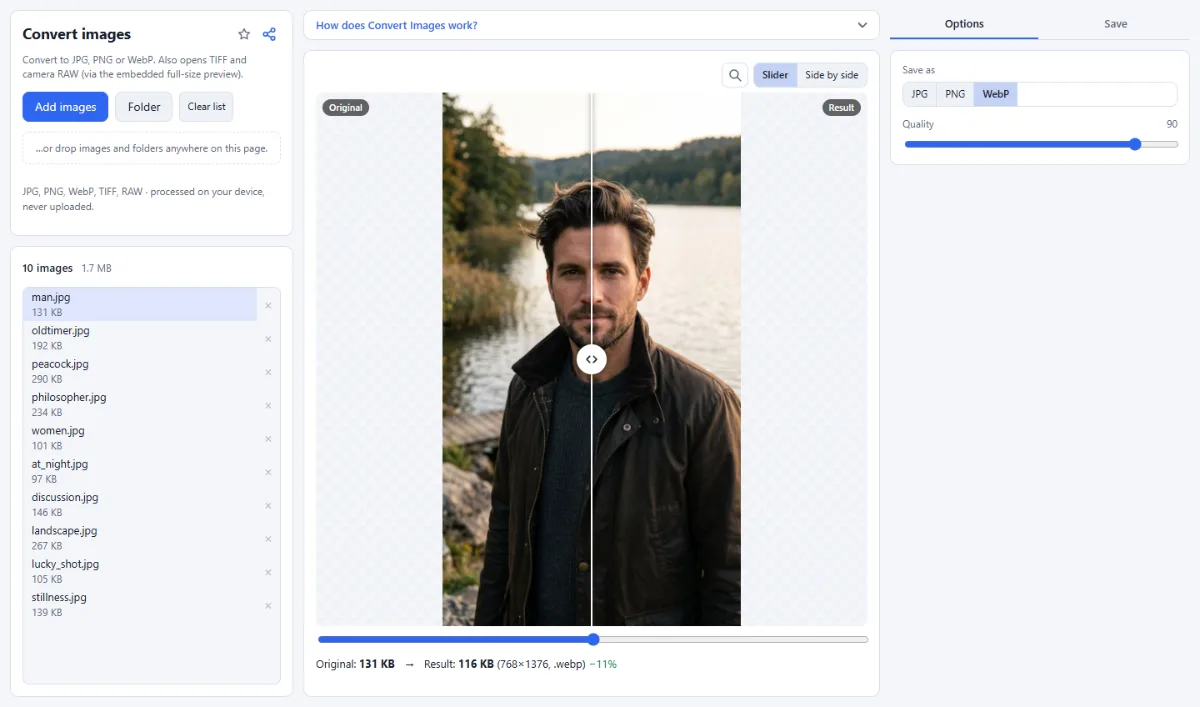
- Many input formats: Reads JPG, PNG, WebP, GIF, BMP and AVIF, plus TIFF and camera RAW (for example DNG, CR2, CR3, NEF, ARW, ORF, RW2 and RAF).
- Three output formats: Under "Save as" choose "JPG" for maximum compatibility, "PNG" for lossless images with transparency, or "WebP" for small files on the web. WebP is preselected.
- Quality control: For JPG and WebP, the "Quality" slider sets the compression. PNG is lossless and has no quality setting.
- Transparency in JPG: JPG has no transparency. When you save as JPG, transparent areas are filled with the color chosen under "Background for transparency" (white by default).
- Camera RAW via preview: RAW files are converted from the full-size JPEG preview that the camera embeds in the file. This is fast and looks like the camera’s own rendering, but it is not a full RAW development.
- Folders and structure: Choose a folder; if it has subfolders, you are asked whether to include them. The converted files are saved with the same structure, each with the new file extension.
How To Use The App
- Add your images: Click "Choose images" or "Folder", or drop files and folders onto the page.
- Choose the target format: In the "Options" tab, under "Save as", select "JPG", "PNG" or "WebP".
- Adjust quality and background: For JPG and WebP, set the "Quality" slider. For JPG, pick a "Background for transparency" if your images contain transparent areas.
- Check the preview: Click a file in the list to compare "Original" and "Result". The line below shows the new file size, dimensions and extension.
- Choose where to save: Open the "Save" tab. Under "Target", choose "Download" or "Choose output folder" for a single image; for several images, "ZIP download" or, in Chrome and Edge, "Choose output folder".
- Convert: Click "Convert … images" (or "Convert & download" for one image); "Convert current" saves only the image shown. The summary shows how many files were saved and the total size before and after.
Tips
- If two files would end up with the same name (for example "a.jpeg" and "a.jpg" converted to JPG), the second one is saved as "a_2.jpg" instead of overwriting the first.
- Converted files contain the image only, without EXIF metadata such as camera model or GPS location.
- The decoders for TIFF and RAW are loaded only when such a file is opened for the first time.
Frequently asked questions
- Which output format should I choose: JPG, PNG or WebP?
- For photos, choose JPG for maximum compatibility or WebP for smaller files; for screenshots, logos and images with transparency, choose PNG or WebP. JPG softens sharp edges and text slightly and fills transparent areas with the "Background for transparency" color, while PNG keeps every pixel exactly.
- Why is my converted RAW file smaller than the resolution of my camera?
- The converter uses the JPEG preview that the camera stores inside the RAW file and takes the largest one it finds. Most current cameras store it at full resolution, some only at a reduced size. If a RAW file contains no preview the browser can decode, it is marked with an error instead.
- What happens to multi-page TIFF files?
- Only one image is converted: the largest one in the file. That skips the small thumbnails many TIFF files contain, but it also means that the other pages of a multi-page scan are not saved.
- Can I convert to AVIF, GIF, TIFF or ICO?
- No. The converter writes JPG, PNG and WebP only; AVIF, GIF, TIFF and camera RAW are input formats. For a favicon.ico and app icons made from a logo, use Favicon & App Icons.
- What happens to 16-bit and very large images?
- Browsers work with 8 bits per color channel, so 16-bit PNG and TIFF files are saved with 8 bits; for viewing and sharing that makes no visible difference, for heavy editing later keep the original. WebP allows at most 16,383 pixels per side: a wider or taller image is scaled down to fit when saved as WebP, and the result says so; JPG and PNG keep the full size. Images above about 268 megapixels are too large for Chrome and Edge and are marked with an error.
- Do animated GIFs stay animated?
- No. A GIF is read as a single picture, so the converted file is a still image of the first frame. The animation is lost in all three output formats.
- Are TIFF and RAW files sent to a server for decoding?
- No. The decoding code for these formats is downloaded from this site the first time such a file is opened and then runs in a background worker in your browser. The photos themselves are read from your disk and never uploaded.
Guides
Related tools
- Compress Images: Smaller files, same look
- Resize Images: By pixels, percent or long side
- Remove EXIF & GPS: Share photos without location
- Images to PDF: JPG, PNG, scans → one PDF