Resize Images
Resize one photo or a whole folder to exact pixels, a maximum side or a percentage, with border, crop or stretch.
Resize Images tutorial
Functionality
Resize Images changes the pixel dimensions of one photo or a whole folder at once. You can set the longest side, a width, a height, exact pixel dimensions or a percentage, and choose how images with a different aspect ratio are fitted. All images get the same options, or, with "Apply to all" turned off, each image its own.
Downscaling uses multi-step filtering, so even large reductions stay sharp instead of jagged. Everything runs locally in your browser; your images are never uploaded.
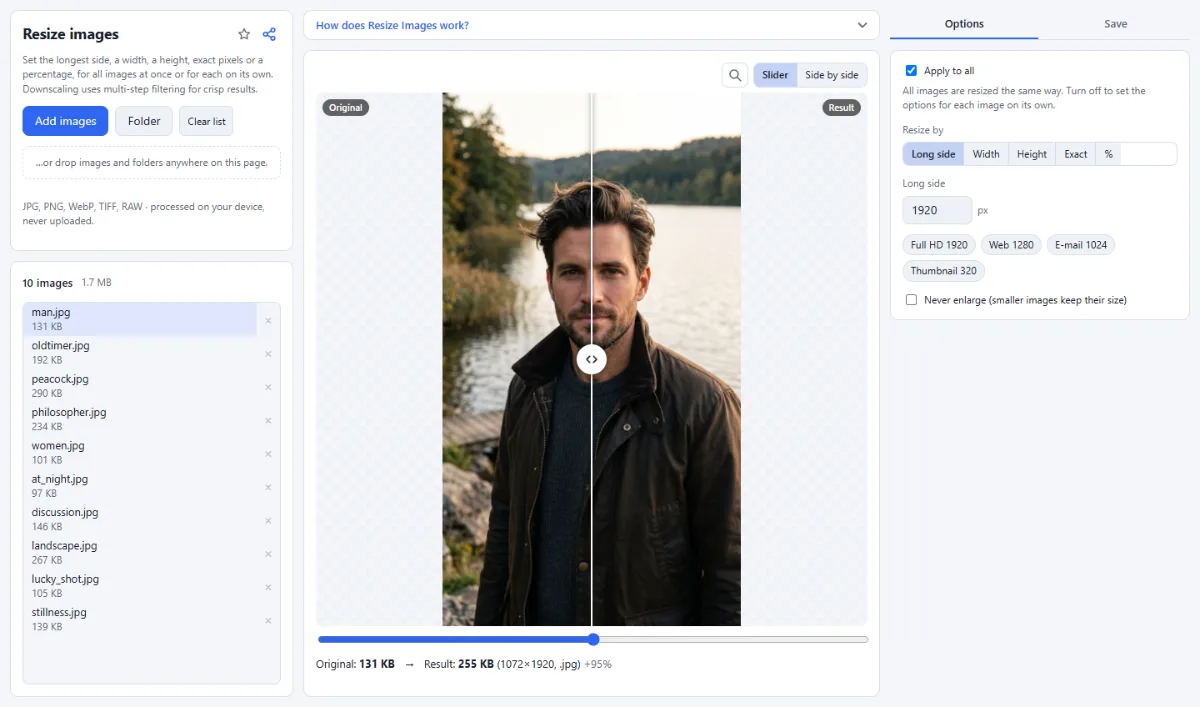
- For all images or image by image: "Apply to all" at the top of the options is on by default: every image is resized with the same options. Turn it off to give single images their own: the options then change only the image shown in the preview, and images you have not changed keep the shared ones. A line below the checkbox says how many images have their own options. Turning "Apply to all" back on gives every image the options of the image shown. Format and quality in the "Save" tab are always the same for all images.
- Five ways to resize: Under "Resize by" choose "Long side", "Width", "Height", "Exact" or "%". With "Long side", portrait and landscape photos get the same maximum size; "Width" and "Height" keep the aspect ratio.
- Exact dimensions: With "Exact" you enter a width and a height and choose under "When the shape changes" what happens to images of another shape: "Border" fits the whole image in and fills the rest with a "Blurred photo", "Extend edges" or a "Color"; "Crop" fills the size and cuts off what sticks out, and you drag the frame in the preview to choose the part that is kept, for each image; "Stretch" distorts the image to the exact size.
- One-click presets: The buttons "Full HD 1920", "Web 1280", "E-mail 1024" and "Thumbnail 320" fill in the size for the chosen mode; with "Exact" they set the matching 16:9 size, such as 1920×1080.
- Enlarging small images: Images smaller than the target are scaled up to it. Tick "Never enlarge (smaller images keep their size)" to leave them as they are.
- Output format and quality: Under "Save as" keep the format ("Same") or convert to "JPG", "PNG" or "WebP" in the same step. The "Quality" slider applies to JPG and WebP.
- Live preview: The preview shows the result of the current settings with its pixel dimensions, file size and format, next to the original.
How To Use The App
- Add your images: Click "Choose images" or "Folder", or drop files and folders onto the page.
- Same options for all, or per image: Leave "Apply to all" on to resize every image the same way. To give an image other options, turn it off, click the image in the list and set its options; then click the next one. Images you do not touch use the shared options.
- Choose the resize mode: Under "Resize by" select "Long side", "Width", "Height", "Exact" or "%".
- Enter the size: Type the pixel value into "Long side", "Width" or "Height" (or click a preset such as "Web 1280"), or the percentage into "Scale". For "Exact", also choose "Border", "Crop" or "Stretch" under "When the shape changes". Tick "Never enlarge (smaller images keep their size)" if needed.
- Set format and quality: In the "Save" tab, pick "Same", "JPG", "PNG" or "WebP" under "Save as" and adjust "Quality" if needed.
- Check the preview: Select a file in the list and compare "Original" and "Result" with the slider or "Side by side". The line below shows the new dimensions and file size. With "Crop", the preview shows the frame to drag instead.
- Resize and save: Open the "Save" tab in the right sidebar and click "Resize … images" (or "Resize & download" for one image); "Resize current" saves only the image shown. Several images go into a ZIP or, in Chrome and Edge, into an output folder, with the folder structure kept.
Tips
- Use "Long side" for mixed portrait and landscape photos: every image fits the same square limit.
- Fastest workflow for a batch with a few exceptions: set the options most images need, turn off "Apply to all", then change only the images that need something else, such as a square crop for one photo.
- With "Same", AVIF and RAW files are saved as JPG and TIFF, GIF and BMP files as PNG, because browsers cannot write those formats.
- Resized files are saved without EXIF metadata.
Frequently asked questions
- Why are my small images made larger?
- Because enlarging is allowed by default: an image smaller than the size you enter is scaled up to it. Tick "Never enlarge (smaller images keep their size)" to prevent that. With "Exact" and "Border", the result still gets the exact size, with a wider border around the image. Enlarging cannot add detail, so upscaled images look softer.
- How do I resize to an exact size without distorting the photo?
- Choose "Exact", enter the width and height, and pick an option under "When the shape changes". "Border" fits the whole photo in and fills the rest with "Blurred photo", "Extend edges" or "Color". "Crop" fills the size and cuts off the overflow; drag the frame in the preview to choose the part that is kept, for each image. Only "Stretch" distorts.
- Can I resize each image to a different size?
- Yes. Turn off "Apply to all" at the top of the options, click an image in the list and set its options: they change only that image, and the others keep the shared options. "Resize current" saves only the image shown; "Resize … images" saves all of them, each with its own options. Turning "Apply to all" back on gives every image the options of the image shown.
- How do I resize an image to a file size such as 200 KB?
- Use Compress Images with "Target size": Resize Images sets the pixel dimensions, not the file size. Compress Images lowers the quality until the file fits and shrinks the image only if that is not enough. Fewer pixels and a lower "Quality" here do make files smaller, but without a guaranteed limit.
- Is transparency kept when resizing?
- Yes. Transparency is kept whenever the result is PNG or WebP: with "Same", PNG and WebP files keep their format, and GIF and TIFF files become PNG. A JPG result, which "Same" also gives for AVIF files, has its transparent areas filled with white, because JPG cannot store transparency.
- Is there a maximum size?
- Yes. The pixel fields accept up to 20,000 pixels and "Scale" up to 1000%. In practice the memory of your browser sets the limit for very large results: a file that cannot be processed is marked with an error in the list, and the other files are still saved.
Guides
Related tools
- Compress Images: Smaller files, same look
- Crop Images: Each photo its own crop
- Convert Images: JPG · PNG · WebP
- Social Media Studio: All formats · Carousels · Grids