Collage Maker
Grids and mosaics for 2 to 9 photos with adjustable spacing and rounded corners, in square, 4:5, story, 16:9 or print size. Drag a photo to choose what shows, add text and stickers.
Collage Maker tutorial
Functionality
The Collage Maker puts several photos together in one picture: side by side, stacked, as a grid, as a mosaic or with one big photo. It works with 2 to 9 photos and picks a fitting layout by itself when you open them.
Spacing and rounded corners are set with two sliders, and a drag on a photo chooses which part of it shows. Text and stickers can go on top. Everything happens in your browser; your photos are never uploaded.
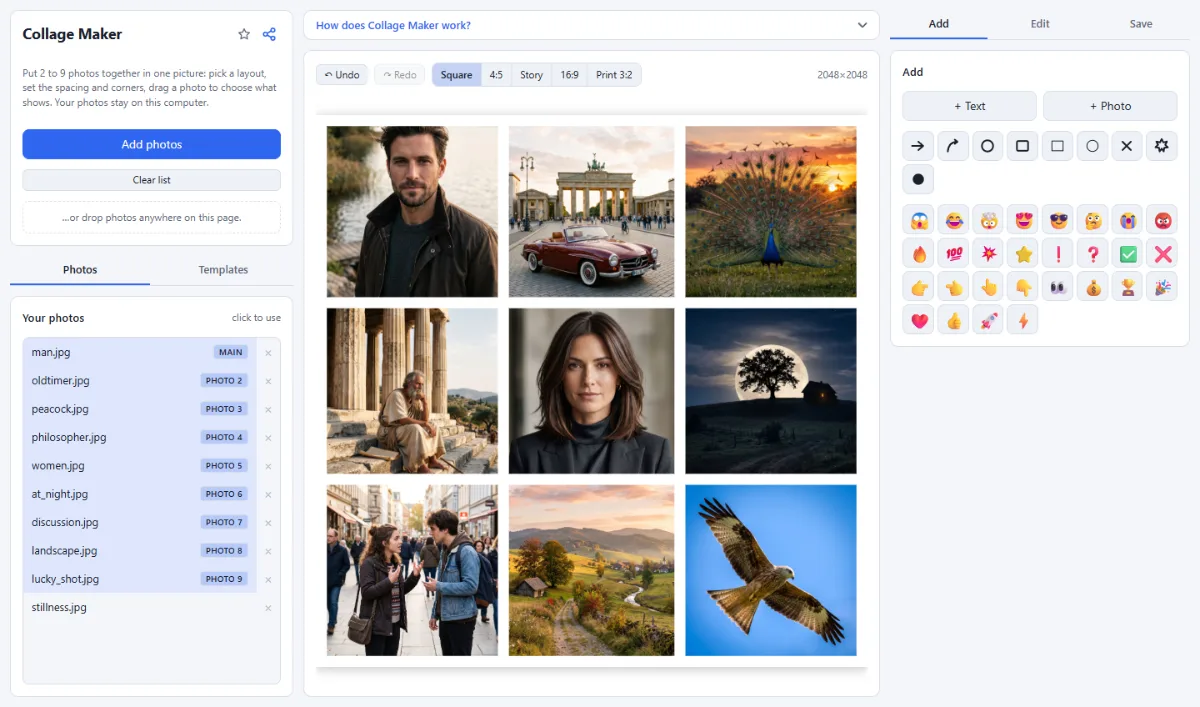
- Layouts for 2 to 9 photos: Side by side, stacked, 1 big + 2, 3 columns, 4 grid, 1 big + 3, 5 mosaic, 6 grid and 9 grid, each shown with your photos.
- Spacing and corners: The "Spacing" slider sets the gap between the photos and around them; "Rounded corners" rounds every photo the same way. The background color shows in the gaps.
- Choose what shows: Drag a photo inside its cell to move it; "Zoom" shows less of it, larger.
- Sizes: Square and 4:5 for feeds, Story (9:16), 16:9 for screens and Print 3:2 for 10×15 cm prints, all at 2048 pixels on the long side.
- Text and stickers: Add a title, a date or emoji on top of the collage.
How To Use The App
- Open your photos: Click "Open photos" and select 2 to 9 photos, or drop them onto the page. The layout follows the number of photos.
- Pick a layout: Choose another layout in the "Templates" tab on the left if you like, and a size above the canvas. Texts, stickers and the background stay when you switch.
- Arrange the photos: Click a cell, then a photo in the "Photos" tab on the left to put it there. Drag the photo in its cell to choose what shows.
- Spacing and colors: Set "Spacing" and "Rounded corners" in the "Save" tab on the right. To change the background color, click an empty spot outside the photos (or press Esc) and open the "Edit" tab.
- Save: In the "Save" tab on the right, choose JPG or PNG and click "Save image".
Tips
- A spacing of zero gives a seamless collage without gaps.
- Ctrl+Z undoes any change, also switching to another layout.
Frequently asked questions
- How many photos can a collage have?
- Two to nine. As long as you have not changed the collage yet, opening photos picks the layout for their number: "2 side by side", "1 big + 2", "4 grid", "5 mosaic", "6 grid", and the "9 grid" for seven or more. With seven or eight photos the empty cells show the background color in the saved image; photos beyond nine stay in your list to swap in.
- How large is the saved collage, and how big can I print it?
- The long side always has 2048 pixels: "Square" is 2048×2048, "4:5" 1638×2048, "Story" 1152×2048, "16:9" 2048×1152 and "Print 3:2" 2048×1365. "Print 3:2" has the shape of a 10×15 cm photo print and more than the roughly 1800×1200 pixels such a print needs at 300 dpi; larger prints look softer.
- Can I show a whole photo without cropping it?
- Yes. Select the photo, and in the "Edit" tab set "Fit" to "Whole photo": the complete photo is fitted into its cell, and the background color fills the rest of the cell. With "Fill the frame", the default, the photo fills the cell and dragging it chooses which part shows.
- How can I make one photo bigger than the others?
- Choose a layout with large cells: "1 big + 2" and "1 big + 3" have one large cell for the first photo, "5 mosaic" two larger ones on top. To put another photo into a large cell, click the cell and then the photo in your list. The borders between the cells cannot be dragged; "Spacing" changes all gaps at once.
- Should I save the collage as JPG or PNG?
- JPG suits most collages: the files are much smaller, for sharing as well as for printing. PNG is lossless but larger; choose it when "Background" is set to "Transparent", because a JPG fills transparent gaps and rounded corners with white. Both formats are in the "Save" tab.
Related tools
- Text & Meme Maker: Memes · Captions · Quotes
- Photo Effects: Film · Vintage · Noir · Manga
- Combine Images: Side by side, stacked, grid
- Social Media Studio: All formats · Carousels · Grids