Rotate & Flip
Rotate and mirror a whole batch at lightspeed, each photo its own way or all alike, and bake the EXIF orientation in so images stay upright.
Rotate & Flip tutorial
Functionality
Rotate & Flip turns images in 90° steps and mirrors them horizontally or vertically, and it does a whole batch at lightspeed: every image keeps its own setting, so you click through the list, turn each photo the way it needs, and save them all at once. When one setting fits all, "Apply to all" gives every image the setting of the photo shown.
It also fixes sideways phone photos: the EXIF orientation stored by the camera is applied to the pixels, so the images display upright in every program. The images are processed in your browser and saved back to your disk; nothing is uploaded.
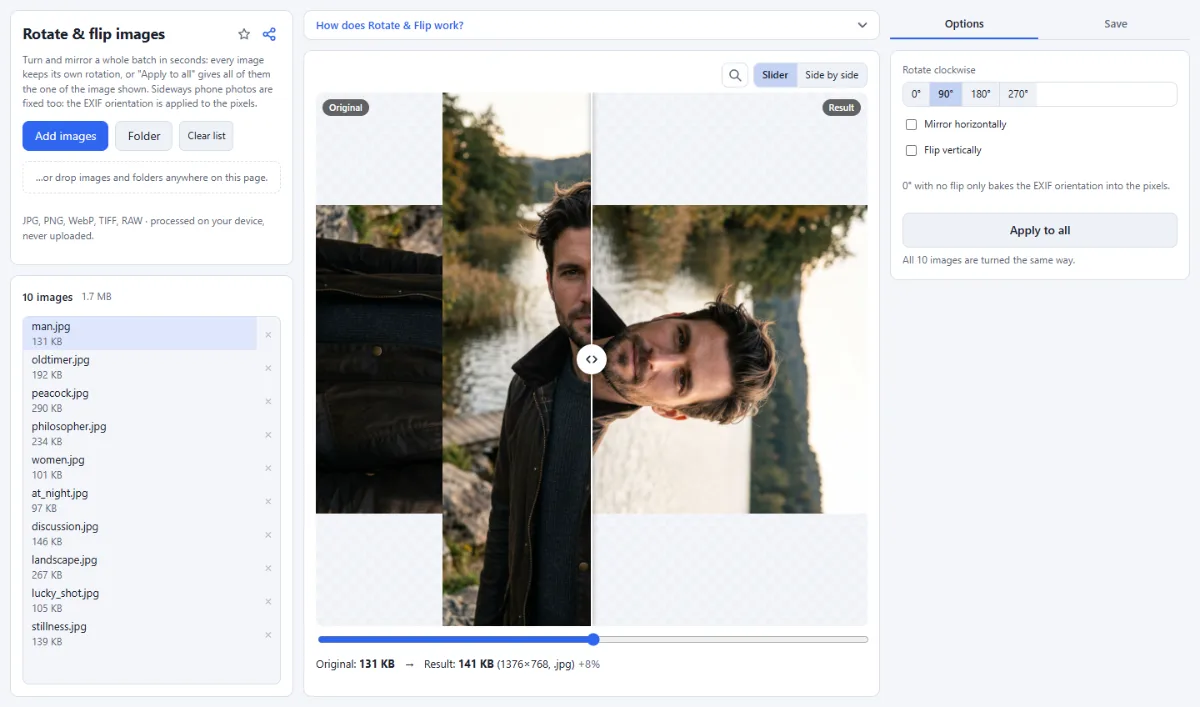
- Rotate in 90° steps: Under "Rotate clockwise" choose "0°", "90°", "180°" or "270°". 90° is preselected.
- Mirror and flip: Tick "Mirror horizontally" to swap left and right, or "Flip vertically" to swap top and bottom. Both can be combined with a rotation: the image is turned first and then mirrored as you see it, so "Mirror horizontally" always swaps left and right of the result.
- Fix sideways photos: Every image is first shown upright according to its EXIF orientation, and that orientation is baked into the saved pixels. With "0°" and no flip, the tool does only that. The saved images carry no metadata: GPS position, camera and capture date are removed.
- Its own setting for every image: Change the rotation or mirroring of the image shown, and that image keeps it: switch to the next photo, turn it differently, and come back to find the first one as you left it. Images you have not touched use the shared setting.
- Apply to all: With several images loaded, "Apply to all" gives every image the rotation and mirroring of the image shown, including folders with subfolders. A line below the button says how many images have their own setting.
- Format and quality: Under "Save as" keep the format ("Same") or choose "JPG", "PNG" or "WebP". "Quality" applies to JPG and WebP and starts at 92.
How To Use The App
- Add your images: Click "Choose images" or "Folder", or drop files and folders onto the page.
- Choose the rotation: Select "0°", "90°", "180°" or "270°" under "Rotate clockwise" for the image shown.
- Mirror if needed: Tick "Mirror horizontally" or "Flip vertically" if the image should also be mirrored.
- Image by image, or all at once: Click the next file in the list and set its rotation: every image remembers its own, and the preview compares "Original" and "Result". If one setting fits all, click "Apply to all" instead.
- Set format and quality: In the "Save" tab, keep "Same" under "Save as" or pick another format, and adjust "Quality" for JPG and WebP.
- Save: Open the "Save" tab in the right sidebar and click "Save … images" (or "Save & download" for one image). Several images go into a ZIP or, in Chrome and Edge, into an output folder.
Tips
- Fastest workflow for a mixed batch: set the rotation most photos need, click "Apply to all", then only turn the few photos that are different.
- To fix photos that show up sideways on some devices, use "0°" with no flip: only the stored orientation is applied.
- The shared setting is remembered in this browser for your next visit; the settings of single images belong to the current list and start afresh with "Clear list".
- Rotated JPG and WebP files are re-encoded, so keep the quality high (around 90 or more) to avoid visible loss.
- Saved files contain no EXIF metadata, so no other program can rotate them a second time.
Frequently asked questions
- Why is a photo upright on my phone but sideways on my computer?
- Cameras often store the pixels as the sensor recorded them and add an EXIF orientation tag that tells viewers how to turn the picture. Programs that ignore the tag show it sideways. Saving with "0°" and no flip turns the pixels themselves upright and drops the tag, so the photo looks the same everywhere.
- Is the rotation relative to how the photo is displayed?
- Yes. Every image is first turned upright according to its EXIF orientation, exactly as the preview shows it, and "90°" then turns it a further quarter turn clockwise from there. Photos with different stored orientations therefore all turn the way you see them.
- Can I rotate by any angle, for example 2 degrees?
- No. Rotate & Flip turns images in steps of 90 degrees only: "0°", "90°", "180°" or "270°", plus mirroring. Straightening a tilted horizon by a few degrees is not possible with this tool.
- Is rotating a JPG lossless?
- No. A JPG is decoded, turned and saved again at the "Quality" setting, 92 by default, so it is close to the original but not identical. PNG files stay lossless, and saving a JPG as PNG gives a lossless but much larger copy.
- Which formats can I rotate?
- JPG, PNG, WebP, GIF, BMP, AVIF, TIFF and camera RAW files. With "Same" under "Save as", JPG, PNG and WebP keep their format; AVIF and RAW files are saved as JPG, and TIFF, GIF and BMP files as PNG, because the browser cannot save in those formats.
Related tools
- Crop Images: Each photo its own crop
- Remove EXIF & GPS: Share photos without location
- Resize Images: By pixels, percent or long side
- Convert Images: JPG · PNG · WebP