Photo to Coloring Page
Turns photos into line drawings to color in, from simple bold outlines for small children to detailed pages. Save single pages or an A4 PDF coloring book.
Photo to Coloring Page tutorial
Functionality
Photo to Coloring Page turns photos into line drawings to color in: the family pet, a holiday photo or a favorite toy becomes a coloring page.
Choose simple bold lines for small children or many fine lines for adults, look at the result next to the photo and save single pages or an A4 PDF coloring book with all photos. Everything happens in your browser; your photos are never uploaded.
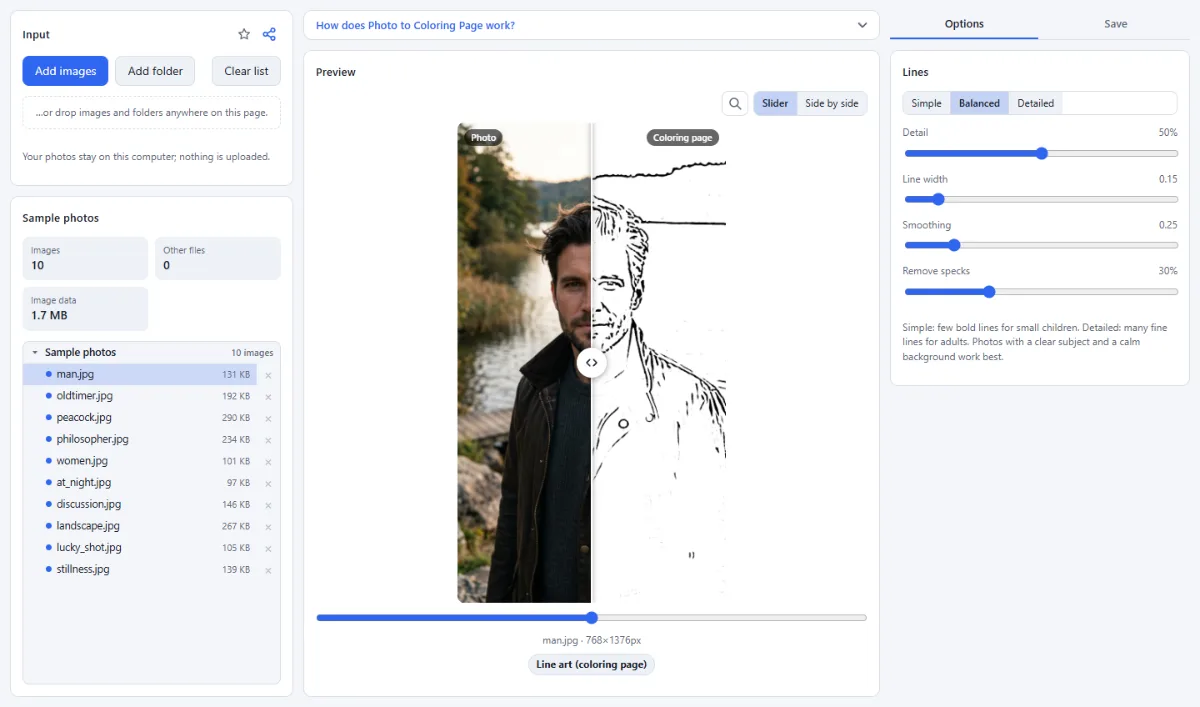
- Three styles: Simple (few bold lines), Balanced and Detailed, as a starting point for the sliders.
- Fine-tuning: "Detail" decides how many lines appear, "Line width" how bold they are, "Smoothing" ignores texture like grass or skin, "Remove specks" cleans up dots.
- Before and after: The preview shows photo and coloring page with a slider or side by side.
- Coloring book PDF: All photos as A4 pages in one PDF, ready to print.
- Also in the Filter Lab: The same effect is available as "Line art (coloring page)" in the Filter Lab, to combine with other filters.
How To Use The App
- Open photos: Click "Open images" or "Open folder", or drop photos onto the page.
- Pick a style: Simple, Balanced or Detailed under "Lines" in the "Options" tab.
- Adjust: Move the sliders until the lines look right in the preview.
- Save: Open the "Save" tab. In "Run", click "Export current image" for the page you see, or choose a "Target" and click "Process all … images" for every page (PNG by default). The button under "Coloring book" saves all pages as one A4 PDF.
Tips
- Photos with a clear subject and a calm background give the cleanest pages.
- For small children, choose "Simple" and raise "Remove specks".
- Print in black and white: the pages contain only black lines.
Frequently asked questions
- The page has too many lines, or outlines are missing. What helps?
- Too many lines and dots: lower "Detail", raise "Smoothing" and "Remove specks", or start from "Simple". Missing outlines: raise "Detail" and lower "Smoothing"; if small details such as eyes disappear, lower "Remove specks". A busy background always gives many lines, so crop the photo to the subject first with Crop Images.
- How are the photos laid out in the PDF coloring book?
- Each photo becomes one A4 page with a 10 mm margin, in the order of your photo list. The coloring page is scaled to fit the page without cropping, and landscape photos get a landscape page. The file is saved as coloring-book.pdf.
- How do I get the coloring book on US Letter paper?
- The coloring book is always A4. For Letter, save the pages as PNG with "Process all … images" (as a ZIP or into a folder) and combine them with Images to PDF, which offers Letter as page size.
- In which format and resolution are single pages saved?
- As PNG by default, at the full pixel size of the photo; PNG keeps the lines crisp, while JPEG would blur their edges. The line width is set relative to the photo, so pages look alike at any photo size. For an A4 print at 300 dpi, a photo of about 2500×3500 pixels is enough.
- Do the family photos I turn into coloring pages leave my computer?
- No. The line drawings are calculated in your browser, and the pages and the PDF are created there as well. The photos are not uploaded, and for your next visit the app remembers only the line settings and the file format.
Related tools
- Photo Effects: Film · Vintage · Noir · Manga
- Images to PDF: JPG, PNG, scans → one PDF
- Greeting Card Maker: Birthday · Invitations · Christmas
- Filter Lab: Own looks · 35+ filters · LUTs