Batch Rename
Rename many images with patterns like {name}, {n:3}, {date} and {w}x{h}, with live preview. Files stay byte-identical.
Batch Rename tutorial
Functionality
Batch Rename gives many image files new names at once, based on a pattern with placeholders for the original name, a running number, the date, the image size or the folder. A live table shows the current and new names before anything is saved.
The files are copied byte for byte under their new names into a ZIP or a folder; the originals stay as they are and the image data is not touched. Everything happens in your browser, and no file is uploaded.
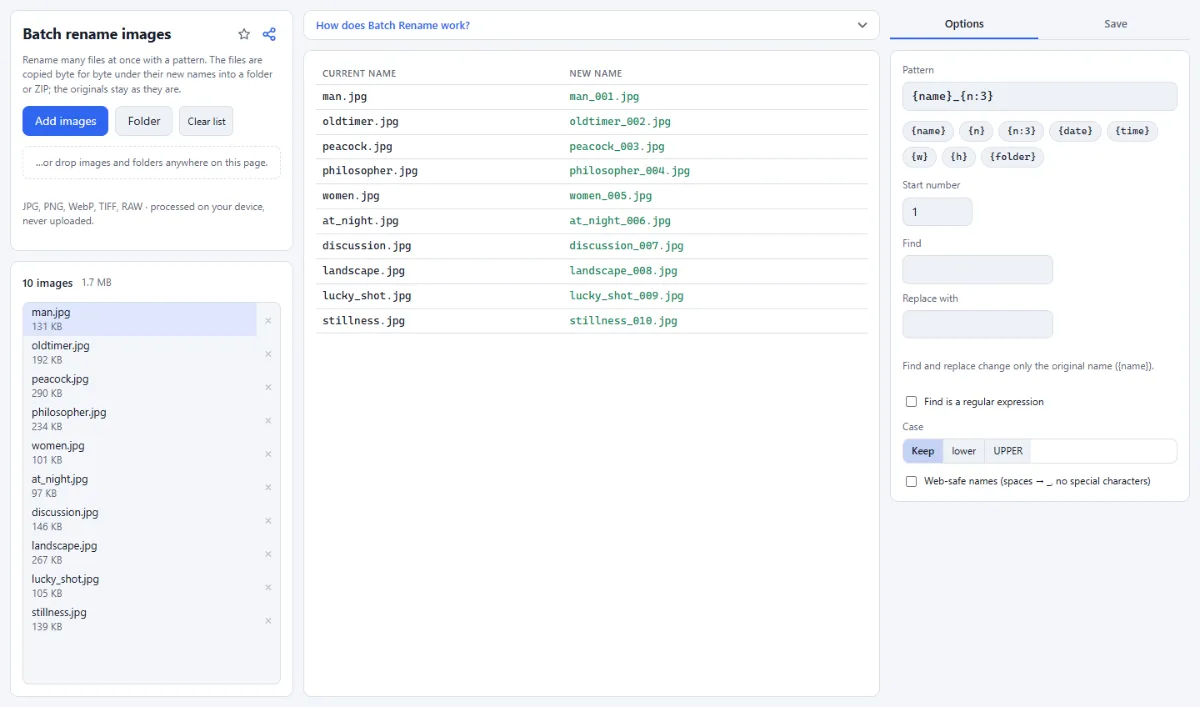
- Pattern with placeholders: Type a "Pattern" or click the token buttons to append them: {name} (original name), {n} (number), {n:3} (number with three digits, 001), {date} (YYYY-MM-DD), {time} (HHmmss), {w} and {h} (width and height in pixels) and {folder} (parent folder name).
- Numbering: "Start number" sets the first number. {n} is padded automatically to the width of the highest number; {n:3} or {n:4} set a fixed number of digits.
- Find and replace: Enter text in "Find" and "Replace with" to change parts of the original name ({name}); the numbers, dates and other text of the pattern stay as they are. Tick "Find is a regular expression" for patterns; an invalid expression leaves the names unchanged.
- Case and web-safe names: Under "Case" choose "Keep", "lower" or "UPPER". "Web-safe names (spaces → _, no special characters)" replaces spaces with underscores and removes other special characters.
- No overwriting: If two files in the same folder would get the same name, the later ones get " (2)", " (3)" and so on. Characters that are not allowed in file names are replaced with "_".
- Live preview: The table with "Current name" and "New name" updates as you type, for up to the first 500 files.
How To Use The App
- Add your images: Click "Choose images" or "Folder", or drop files and folders onto the page.
- Build the pattern: Edit the "Pattern" field (the default is {name}_{n:3}) or click tokens such as {date} or {n:3} to append them, for example holiday_{n:3} or {date}_{name}.
- Set the start number: Enter the first number in "Start number" if the numbering should not begin at 1.
- Refine the names: Optionally use "Find" and "Replace with", choose a "Case" and tick "Web-safe names" for names without spaces or special characters.
- Check the table: Compare "Current name" and "New name" in the preview table and adjust the pattern until the names are right.
- Rename and save: Open the "Save" tab, choose "ZIP download" or, in Chrome and Edge, "Choose output folder" under "Target" (a single file goes straight to your downloads), then click "Rename … files". The renamed copies are saved with the original folder structure.
Tips
- {date} and {time} come from the file’s last-modified time, not from the EXIF capture date.
- The file extension is always kept and written in lowercase; with "UPPER" it is written in uppercase too.
- The numbering follows the order of the file list.
Frequently asked questions
- Are my original files renamed?
- No. The tool saves renamed copies (a single file as a download, several as a ZIP or, in Chrome and Edge, into an output folder), and the originals keep their names. The output folder must not be the source folder, so you get a second, renamed set and can delete the old one yourself.
- Does renaming change the EXIF data or the image quality?
- No. Each file is copied byte for byte, so the pixels and all metadata, including the GPS location and the capture date, stay exactly as they were. To share the photos without that information, also run them through Remove EXIF & GPS.
- In which order are the files numbered?
- In the order of the file list. Each batch you add is sorted by path, character by character, so IMG_10.jpg comes before IMG_2.jpg, and files added later follow at the end. The count runs through the whole list and does not restart in each subfolder.
- What happens to umlauts and accents with web-safe names?
- They are removed, not replaced: with "Web-safe names" switched on, "Café Zürich" becomes "Caf_Zrich". To keep such names readable, replace the letters first with "Find" and "Replace with", for example ü with ue; find and replace runs before the web-safe step.
- Can I rename videos, PDFs or other files?
- No. Only image files are listed and copied: JPG, PNG, WebP, GIF, BMP, AVIF, TIFF and camera RAW. Other files in an opened folder, such as videos, PDFs or .xmp sidecar files next to RAW photos, are left out.
- Why does {date} not show the day the photo was taken?
- Because {date} and {time} use the last-modified time of the file. Photos saved from a messenger, downloaded or edited often carry that later time, and the copies made by this tool get the time of saving. Rename from the original camera files when the date matters.
Related tools
- Remove EXIF & GPS: Share photos without location
- Convert Images: JPG · PNG · WebP
- Resize Images: By pixels, percent or long side
- Watermark Images: Text, logo, frame & copyright