Text & Meme Maker
Classic memes with bold outlined text, captions above the photo, subtitles, highlighted text and quote posts. Pick a template, type your text, move it where you like and save.
Text & Meme Maker tutorial
Functionality
The Text & Meme Maker puts text on your photos: classic memes with white outlined capitals at the top and bottom, a caption above the photo, subtitles, highlighted text in the style of short videos, speech bubbles, expectation vs. reality, posters, breaking news, neon text, quote posts on a color gradient or a blurred photo, and text posts without a photo.
Choose a template, type your text and move it with the mouse. Fonts, colors, outline, shadow and background are a click away, and emoji and arrows can be added on top. Everything happens in your browser: your photos are never uploaded, and the saved image has no watermark.
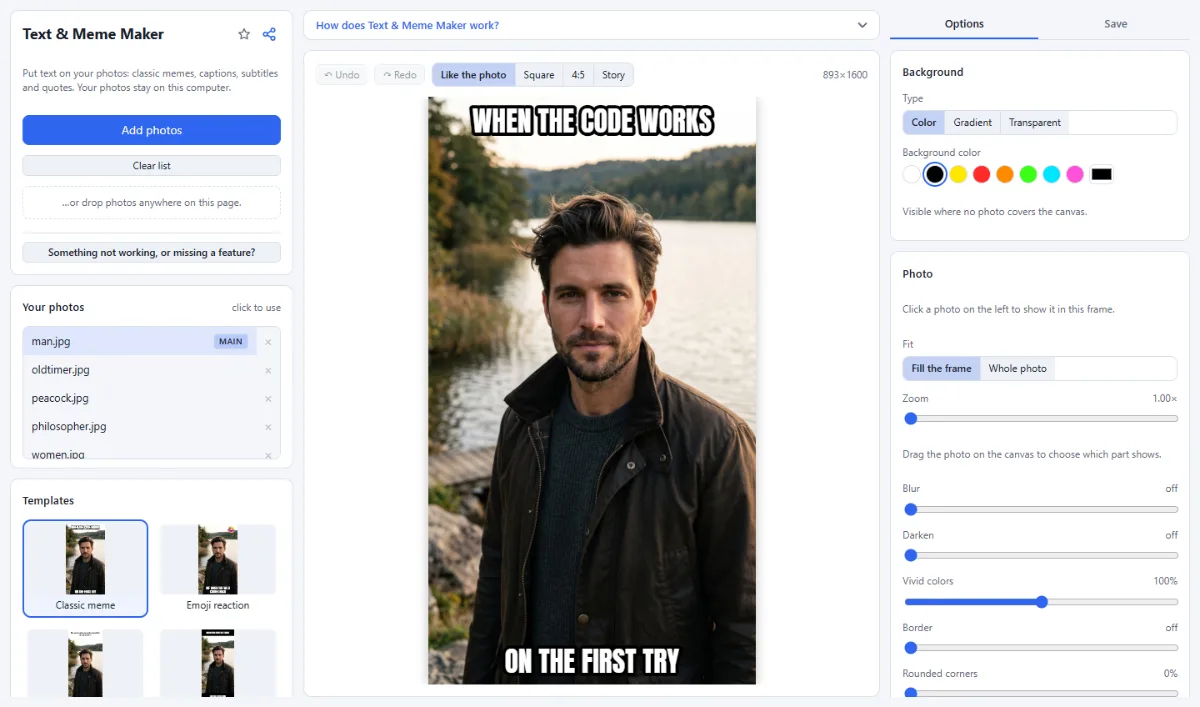
- Templates: 15 templates: classic meme, emoji reaction, caption on top, black bars, subtitle, highlight, speech bubble, handwritten note, expectation vs. reality with two photos, poster, breaking news, neon, quote, quote on photo and a text post, each shown with your own photo. Your texts are kept when you switch.
- Text styles: Nine free fonts, from the bold meme font Anton to handwriting and a quote serif, with outline, drop shadow or glow, and a box or bar behind the text.
- Move and resize: Drag any text or sticker on the canvas, resize it with the corner handle and turn it with "Rotation" in the "Options" tab. Elements snap to the center.
- Stickers and photos: Add emoji, arrows, circles and frames, or a second photo, for example for a comparison.
- Sizes: Keep the shape of your photo (up to 2:1) or choose square, 4:5 or a 9:16 story.
- Undo: Every change can be undone with Ctrl+Z, also switching to another template.
How To Use The App
- Open a photo: Click "Open photos" or drop photos onto the page. No photo at hand? Try the sample photos.
- Pick a template: Choose a template on the left; the canvas shows it with your photo.
- Write your text: Click a text on the canvas and type in the "Text" field in the "Options" tab, or double-click the text. Drag it where you want it.
- Style it: Change the font, size, colors, outline and shadow in the "Options" tab. "+ Text" under "Add" adds more text, and the buttons below it add emoji and arrows.
- Save: Open the "Save" tab, choose JPG or PNG and click "Save image".
Tips
- White capitals with a black outline stay readable on any photo; that is why memes use them.
- Use your own photos or photos you are allowed to use. Many well-known meme images are protected by copyright.
- Delete removes the selected element, the arrow keys move it pixel by pixel, and Ctrl+D duplicates it.
Frequently asked questions
- Which fonts are available?
- Nine free fonts: "Anton (meme)", "Montserrat Black", "Bebas Neue", "Inter Bold", "Bangers (comic)", "Comic Neue (speech)", "Permanent Marker", "Playfair (quote)" and "Pacifico (script)". They are loaded from this site the first time they are used, not from an external font service. Fonts installed on your computer cannot be chosen.
- Can I write in other alphabets, such as Cyrillic or Greek?
- Yes. The fonts of the app contain Latin letters only, including the accented letters of languages such as German, French or Spanish. Other characters, for example Cyrillic or Greek letters or ł and č, are drawn in a standard font of your system instead, so they look different from the chosen font.
- Which size does the saved meme have?
- With "Like the photo", the image has the shape of your photo and 1600 pixels on the long side; panoramas and very tall photos are cropped to 2:1 (or 1:2), so the text still fits. "Square" gives 1080×1080, "4:5" 1080×1350 and "Story" 1080×1920 pixels; in these sizes the photo is cropped to fill the image. Wherever the photo is cropped, drag it to choose which part shows. You can save as JPG or PNG.
- Why does a long word or URL get smaller?
- Words are never split, so a word wider than the text box is drawn smaller until it fits, whatever "Size" says. Raise "Line width" or add a line break to keep the size.
- How do I put the text above the photo instead of on it?
- Choose the "Caption on top" template: it puts the text in a white strip above the photo. With "Like the photo", the strip is added to the image, so nothing of the photo is covered; with "Square", "4:5" or "Story", the photo is cropped to fit below the strip.
- Can I add a speech bubble?
- Yes. Select a text and choose "Speech", "Thought" or "Shout" under "Bubble"; "Caption" puts the text in a narration box. Drag the round handle on the canvas to point the tail at the speaker. For comics with several panels and pages, use the Comic Maker.
Related tools
- YouTube Thumbnail Maker: 1280×720 · Bold text · Arrows
- Photo Effects: Film · Vintage · Noir · Manga
- Social Media Studio: All formats · Carousels · Grids
- Watermark Images: Text, logo, frame & copyright