Image to Text
Recognize the text in photos, scans and screenshots (OCR) in six languages and copy it or save it as text files. Your images are never uploaded.
Image to Text tutorial
Functionality
Image to Text recognizes the text in photos, scans and screenshots (OCR) so you can copy it, search it or edit it. It reads English, German, French, Spanish, Italian and Portuguese.
Recognition runs in your browser with the open-source engine Tesseract: your images are never uploaded, which matters for letters, receipts and documents. The engine and the language data are loaded from this site the first time and then kept in your browser.
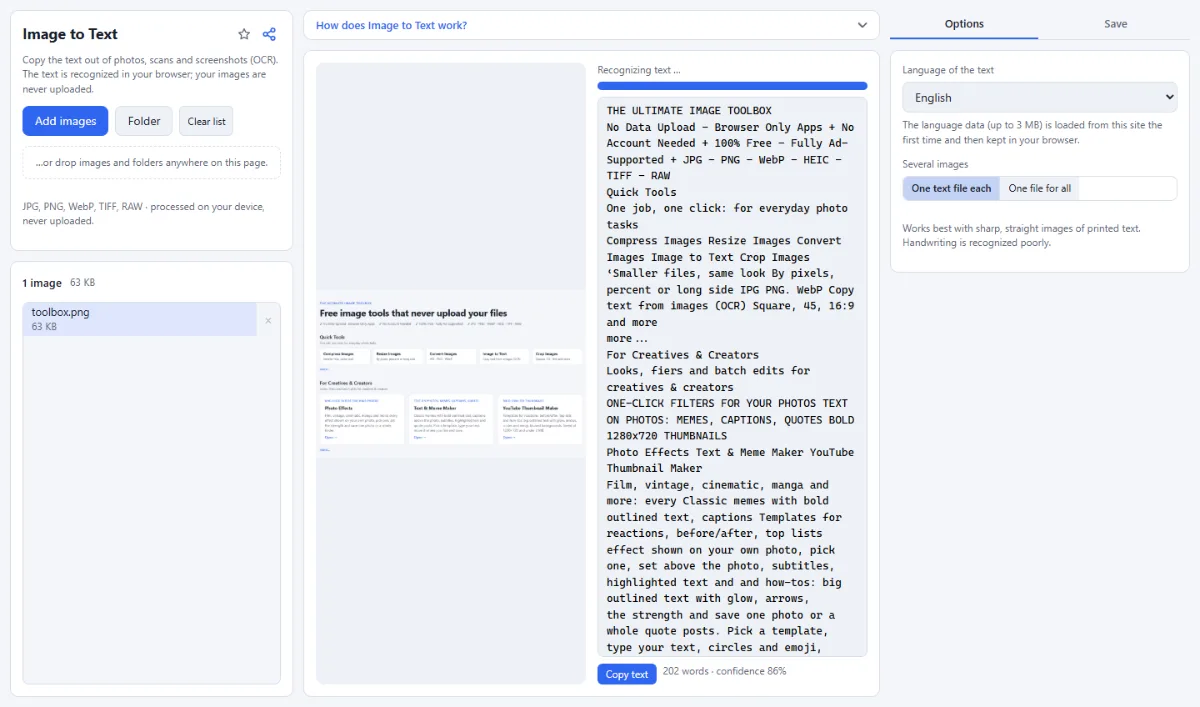
- Instant preview: Select an image and the text appears next to it, with the number of words and the recognition confidence. You can correct it in the text box before copying or saving; saved text files contain your corrections.
- Copy or save: "Copy text" puts the text on the clipboard. Saving writes one .txt file per image with text (images without text are skipped), or with "One file for all" a single text file with a heading per image ("(no text found)" for images without text).
- Six languages: Choose the language of the text under "Language of the text": English, German, French, Spanish, Italian or Portuguese. The right language improves umlauts, accents and word recognition.
- Any image format: Besides JPG, PNG and WebP, it reads TIFF scans and camera RAW files; photos are turned upright before recognition.
How To Use The App
- Add images: Click "Choose images" or "Folder", or drop photos, scans or screenshots onto the page. To try it first, click "No screenshot at hand? Try a sample".
- Choose the language: Select the language under "Language of the text". The first recognition in a language loads its data (up to 3 MB) once.
- Check the text: The recognized text appears next to the image. Correct mistakes in the text box if needed and click "Copy text".
- Save all texts: For several images, choose "One text file each" (saved as a ZIP or, in Chrome and Edge, into an output folder) or "One file for all" (one download), then open the "Save" tab and click "Save text of … images". For one image, click "Save as text file".
Tips
- Sharp, evenly lit images of printed text work best; crop photos and turn sideways scans upright first (Crop Images, Rotate & Flip) for better results.
- Handwriting, decorative fonts and very small text are recognized poorly.
- To read the text of a PDF scan, first turn its pages into images with PDF to JPG.
Frequently asked questions
- Are my corrections in the text box saved in the text file?
- Yes. A text corrected in the text box is used by "Copy text" and saved as corrected, also with several images and "One file for all". Corrections are kept for each image while the list is open, also when you switch to another image and back; they apply to the language they were made in, so after changing "Language of the text" the image is recognized again.
- Can it read Chinese, Russian or Arabic text?
- No. The recognition supports six languages written in the Latin alphabet: English, German, French, Spanish, Italian and Portuguese. Text in other scripts, such as Chinese characters, Cyrillic or Arabic, cannot be read.
- Why does the recognized text contain so many errors?
- Mostly because of the image or the language setting. Check that "Language of the text" matches, and use sharp, straight images with good contrast. Large images are reduced to 4000 pixels on the long side, but small ones are not enlarged, so tiny text in a small screenshot can improve after enlarging it with Resize Images. For PDF scans, choose "300 dpi (print)" in PDF to JPG.
- What does the confidence value mean?
- It is the average certainty of the recognition engine over the recognized text, from 0 to 100%. A high value usually means few errors; a low value means you should proofread the text carefully or try a sharper image.
- Is the text recognition done on a server?
- No. The open-source engine Tesseract runs in your browser. Its program files and language data are downloaded from this site, never the other way round: the data for a language (up to 3 MB, from /tessdata/) is fetched the first time you use it and then kept in your browser. Your images never leave your device.
Related tools
- PDF to JPG: PDF pages → images
- Blur & Redact: Hide faces, plates, text
- Crop Images: Each photo its own crop
- Rotate & Flip: Fix sideways photos