Greeting Card Maker
Cards and invitations with your photo for birthdays, parties, weddings, Christmas, thanks and babies. Print them as A6 or send them as an image.
Greeting Card Maker tutorial
Functionality
The Greeting Card Maker creates cards and invitations with your own photo for 20 occasions, such as birthday, wedding, Christmas, Easter, graduation, thank you and baby announcement.
Pick an occasion, add your photo, change the texts and save the card: as A6 to print at home or at a print shop, or as a square or story image to send in a messenger. Your photos are never uploaded.
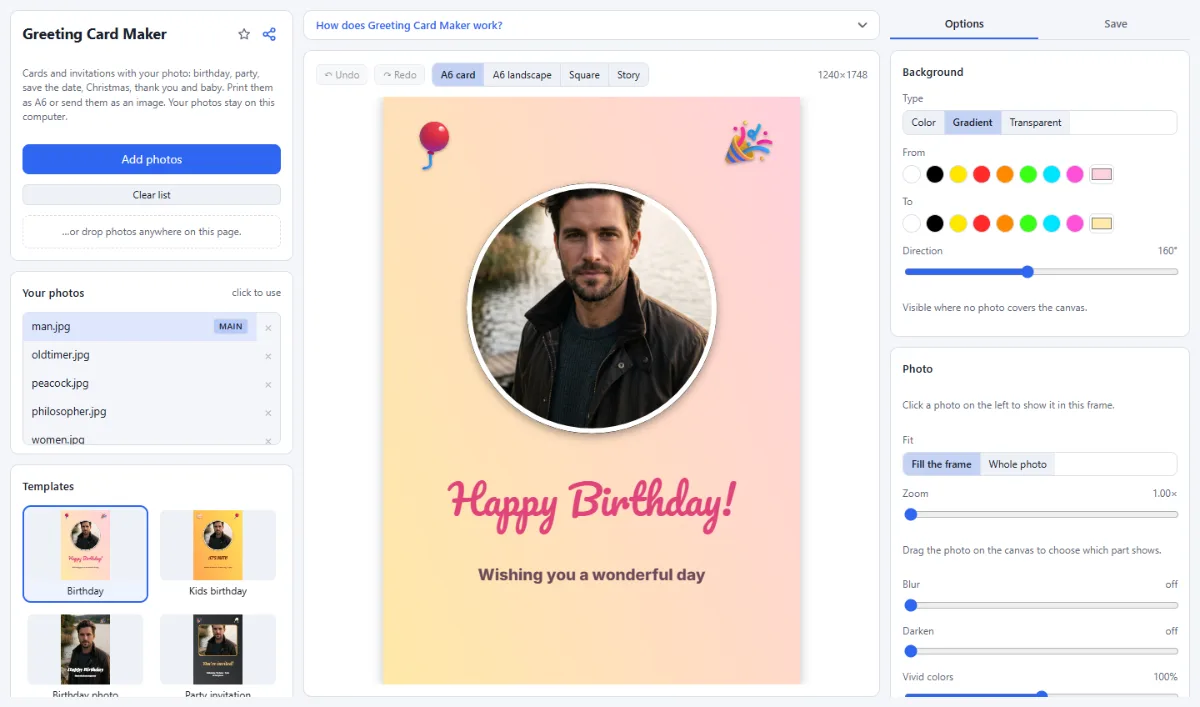
- 20 occasions: Birthday, kids birthday, party invitation, save the date, wedding, anniversary, Christmas, Easter, New Year, graduation, get well soon, thank you, baby announcement and more, each shown with your photo.
- Print or send: A6 and A6 landscape at 300 dpi for printing, square and story for messengers and social media.
- PDF for printing: "Save PDF for printing" creates a PDF in the exact card size.
- Your style: Change texts, fonts and colors, move everything on the card, add emoji and shapes.
How To Use The App
- Open a photo: Click "Open photos" or drop a photo onto the page.
- Pick the occasion: Choose a card on the left and a size above the card.
- Write your text: Click a text on the card and type in the "Options" tab; drag the photo to choose what shows.
- Save: In the "Save" tab, save the image to send it, or "Save PDF for printing" to print it.
Tips
- For printing, choose A6 and print at 100 % ("actual size").
- Two A6 cards fit on one A5 sheet, four on A4.
Frequently asked questions
- Which card designs are included?
- There are 20 templates: birthday (also for kids and as a full-photo card), party invitation, save the date, wedding, anniversary, love, baby announcement, a card for mothers and one for fathers, graduation, congratulations, thank you, get well soon, Easter, Halloween party, Christmas, New Year and a holiday postcard. Texts you typed are kept when you switch to another template.
- What size and resolution do the cards have?
- "A6 card" is 1240 × 1748 pixels, which is 105 × 148 mm at 300 dpi, and "A6 landscape" is the same turned sideways. "Square" is 1500 × 1500 and "Story" 1080 × 1920 pixels, for messengers and status updates. "Save image" writes the card as JPG or PNG in exactly this size.
- Does the print PDF have bleed or crop marks?
- No. "Save PDF for printing" creates one page of exactly the card size, 105 × 148 mm for A6, with the design running to the edge and no bleed or crop marks. For the square and story sizes the page follows the pixel size at 300 dpi, so a square card becomes 127 × 127 mm.
- Can I put more than one photo on a card?
- Yes. Click "+ Photo" under "Add" to place another photo frame, select it and click a photo in "Your photos" to fill it. Drag the new frame to move it and its corner handle to resize it; under "Fit" you choose between "Fill the frame" and "Whole photo".
- Can I make a folded card with a message inside?
- No. Every card is a single page with photo and text, in A6, A6 landscape, square or story format. For a personal message, add it to the card with "+ Text", or write it by hand on the back of the printed card.
- Why did my changes disappear when I chose another size?
- Because choosing another size builds the template again for the new shape. The texts you typed are carried over, but added elements and changed positions are lost. Press Ctrl+Z to get the previous design back, and pick the size before you fine-tune the layout.
Related tools
- Collage Maker: Grids & mosaics · 2–9 photos
- Text & Meme Maker: Memes · Captions · Quotes
- Photo to Coloring Page: Line art · A4 PDF coloring book
- Images to PDF: JPG, PNG, scans → one PDF