Look Stack
Chain several Filter Lab looks, built-in or your own, and apply the combined result to one photo or a whole folder. Fine-tune each look right in the stack.
Look Stack tutorial
Functionality
Look Stack applies several looks from the Filter Lab one after another, for example a color grade, then film grain, then a vignette look. Instead of building one look from single filters, you combine finished looks in a list, and the preview shows the end result of the whole stack.
The stack uses the same looks as the Filter Lab, built-in ones as well as your own and imported ones. There is only one version of each look: a parameter you change here changes the look in the Filter Lab too, and the other way round. Your photos are processed locally in your browser and never uploaded.
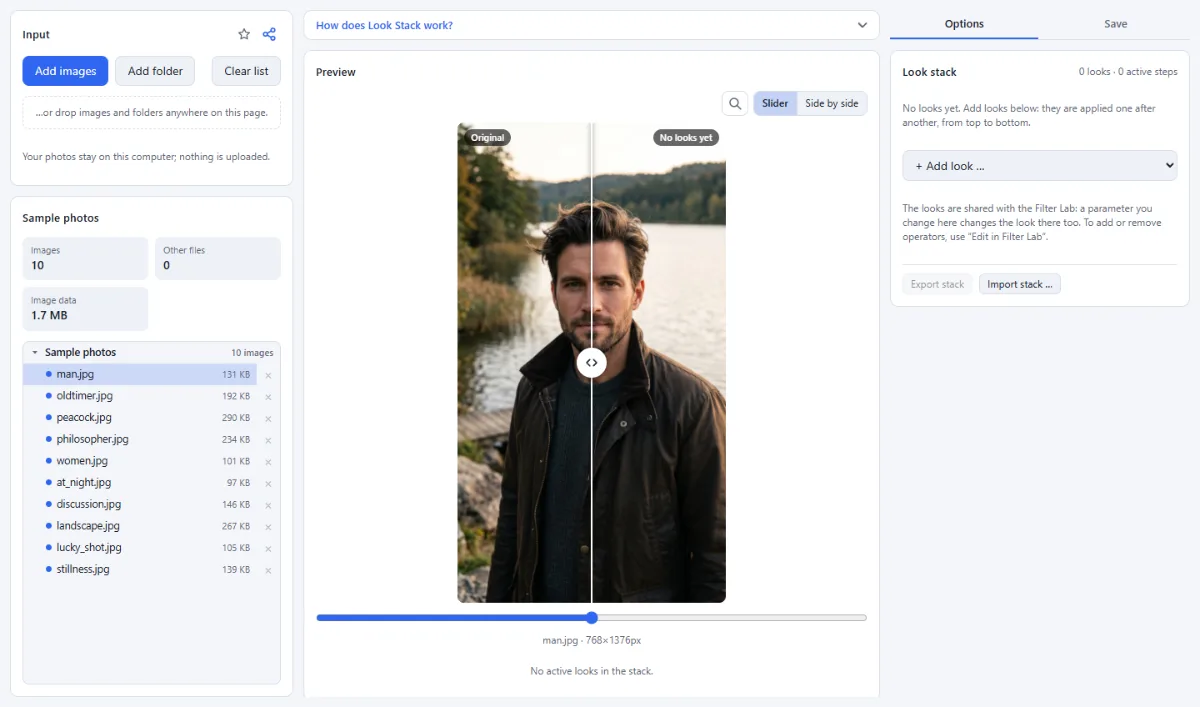
- Combine finished looks: Pick looks from "+ Add look …" under "My looks" or "Built-in looks". They are applied from top to bottom; the same look can be added more than once.
- Order and remove: Move a look with ↑ and ↓ to change the order, or remove it from the stack with ×. Removing only takes it out of the stack: the look itself stays in your library.
- Adjust parameters in place: Click a look in the stack to see its operators. Open an operator to change its parameters and opacity, or bypass it with its checkbox. Operators cannot be added, removed or reordered here.
- Edit in Filter Lab: "Edit in Filter Lab →" opens the look in the Filter Lab with the same images, where you can add, remove and reorder its operators. A notice there brings you back to the stack.
- Preview of the whole stack: The preview shows the selected image as "Original" next to the result of all stacked looks, with the "Slider" or "Side by side" view.
- One image or a whole folder: "Export current image" saves the selected photo, "Process all images" applies the stack to every loaded image, into an output folder or a ZIP.
- Share the whole stack: "Export stack" saves the stack as one .lookstack.json file with every look and all its settings. "Import stack …" opens such a file on any computer; looks that are already in the library are reused, all others are added, and none of your own looks is overwritten.
How To Use The App
- Open your photos: Click "Open images" or "Open folder", or drop images and folders anywhere on the page. Images loaded in the Filter Lab are already here.
- Add looks to the stack: Choose a look from "+ Add look …". Add more looks in the order they should be applied; the preview updates after each change.
- Arrange the stack: Use ↑ and ↓ to change the order and × to take a look out of the stack.
- Fine-tune a look: Click a look's name to open it, then click an operator to change its parameters or "Opacity", or untick it to bypass it.
- Change operators in the Filter Lab: To add or remove operators, click "Edit in Filter Lab →". When you are done, click "← Back to Look Stack" in the notice above the "Look" panel of the Filter Lab.
- Apply the stack: Open the "Save" tab. In the "Run" panel, choose the "Format" and the "Target" ("Choose output folder" in Chrome and Edge, or "ZIP download"), then click "Export current image" or "Process all images".
- Save or share the stack: Click "Export stack" to save the stack as a file. To open a stack, click "Import stack …" or drop the .lookstack.json file onto the page; it replaces the current stack after a confirmation. A single .look.json file is added to the end of the stack.
Tips
- Because the looks are shared, a change in the stack also changes the look in the Filter Lab. Duplicate a look in the Filter Lab first if you want a variant only for the stack.
- A built-in look whose parameters you changed is marked "(modified)"; "Reset to default" in the Filter Lab restores it.
- Your stack is saved in this browser. If a stacked look is deleted in the Filter Lab, it is shown as "Deleted look" and skipped.
Frequently asked questions
- How is a stack different from one long look in Filter Lab?
- The result is the same, because the steps of all stacked looks run one after another. The difference is that the looks stay separate: you can swap the grain look, reorder the looks or reuse one color grade with different finishes, and a look you improve in Filter Lab is improved in the stack as well.
- Does stacking several looks reduce the image quality?
- No. The steps of all looks are combined into one chain that runs on the full-resolution image, and the result is encoded only once at the end. No intermediate file is saved between two looks, so a stack of five looks loses no more quality than a single look.
- How many looks can a stack hold?
- Up to 30. The same look can be added more than once, for example a subtle warming look twice for a stronger effect. Every look adds its steps to the chain, so long stacks make the preview and the export slower.
- Can I lower the strength of a whole look in the stack?
- No. There is no single strength slider for a look. Open the look in the stack and lower the "Opacity" of its operators instead. Because the looks are shared, this also changes the look in Filter Lab.
- Can I export the whole stack as a .cube LUT?
- No. Look Stack has no LUT export; the LUT Creator bakes the color steps of one look. To get a single LUT for the combination, build one look in Filter Lab with the color steps of the stacked looks in the same order and export that.
Related tools
- Filter Lab: Own looks · 35+ filters · LUTs
- Before / After: Sliders · Wipe videos · GIF
- Social Media Studio: All formats · Carousels · Grids
- LUT Creator: Color grades as .cube LUTs