Compress Images
Shrink JPEG, PNG and WebP photos by quality or to a target file size. Batch-capable, nothing is uploaded.
Compress Images tutorial
Functionality
Large photos get in the way of e-mail attachments, upload forms and fast websites. Compress Images makes JPG, PNG and WebP images smaller, either with a quality setting or down to a maximum file size such as 200 KB. You can process a single photo or whole folders in one run; if a folder has subfolders, you choose whether their images are included.
All compression happens in your browser: the images are read from your disk, compressed on your device and saved back to it, never uploaded. Before you save anything, the preview shows the original next to the result together with the new file size and the saving in percent.
All images get the same options, or, with "Apply to all" turned off, each image its own quality, target size and format.
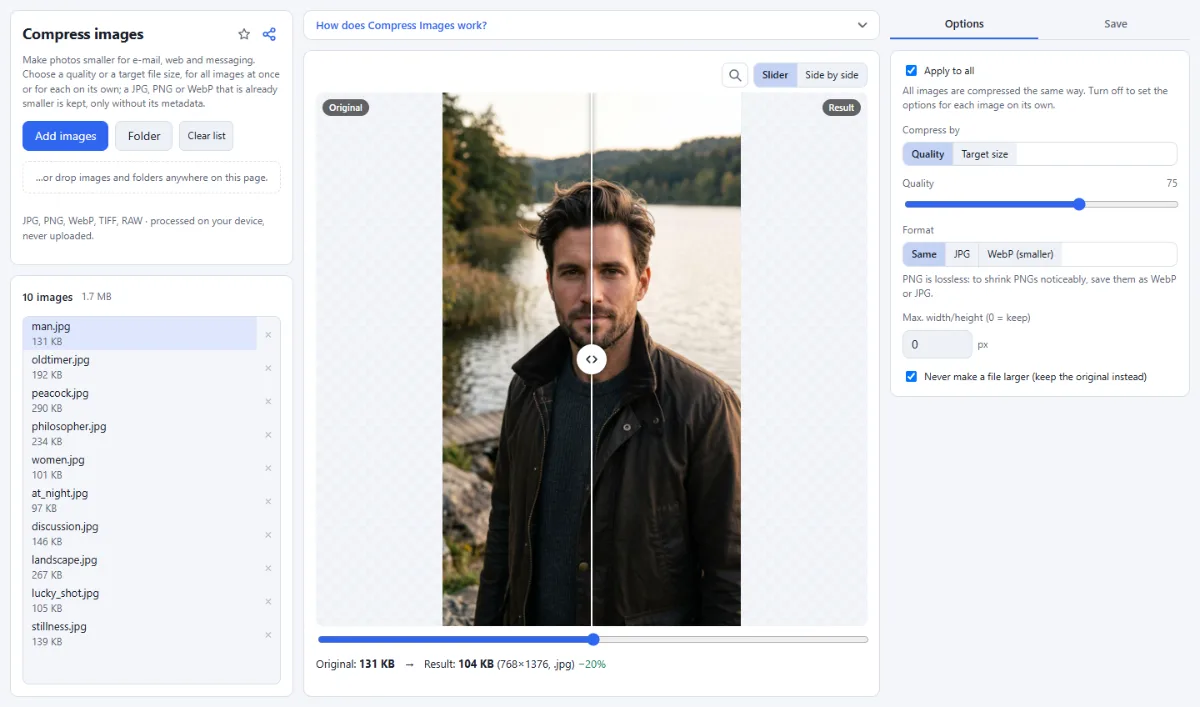
- For all images or image by image: "Apply to all" at the top of the options is on by default: every image is compressed with the same options. Turn it off to give single images their own, for example a lower quality for a large photo or WebP for a screenshot: the options then change only the image shown in the preview, and images you have not changed keep the shared ones. A line below the checkbox says how many images have their own options. Turning "Apply to all" back on gives every image the options of the image shown.
- Quality or target size: Under "Compress by" choose "Quality" to set the JPG/WebP quality with a slider, or "Target size" to enter a "Max. file size" in KB. In target mode the tool searches for the highest quality that fits.
- Scales down only if needed: If even the lowest quality is still too large for the target size, the image is scaled down step by step until it fits. The preview note tells you the quality used and, if it happened, the new dimensions.
- Format choice: Keep the format with "Same", or save as "JPG" or "WebP (smaller)". WebP usually gives clearly smaller files than JPG at the same visible quality. When you keep "Same", AVIF and RAW sources become JPG, and TIFF, GIF and BMP sources become PNG, unless "Never make a file larger" keeps the smaller original.
- Limit the dimensions: Set "Max. width/height (0 = keep)" to cap the longest side in pixels, for example 2048. Smaller images are never enlarged.
- Never larger: With "Never make a file larger (keep the original instead)" switched on, a file whose compressed version would not be smaller keeps its original image data. JPG, PNG and WebP originals are saved without their metadata; with "Same", AVIF, TIFF, GIF, BMP and RAW originals are kept as they are, metadata included, because browsers cannot clean these formats. This applies only when the dimensions stay the same and no other format is chosen.
- Savings at a glance: The preview shows the "Original" and "Result" file sizes, the dimensions of the result and the change in percent. After the run, each file in the list shows its new size, and a summary line shows the total before and after.
How To Use The App
- Add your images: Click "Choose images" or "Folder", or drop files and folders anywhere on the page. To try the tool first, click "No images at hand? Try sample photos".
- Same options for all, or per image: Leave "Apply to all" on to compress every image the same way. To give an image other options, turn it off, click the image in the list and set its options; then click the next one. Images you do not touch use the shared options.
- Choose how to compress: Under "Compress by" pick "Quality" and move the "Quality" slider, or pick "Target size" and enter the "Max. file size" in KB.
- Pick the output format: Under "Format" keep "Same" or choose "JPG" or "WebP (smaller)". To shrink PNGs noticeably, choose WebP or JPG.
- Optionally limit the dimensions: Enter a value in "Max. width/height (0 = keep)" if the images are larger than you need, and leave "Never make a file larger" on to protect files that are already small.
- Check the preview: Click a file in the list to see it in the preview. Drag the slider to compare "Original" and "Result", or switch to "Side by side".
- Choose where to save: Open the "Save" tab in the right sidebar. For a single image, choose "Download" or "Choose output folder"; for several images, "ZIP download" or, in Chrome and Edge, "Choose output folder" under "Target".
- Compress: Click "Compress … images" (the label shows the number of files) or "Compress & download" for one image; "Compress current" saves only the image shown. The folder structure is kept and every file keeps its name, with the extension of the output format.
Tips
- Target size works for JPG and WebP output. A PNG saved as PNG is compressed losslessly, so it cannot be forced to a size.
- Compressed files are saved without EXIF and GPS metadata, which also saves a few kilobytes, except originals kept in TIFF, GIF, BMP, AVIF or RAW.
- A quality around 70 to 80 is a good starting point for photos on the web; the slider goes from 30 to 100.
- Fastest workflow for a batch with a few exceptions: set the options most images need, turn off "Apply to all", then change only the images that need something else.
- Your settings are remembered in this browser for your next visit.
Frequently asked questions
- How do I compress a JPG to 100 KB (or 50 KB, 20 KB)?
- Under "Compress by" select "Target size", enter the maximum in "Max. file size" (for example 100 KB) and run the tool. It searches for the highest JPG quality below that size and only reduces the dimensions if quality alone is not enough. Target size works for JPG and WebP output.
- Can I compress each image differently?
- Yes. Turn off "Apply to all" at the top of the options, click an image in the list and set its quality, target size or format: the options change only that image, and the others keep the shared ones. In the "Save" tab, "Compress current" saves only the image shown and "Compress … images" saves all of them, each with its own options.
- Why does my PNG barely get smaller?
- PNG is lossless: the format keeps every pixel exactly, so there is little to save. To shrink a PNG noticeably, save it as WebP or JPG (JPG has no transparency, so transparent areas turn white).
- Which format gives the smallest files?
- WebP is usually clearly smaller than JPG at the same visible quality and is supported by all current browsers. For e-mail and older software, JPG is the safe choice.
- Are my images uploaded?
- No. The compression runs in your browser; the images are read from your disk and the results are saved back to it. Nothing is sent to a server.
- Is the EXIF data kept?
- Compressed images are saved without metadata such as EXIF and GPS, which also saves a few kilobytes. An original kept by "Never make a file larger (keep the original instead)" is cleaned as well, only its orientation and color profile stay; a kept TIFF, GIF, BMP, AVIF or RAW original keeps its metadata, as the note below the preview says. To be sure, choose "JPG" or "WebP", or use Remove EXIF & GPS, which also removes metadata without re-compressing.
Guides
Related tools
- Resize Images: By pixels, percent or long side
- Convert Images: JPG · PNG · WebP
- Remove EXIF & GPS: Share photos without location
- Crop Images: Each photo its own crop