Guides · Updated October 20, 2026
JPG, PNG or WebP: choosing the right image format
Use JPG for photos that have to open everywhere, PNG for screenshots, logos and anything that must stay pixel-exact or transparent, and WebP for images on your own website, where it usually gives smaller files than either at the same visible quality.
The cases in between, such as a screenshot that contains a photo, a logo for a form that takes only JPG, or an animated GIF, are easy to decide once you know what each format does to the pixels. The sections below explain that, starting with a table for quick answers.
Which format for which job
| Job | Format | Why |
|---|---|---|
| Photo for e-mail, an upload form or a print service | JPG | Opens in every program; many forms accept nothing else |
| Photo on your own website | WebP | Usually smaller than JPG at the same visible quality; all current browsers show it |
| Screenshot, chart, scanned text | PNG or WebP | Lossless storage keeps letters and lines crisp |
| Logo or cut-out with transparency | PNG or WebP | JPG cannot store transparency |
| Master copy you will edit again | PNG, or the original TIFF or RAW | Saving again loses nothing |
| Short animation | MP4 where allowed, otherwise GIF or animated WebP | GIF is limited to 256 colors and grows fast |
| Panorama wider than 16,383 pixels | JPG | WebP cannot store more pixels per side |
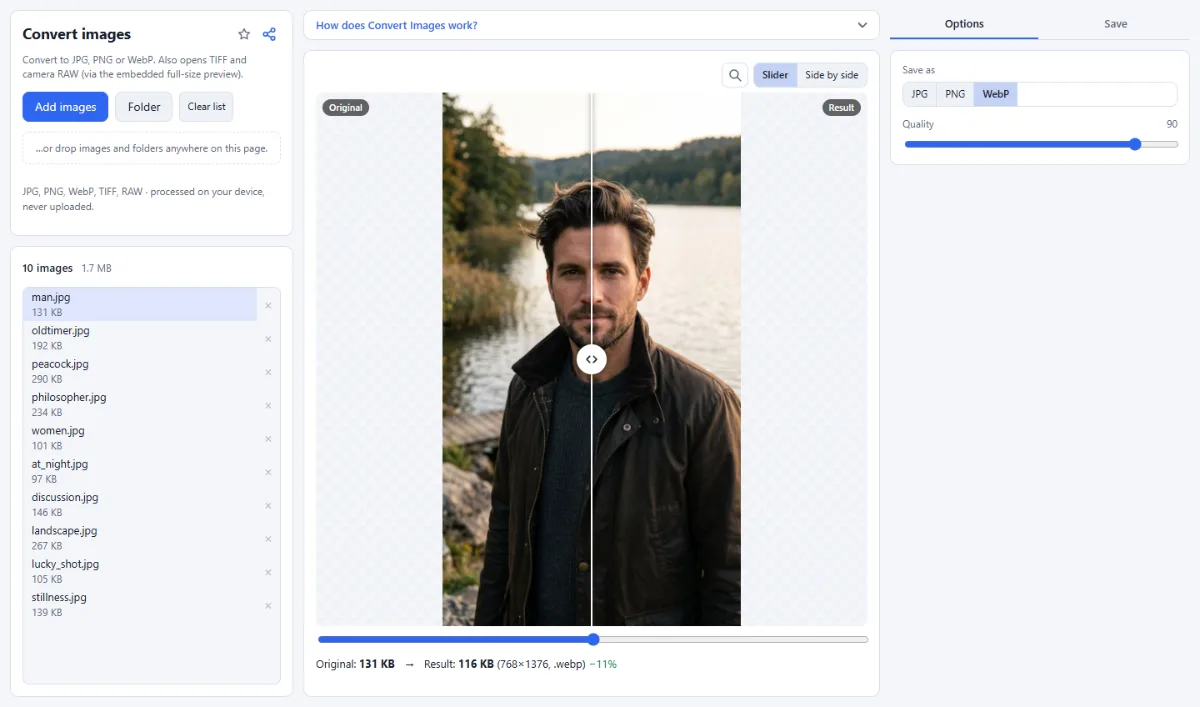
The still-image conversions in this table can be done with Convert Images, which also opens TIFF, camera RAW, AVIF, GIF and BMP files.
Lossy or lossless: what each format does to your pixels
JPG is lossy: it discards detail the eye is less sensitive to, and every new save discards a little more. PNG is lossless: the decoded pixels are exactly the ones that went in. WebP has both, a lossy mode derived from video compression and a separate lossless one, so a .webp file can be either. The "Quality" slider on this site applies to JPG and WebP; PNG has none, because there is nothing to trade.
Lossy compression hides well in photos, where noise and texture mask small errors, and shows in graphics. The 8×8 blocks of JPG leave halos around letters, and because many JPG encoders and every lossy WebP store color at half resolution, thin colored lines and red text on white come out smeared. For screenshots, diagrams and interfaces, lossless storage is the right choice, and often not even larger, since flat areas and repeated patterns are what lossless compression handles best. Photos are the reverse: noise means neighboring pixels are rarely identical, so a photo saved as PNG is typically several times the size of a good JPG and looks no better.
JPG cannot store transparency. PNG and WebP store a full alpha channel with smooth levels of opacity, enough for soft edges and shadows. GIF only knows fully transparent or fully opaque, which leaves a jagged fringe around smooth edges. When you save a transparent image as JPG here, the transparent areas are filled with a solid color: white by default, or the "Background for transparency" in Convert Images. Pick the background color of the page where the image will appear, or keep PNG or WebP.
| JPG | PNG | WebP | GIF | |
|---|---|---|---|---|
| Compression | Lossy | Lossless | Lossy or lossless | Lossless, max. 256 colors |
| Transparency | No | Yes, soft edges | Yes, soft edges | On or off per pixel |
| Animation | No | As APNG | Yes | Yes |
| Max. pixels per side | 65,535 | Practically unlimited | 16,383 | 65,535 |
| Shown by browsers | All | All | All current ones | All |
Why WebP files are smaller, and when they are not
JPG dates from the early 1990s. It codes each 8×8 block largely on its own and packs the result with a comparatively simple entropy coder. Lossy WebP comes from the VP8 video codec: it predicts each block from neighboring pixels that are already decoded and stores only the difference, uses a more efficient coder, and smooths block edges with a filter. Lossless WebP likewise has more ways to predict a pixel than PNG, which applies one simple filter per row before zip-style DEFLATE compression.
The most widely quoted figures come from the WebP developers: lossy WebP 25 to 34 percent smaller than JPG at equal measured quality, lossless WebP about 26 percent smaller than PNG. Treat them as typical, not guaranteed. The gap narrows at high quality settings and against well-optimized JPG encoders, and it shrinks further when the source is already a compressed JPG, because WebP then spends bytes reproducing the old artifacts.
So measure instead of assuming: the preview shows the size of "Original" and "Result" and the change in percent for every setting. Converting a lossy file to a lossless format never helps. A JPG saved as PNG gets larger and stays exactly as blurry or blocky as before, because the lost detail is not stored anywhere.
Tip: "Never make a file larger (keep the original instead)" in Compress Images only protects you while the format and the pixel dimensions stay the same. When you switch a small JPG to "WebP (smaller)", check the result size yourself.
Support in browsers, software and upload forms
JPG, PNG and GIF open in everything. WebP is displayed by every current browser; since Safari added it in 2020 there has been no major holdout, and current versions of the common operating systems and photo editors open it too. AVIF, the newer web format, is also displayed by all current browsers, while support in desktop software is still uneven.
The risk with WebP lies after the download: older desktop programs, some print services and many official upload forms accept only JPG and PNG, and some check nothing but the file extension. Use WebP for pages you control, and JPG whenever a file leaves your hands and you do not know what will open it.
The tools here create WebP through the browser. If a browser can display WebP but cannot create it, the tool saves a PNG with a .png name instead, and the note under the preview says "saved as PNG: this browser cannot create WEBP images".
Animated images: GIF, WebP and video
GIF stores each frame with a palette of at most 256 colors and only on-or-off transparency. That suits simple graphics, but video-like footage needs dithering to fake the missing colors, and compressing all that dither noise losslessly makes the files large. Animated WebP stores frames in full color with soft transparency and is typically much smaller than the same animation as GIF; current browsers play it, but not every messenger, forum or editor treats it as an animation. A short MP4 video beats both on size, which is why many platforms turn uploaded GIFs into video.
On this site, Convert Images, Compress Images and Resize Images read only the first frame of an animated GIF: the result is a still image, and with "Same" it is saved as PNG. To make an animation, Video to GIF turns a clip from an MP4 or WebM video (and most MOV files) into a GIF with one shared 256-color palette, so colors do not flicker between frames, at 5 to 25 frames per second and up to 600 frames. Sequence to Video builds a GIF from numbered images when you choose "Animated GIF". Animated WebP is not created here.
Color profiles: why colors can shift
A color profile (ICC profile) tells software how the numbers in a file map to real colors. The web standard is sRGB, and browsers treat images without a profile as sRGB. iPhones record photos in Display P3, which reaches more saturated colors, and many cameras offer Adobe RGB. JPG, PNG and WebP can all carry a profile; what matters is that profile and pixel values stay together.
The classic mistake is removing the profile without converting the pixels: a Display P3 or Adobe RGB photo is then read as sRGB and looks flat and less saturated. Converting to sRGB is the safe route for sharing and the web. The photo looks the same on ordinary screens, and only the most saturated colors that sRGB cannot hold are clipped. For professional print, ask the print service which profile it wants.
When Convert Images or Compress Images re-encode a JPG, PNG or WebP file, they ask the browser to convert an embedded profile to sRGB while decoding, so the saved file needs no profile. Remove EXIF & GPS works differently: it removes metadata without touching the pixels, so with "Keep the color profile (recommended)" switched on, the profile stays.
AVIF, TIFF and RAW: what to turn them into
This site reads all three but writes only JPG, PNG and WebP, the formats browsers can create. With "Same" as the output, AVIF and RAW become JPG, and TIFF becomes PNG.
- AVIF typically compresses even better than WebP, especially at low quality settings, but encoding is slow and desktop support is uneven. AVIF files can be opened and converted here; creating them is not possible.
- TIFF belongs to scanning, print and archiving and can hold 16 bits per channel and several pages in one file. This site takes the largest image in the file and reduces it to 8 bits per channel; saved as PNG, that is a lossless copy at 8 bits.
- Camera RAW files hold sensor data that still has to be developed. The site converts them from the JPEG preview the camera embeds (full size for most current cameras), which shows how the camera rendered the photo but is not a RAW development. Keep the RAW file as your master and export from it whenever you need a new size or format.
Tools for this
- Convert Images: JPG · PNG · WebP
- Compress Images: Smaller files, same look