Guides · Updated October 20, 2026
How to make a photo smaller (under 100 KB, 200 KB or 1 MB) without ruining it
To make a photo smaller without visible damage, reduce its pixel dimensions to what the viewer will actually see, then lower the JPG or WebP quality until the file fits, and change the format only if that is still not enough. Most people reach for the quality slider first and push it until the sky turns blotchy; for a photo straight from a phone, scaling it down saves far more bytes at a much lower cost in visible quality.
This guide explains why, gives a procedure for common limits such as 100 KB, 200 KB and 1 MB, and shows how Compress Images reaches a target size on its own.
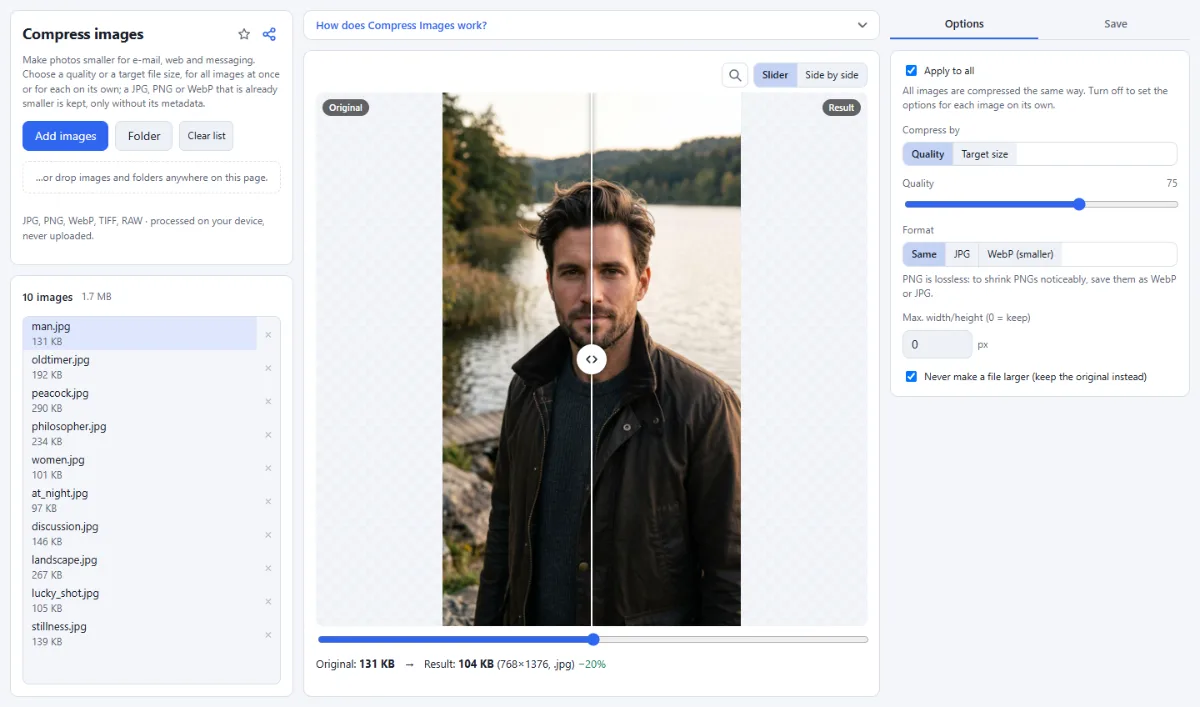
File size and pixel dimensions are not the same thing
Pixel dimensions say how many pixels an image has: 4032×3024 from a typical 12-megapixel phone camera is about 12.2 million. File size says how many bytes it takes to store them. Uncompressed, at 3 bytes per pixel, that photo is about 36 MB of data; as a JPG it usually takes a few megabytes. How far compression gets depends on the content: a portrait against a blurred background compresses much better than foliage, gravel or a crowd, and sensor noise from a dim room costs bytes too.
File size follows the pixel count, which grows with the square of the side length. Halve the width and the height and a quarter of the pixels remain; the file typically shrinks to between a quarter and a third of its size. Going from quality 85 to 70 saves much less, and the loss is spread over the whole picture.
A Full HD monitor shows 1920×1080 pixels, so a 4032-pixel photo viewed full screen is displayed at less than half its width. Extra pixels pay off only for zooming, cropping and printing: a 10×15 cm (4×6 inch) print at the common 300 pixels per inch needs about 1800×1200.
Tip: The DPI value stored in a file does not change its size: switching from 300 to 72 dpi without resampling leaves every pixel where it was.
What the quality setting does, and why a PNG does not shrink
JPG splits the image into brightness and color, usually stores the color at half resolution, cuts the picture into 8×8-pixel blocks and describes each block as a mix of patterns from smooth to fine. The quality setting decides how coarsely those patterns are rounded. As it drops, the damage shows first where the eye is sensitive: squares in smooth gradients such as sky or skin, halos around edges and text, smeared color along saturated edges. Lossy WebP works on the same principle with newer tools, so its artifacts appear later and look softer.
The quality number is not standardized: 80 in one program is not 80 in another, some editors use a scale from 0 to 12, and WebP 80 is not JPG 80. The shape of the curve holds everywhere, though. Near the top, each step costs many bytes for no visible gain, and a file saved at 100 is often far larger than at 90. For photos on screen, the useful range is roughly 70 to 85; below about 60, artifacts usually show in skies and along edges. Always start from the original: every lossy save adds its own errors, and re-saving an already compressed copy at a higher quality only makes it larger.
PNG is lossless and compresses only what is exactly predictable or repeated, which photos hardly have, because noise makes neighboring pixels slightly different. A photo saved as PNG is often several times larger than a good JPG, and the PNG compression level only changes how hard the encoder searches. A PNG shrinks markedly only with fewer pixels, fewer colors (a palette reduction, which is lossy) or another format. In Compress Images, "Format" offers "Same", "JPG" and "WebP (smaller)"; with "Same", a PNG stays a PNG (and GIF, BMP and TIFF files become PNG), and "Target size" does not apply to them.
The procedure: dimensions first, then quality, then format
Dimensions decide most of the size, so they come first. The format comes last, because it is the step most likely to cause trouble on the receiving side.
- Read the requirements: maximum file size, accepted formats (many forms take only JPG) and any minimum or maximum in pixels. These differ from form to form, so check the form itself.
- Set the dimensions with "Max. width/height (0 = keep)" in Compress Images, or in Resize Images with "Long side" and presets such as "Web 1280". Both tools reduce in several halving steps, which keeps fine lines and patterns from turning jagged.
- Let the quality follow the limit: choose "Target size" under "Compress by" and enter the "Max. file size", or, without a fixed limit, set "Quality" between 70 and 85.
- Choose the format for the receiver: JPG for forms, e-mail and unknown software, WebP for your own website, PNG only for screenshots, graphics and transparency.
- Switch on the magnifier above the preview and compare "Original" and "Result" where compression shows first: sky, skin, hair and text.
| Limit | Long side to start with | Typical use |
|---|---|---|
| Under 100 KB | 1000 to 1200 px | Application forms, profile photos |
| Under 200 KB | 1200 to 1600 px | Forms, forum posts, images in an article |
| Under 500 KB | 1600 to 2048 px | Web galleries, e-mail |
| Under 1 MB | 2048 to 3000 px | Sharing for full-screen viewing |
Tip: Starting points for typical photos at medium quality, not guarantees: detailed scenes need fewer pixels, simple ones fit with more. The preview has the final word.
Kilobytes are counted two ways: some forms mean 1,000 bytes, others 1,024 (Windows Explorer uses 1,024, macOS Finder 1,000). This site counts 1,024, so a "Max. file size" of 100 allows 102,400 bytes, which a strict 100,000-byte check rejects. When the form does not say, enter 95. For e-mail, Gmail for example allows 25 MB of attachments per message; attachments travel as Base64 text, about a third larger than the files, and mail servers apply their limits to that encoded size, so leave room.
How the target size mode works
With "Compress by" set to "Target size", Compress Images first saves the image at quality 92 and stops if that fits. Otherwise it searches between 35 and 92 by halving: it tries the middle, continues in the upper half if the file fit and in the lower half if not, seven times. That pins the quality down to about half a point and keeps the highest value that fits.
If even quality 35 is too large, it reduces the dimensions. Since file size follows the pixel count, both sides are scaled by the square root of the ratio between the target and the size at quality 35, minus 5 percent as a margin, and the quality search runs again, for up to four rounds. The note under the preview shows the outcome on a scale from 0 to 1, such as "quality 0.78" or "quality 0.71, scaled to 1534×1151"; if nothing fits, it starts with "target not reached".
Note the consequence: as long as some quality from 35 upward fits, every pixel is kept. A 12-megapixel photo with a 1 MB limit can come out at full resolution and low quality, where a smaller image at quality 80 would look better on screen. For screen viewing, set "Max. width/height (0 = keep)" as well; the search then ends at a higher quality.
"Never make a file larger (keep the original instead)" is on by default: when the result is not smaller, the original image is kept, only cleaned of its metadata, and the note says "kept original (already smaller), without metadata". Without it, an 80 KB JPG with a 100 KB target could come out at up to 100 KB, larger and worse at once. The check applies only when the dimensions and the format stay the same, so it can only keep a JPG, PNG or WebP original. An AVIF photo is always re-encoded (as JPG with "Same"), even if the result is larger than the original.
Common mistakes that cost quality or bytes
- Pushing the quality down on a full-size photo to meet a tight limit. On screen, a smaller image at quality 80 looks better than a large one at 40.
- Turning screenshots into low-quality JPGs. Letters get halos and colored fringes; keep PNG and reduce the dimensions only as far as the text stays readable.
- Saving a logo with transparency as JPG. Compress Images and Resize Images fill the transparent areas with white; Convert Images lets you pick the "Background for transparency".
- Expecting the target to cover a batch. "Max. file size" applies to each file, so 40 photos at 250 KB still add up to about 10 MB.
- Sending WebP to a form that accepts only JPG or PNG. Check the accepted types before choosing "WebP (smaller)".
Compressing whole folders
Click "Folder" or drop a folder onto the page (if it has subfolders, choose "Include subfolders" to process their photos too); every file gets the same settings. "Max. width/height (0 = keep)" limits the longer side, so portrait and landscape photos get the same maximum. Check the preview of the largest, most detailed photo first; if that one looks right, the simpler ones will too.
Several files are processed at once in background threads, as many as the processor and memory allow, and a file that cannot be read is marked with an error while the others are saved. The results go into a "ZIP download" or, in Chrome and Edge, into a folder picked with "Choose output folder", with the folder structure preserved. Files with the same name in that folder are overwritten, so pick an empty folder, not the one holding your originals. The saved files carry no camera data, dates or locations, and sideways phone photos come out upright: a re-encoded file has the orientation applied to its pixels, and a kept original keeps only its orientation tag and color profile.
Tools for this
- Compress Images: Smaller files, same look
- Resize Images: By pixels, percent or long side