Remove EXIF & GPS
See and remove GPS location, camera serial numbers and other metadata before sharing. Lossless for JPEG, PNG and WebP.
Remove EXIF & GPS tutorial
Functionality
Photos often contain more than the picture: the GPS location where they were taken, the camera’s serial number, the editing history and sometimes hidden extra images or videos. Remove EXIF & GPS shows you what is inside JPEG, PNG and WebP files and removes it before you share the photo; AVIF, TIFF and RAW files are cleaned as well, but their metadata is not listed.
For JPEG, PNG and WebP the image data is copied unchanged and only the metadata is dropped, so there is no quality loss. The files are read and cleaned in your browser and never uploaded.
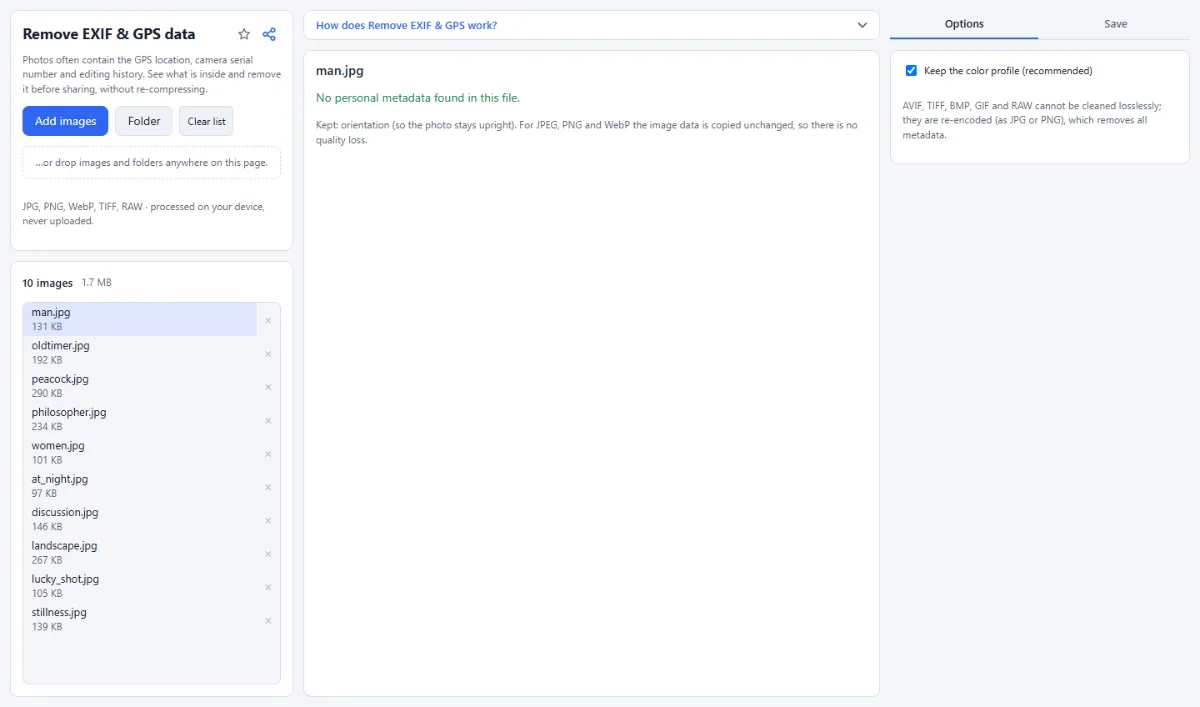
- See what is inside: The preview lists the metadata found in the selected JPEG, PNG or WebP file, for example "GPS location", "Camera", "Lens", "Serial number", "Date taken", "Software", "Artist" and "Copyright", along with the total metadata size. Entries that reveal personal information are marked "private".
- Hidden extras: The tool also detects XMP editing history, IPTC captions and contacts, comments, an "Embedded preview image" that can show the uncropped original, "Content credentials (C2PA)", "Extra images (MPF)" and "Hidden data after the image", such as the video of a Motion Photo. All of these are removed.
- Location on a map: If a photo contains GPS coordinates, they are shown with a "Show on map" link that opens OpenStreetMap with only the coordinates, so you can see what others would see.
- Lossless for JPEG, PNG, WebP: These formats are cleaned without re-compression: the image data stays byte for byte the same. The orientation is kept, so photos stay upright.
- Color profile: With "Keep the color profile (recommended)" switched on, the embedded ICC profile stays in the file so colors display correctly. Switch it off to remove it as well.
- Other formats: AVIF, TIFF, BMP, GIF and RAW cannot be cleaned losslessly, and their metadata is not listed in the preview, so such a file may contain a location even though none is shown. They are re-encoded as JPG or PNG, which removes all metadata.
How To Use The App
- Add your photos: Click "Choose images" or "Folder", or drop files and folders anywhere on the page.
- Review the metadata: Click a file in the list. The preview shows what was found and will be removed, or "No personal metadata found in this file." For AVIF, TIFF and RAW files it says that their metadata is not listed. If a file cannot be read as an image, the preview says so; its metadata can then be neither checked nor removed.
- Decide on the color profile: Leave "Keep the color profile (recommended)" on unless you want to remove the ICC profile too.
- Choose where to save: Open the "Save" tab. A single image downloads directly. For several images, select "ZIP download" or, in Chrome and Edge, "Choose output folder" under "Target".
- Remove the metadata: Click "Remove metadata from … images" (or "Remove metadata & download" for one image). JPEG, PNG and WebP files keep their names and their format.
Tips
- Choosing an output folder that is the source folder is refused, so your originals are never overwritten by accident.
- Other tools in this toolbox (compress, resize, convert) also save without metadata, but they normally re-encode the image. Use this tool when the pixels must stay untouched.
- Re-encoded AVIF and RAW files are saved as JPG, TIFF, GIF and BMP files as PNG.
Frequently asked questions
- How can I check that the GPS location is really gone?
- Load the cleaned file into the tool again and select it: the preview should show "No personal metadata found in this file." Your original files are not changed and still contain the location, so share only the cleaned copies.
- What happens to the video of a Motion Photo?
- It is removed. A Motion Photo stores a short video behind the end of the JPEG image; the tool lists it as "Hidden data after the image" and saves only the still photo. Keep the original file if you want to keep the video.
- Why is the orientation kept?
- Without it, many phone photos would appear sideways, because their pixels are stored as the sensor recorded them. For JPEG, PNG and WebP files the tool therefore writes back a minimal tag that holds only the orientation and nothing personal.
- Should I switch off "Keep the color profile (recommended)"?
- No. In most cases the profile should stay: the ICC color profile describes how the colors of the image are to be displayed and normally contains nothing personal. Without it, photos in wide color spaces such as Display P3 or Adobe RGB can look dull. Switch it off only if the file must contain no metadata at all.
- Can I keep the copyright notice and remove only the location?
- No. The tool removes all EXIF, XMP and IPTC data, including "Artist" and "Copyright"; only the color profile, if you choose, and the orientation stay. To add your name and copyright again, use Watermark Images with an empty watermark text: it writes them into JPG and PNG files, but re-encodes the image.
- Does the tool send my photo anywhere to read its metadata?
- No. The metadata is read and removed in your browser. The only outside connection is the "Show on map" link for photos with GPS coordinates: it opens OpenStreetMap with just those coordinates, and only when you click it.
Guides
Related tools
- Blur & Redact: Hide faces, plates, text
- Convert Images: JPG · PNG · WebP
- Compress Images: Smaller files, same look
- Batch Rename: Patterns, numbering, dates