Social Media Studio
One photo into every social format (Instagram, TikTok, YouTube, Facebook, X, LinkedIn, Pinterest) with safe-zone overlays, plus seamless carousels and profile grids.
Social Media Studio tutorial
Functionality
Social Media Studio turns one photo into every image size you need for Instagram, TikTok, YouTube, Facebook, X, LinkedIn, Pinterest and Threads. Choose the formats, set a focal point once, and all crops keep your subject in view.
It also splits a wide photo into a seamless carousel that reads as one panorama when people swipe, or into a profile grid of 3 to 15 posts. Your photos are processed locally in your browser and never uploaded, and every output is rendered from the full-resolution original.
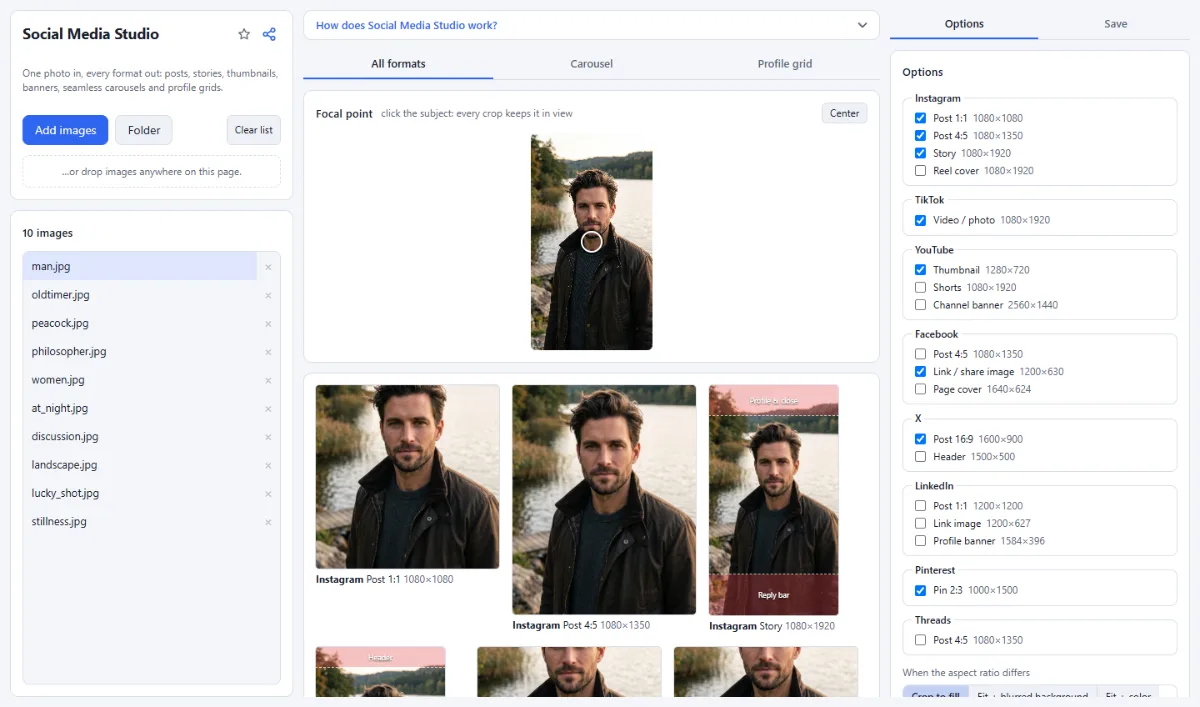
- All formats at once: The "All formats" tab lists 18 formats with their pixel sizes, for example Instagram "Post 4:5" (1080×1350) and "Story" (1080×1920), YouTube "Thumbnail" (1280×720) and "Channel banner" (2560×1440), Facebook "Link / share image" (1200×630), LinkedIn "Profile banner" (1584×396) and Pinterest "Pin 2:3" (1000×1500). Tick the ones you need and a live preview of each appears.
- Focal point: Click or drag on the photo under "Focal point" to mark your subject. Every crop is placed so that this point stays in view. Each image keeps its own focal point, and "Center" resets it.
- Areas covered by the app: With "Show areas covered by the app UI", the previews mark where buttons, captions, profile pictures or the reply bar sit on top of the image, such as on Stories, Reels and TikTok. For the YouTube channel banner, the area visible on all devices is outlined.
- Crop or fit: Under "When the aspect ratio differs", "Crop to fill" crops around the focal point. "Fit + blurred background" and "Fit + color" keep the whole photo and fill the rest with a blurred copy or a color you choose.
- Seamless carousels: The "Carousel" tab cuts a panorama into 2 to 10 slides in 4:5 (1080×1350), 1:1 (1080×1080) or 3:4 (1080×1440). With "Slides" set to automatic, the number of slides follows the shape of each photo.
- Profile grids: The "Profile grid" tab splits one photo into 1 to 5 rows of 3 posts, as 3:4 tiles (the current profile grid) or 1:1 tiles (classic). The files are numbered in posting order, so the picture lines up on your profile after you post them.
How To Use The App
- Add your photos: Click "Choose images" or "Folder" (Chrome and Edge), or drop images anywhere on the page. If you add several, click one in the list to preview it.
- Pick a mode: Choose "All formats", "Carousel" or "Profile grid" in the tabs above the preview.
- Set the focal point: Click your subject in the "Focal point" image. The previews update right away; click "Center" to go back to the middle.
- Adjust the options: In the "Options" tab, tick the formats you want and choose how to handle a different aspect ratio. In carousel mode, set the "Slide format" and "Slides". In grid mode, set "Rows" and "Tile format".
- Choose file format: Under "File format", pick "JPG" (with a "Quality" slider) or "PNG".
- Export the images: In the "Save" tab, choose "Choose output folder" (Chrome and Edge) or "ZIP download" and click the export button, which shows the number of files (for example "Export … images"). A single file downloads directly. Files are named after the photo and format, for example photo-instagram-story.jpg, photo-carousel-01.jpg or photo-grid-post-01.jpg; with several photos, each one gets its own subfolder.
Tips
- Post grid files in their numbered order, starting with the file ending in grid-post-01 (the bottom-right tile), so the picture assembles correctly on your profile.
- Instagram allows up to 20 slides per carousel, but 2 to 10 work best. The slider stops at 10.
- The focal point can also be moved with the arrow keys (Shift for bigger steps); Home centers it.
- Your settings are remembered in this browser; focal points are reset when you load new images.
Frequently asked questions
- Will a small photo be enlarged?
- Yes. Every file is scaled to the exact pixel size of its format, so a photo with fewer pixels is enlarged and can look soft, for example in the 2560 × 1440 YouTube "Channel banner". Carousels and grids need even more: three rows of 3:4 tiles cut from one photo need 3240 × 4320 pixels to avoid enlarging.
- How many slides does an automatic carousel get?
- The width-to-height ratio of the photo is divided by that of the slide format and rounded, with at least 2 and at most 10 slides. A 3:1 panorama therefore gives 4 slides in 4:5 and 3 slides in 1:1. With several photos, each one gets its own number of slides.
- How exact are the areas covered by the app UI?
- They are approximations of the current app layouts, meant to keep faces and text out of the way. On an Instagram "Story", for example, the top 13 % (profile and close button) and the bottom 18 % (reply bar) are marked. For the YouTube "Channel banner", the outlined middle area of 1546 × 423 pixels is the part shown on every device.
- Can I set a different crop for each format?
- No. Each photo has one focal point, and every format takes the largest area of its shape around that point. If one format needs a hand-made frame, crop a copy of the photo with Crop Images first, or choose "Fit + blurred background" to keep the whole photo.
- Do the exported images contain my location or camera data?
- No. Every image is drawn anew from the pixels of your photo and saved as a fresh JPG or PNG, so EXIF data such as GPS position, capture date and camera model is not included. Colors are converted to sRGB.
Related tools
- Crop Images: Each photo its own crop
- Before / After: Sliders · Wipe videos · GIF
- Filter Lab: Own looks · 35+ filters · LUTs
- Watermark Images: Text, logo, frame & copyright