Combine Images
Put two or more images side by side, stack them or arrange them in a grid, with matched sizes, gaps and background. For comparisons, guides and collages.
Combine Images tutorial
Functionality
Combine Images puts two or more images side by side, stacks them or arranges them in a grid, and saves the result as a single image. Typical uses are before-and-after comparisons, step-by-step guides, screenshot strips and simple collages.
Sizes are matched automatically, so images of different resolutions line up without manual scaling. Gap, border and background are adjustable, and a live preview shows the result with its exact pixel size. Everything runs locally in your browser; your images are not uploaded.
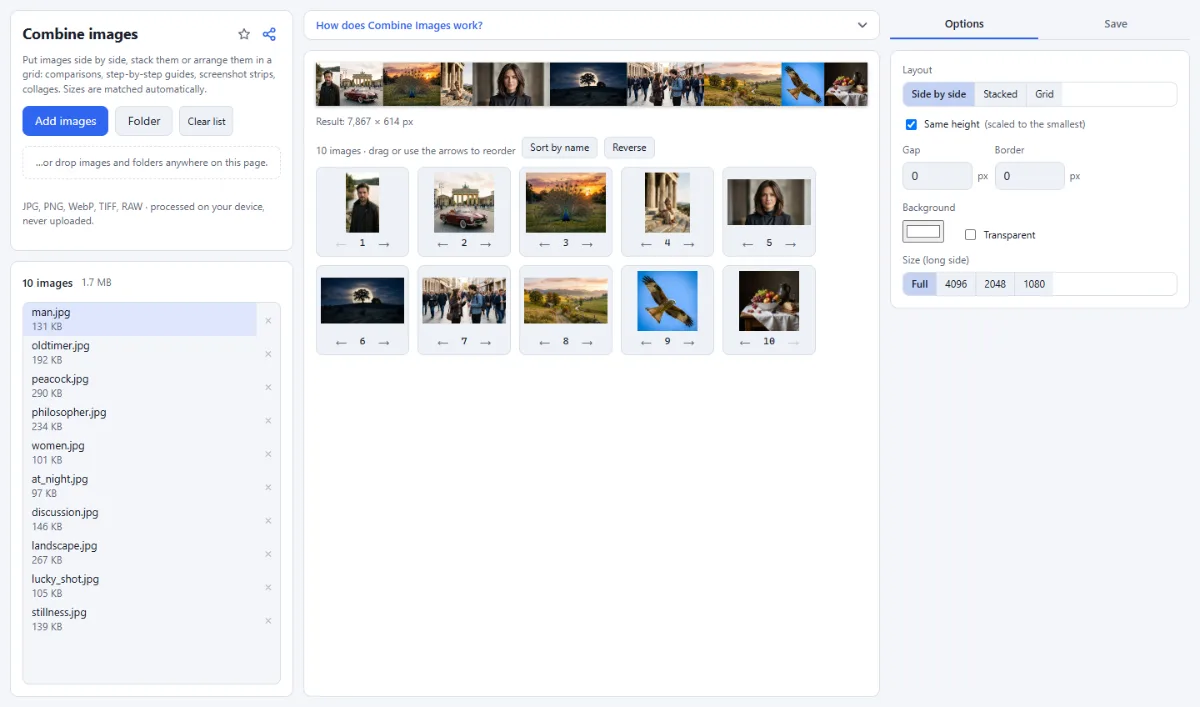
- Three layouts: "Layout" offers "Side by side", "Stacked" and "Grid". For a grid, "Columns" sets 1 to 20 columns; the rows follow from the number of images.
- Matched sizes: "Same height" (side by side) and "Same width" (stacked) scale all images to the smallest one, so nothing is enlarged. In a grid, "Equal cells" gives every cell the typical size of your images, so smaller images are enlarged; "In each cell" shows the "Whole image" or fills the cell with "Fill (crop)".
- Original sizes with alignment: With size matching turned off, every image keeps its own size. "Align" then places smaller images at the top, center or bottom (side by side), or left, center or right (stacked and grid).
- Gap, border and background: "Gap" and "Border" are set in pixels of the final image, even if it is scaled down. "Background" sets the color of gaps, border and empty space; tick "Transparent" to keep them transparent in PNG and WebP.
- Image order: The images appear as thumbnails below the preview. Drag them into place or use the arrow buttons; "Sort by name" and "Reverse" reorder all of them at once.
- Output size and format: "Size (long side)" keeps the "Full" size or limits the result to "4096", "2048" or "1080" px. "Save as" offers "JPG", "PNG" and "WebP", with a "Quality" slider for JPG and WebP.
How To Use The App
- Add at least two images: Click "Choose images" or "Folder", or drop the images onto the page. The preview shows the combined result as soon as the images are loaded.
- Choose a layout: Select "Side by side", "Stacked" or "Grid" under "Layout", and set the number of "Columns" for a grid.
- Put the images in order: Drag the thumbnails below the preview or move them with the ← and → buttons. "Sort by name" and "Reverse" help with numbered files.
- Match sizes: Keep "Same height", "Same width" or "Equal cells" ticked for an even result, or untick it and choose an "Align" option. In a grid, choose "Whole image" or "Fill (crop)" under "In each cell".
- Set spacing and background: Enter "Gap" and "Border" in pixels, pick a "Background" color, or tick "Transparent".
- Choose size and format: Pick a "Size (long side)", and in the "Save" tab the format under "Save as". The line below the preview shows the final size, for example "Result: 3,840 × 1,080 px".
- Save the combined image: Open the "Save" tab in the right sidebar, choose "Download" or, in Chrome and Edge, "Choose output folder", and click "Combine … images". The result is named after the loaded folder or "combined", with the extension of the chosen format (.png if the browser cannot save WebP).
Tips
- For a before-and-after comparison, "Side by side" with "Same height" and a small "Gap" gives a clean split.
- JPG has no transparency: with "Transparent" ticked, the background color is used. Choose PNG or WebP to keep it transparent.
- Very large results are scaled down automatically to stay within the browser’s canvas limits; the preview tells you when this happens. iPhone and iPad allow smaller images (about 16 megapixels) than desktop browsers.
Frequently asked questions
- How large can the combined image be?
- Up to 16,384 pixels on the long side and 100 megapixels, and about 16 megapixels on iPhone and iPad. There is no fixed number of images. A layout beyond these limits is scaled down to fit, the line below the preview says so, and "Gap" and "Border" keep their pixel size.
- Why is my combined image smaller than I expected?
- With "Same height" or "Same width", every image is scaled to the smallest one, so that nothing is enlarged. One small image, such as a thumbnail or a cropped screenshot, therefore shrinks all the others. Replace it with a larger version, or untick the option so that every image keeps its own size.
- How are the cells sized with "Equal cells"?
- Every cell gets the median width and the median aspect ratio of your images, so typical images fit best. With "Whole image", images of another shape get bands of the background color; with "Fill (crop)", they are cropped around their center. Images smaller than a cell are enlarged to fit it.
- Is the GPS location of my photos kept in the combined image?
- No. The combined image is a new file without EXIF data, so location, capture date and camera details are not included. Phone photos are turned upright by their orientation tag before they are placed.
- What is the difference between Combine Images and Collage Maker?
- Combine Images keeps the full resolution and puts any number of images in a row, a column or a grid, which suits comparisons, guides and screenshot strips. Collage Maker makes styled grids and mosaics of 2 to 9 photos in square, 4:5, story or print size, with rounded corners, text and stickers.
- Are my images uploaded to combine them?
- No. The images are decoded one after another in your browser, each directly at the size it is drawn, and the result is saved to your downloads or the chosen folder. Nothing is sent to a server.
Related tools
- Before / After: Sliders · Wipe videos · GIF
- Crop Images: Each photo its own crop
- Images to PDF: JPG, PNG, scans → one PDF
- Social Media Studio: All formats · Carousels · Grids