Frame & Fill
Fit the whole photo into square, 4:5 or story and fill the rest: a color, the blurred or mirrored photo, or a content-aware fill. One photo or a folder.
Frame & Fill tutorial
Functionality
Frame & Fill fits your whole photo into a square, 4:5 or story frame and fills the rest with a white or colored border, the blurred photo, its mirror image, or new content made from the photo itself (content-aware fill). The photo itself is never cropped or distorted. Feeds and profiles then show the complete photo instead of cutting it off.
It works for one photo or a whole folder at once; your photos are never uploaded.
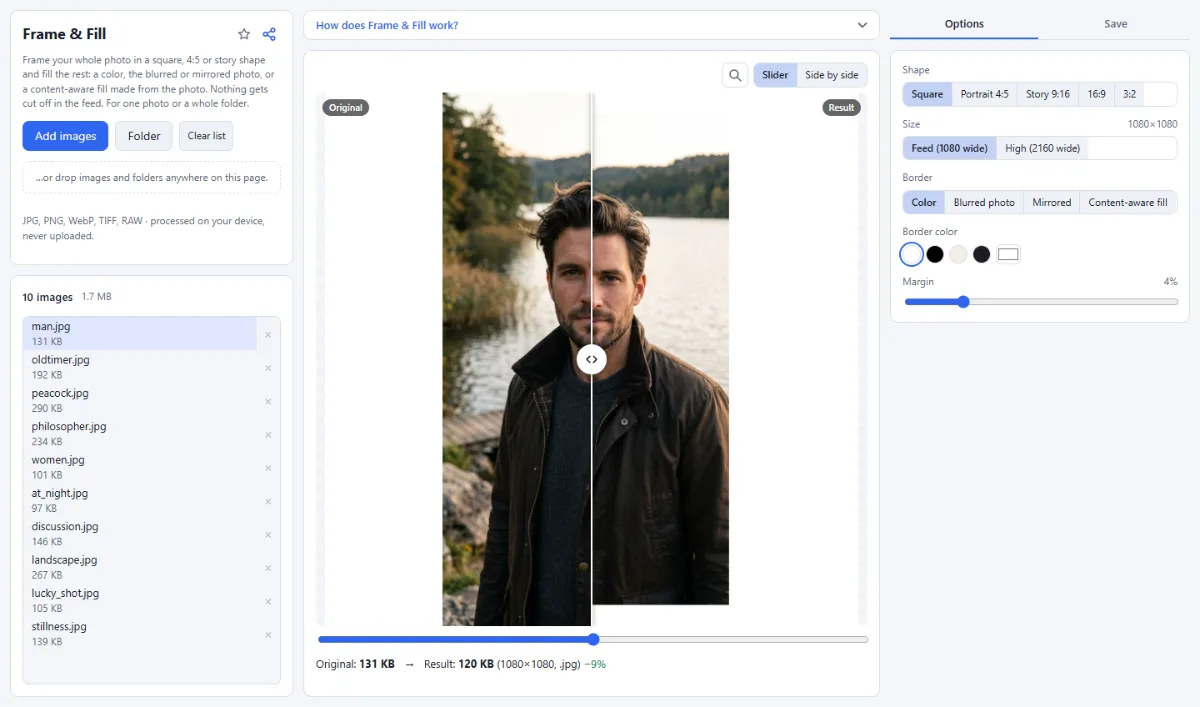
- Shapes: Square, Portrait 4:5, Story 9:16, 16:9 and 3:2.
- Border: White, black or any color, or "Blurred photo": the photo itself blurred behind it. The "Blur" slider sets how soft it is, from a light blur that keeps some structure to a calm wash of the photo's colors.
- Mirrored: The photo is mirrored outwards at its edges, so shapes continue without a seam; the whole mirror image is blurred right up to the photo (set with the "Blur" slider) and a little darker, so the photo itself stands out.
- Content-aware fill: The gaps are filled with new content put together from patches of your photo (PatchMatch, the method behind "Content-Aware Fill"), taken from the strip of the photo next to each gap: sky continues as sky, a meadow as meadow, a facade as facade. Works best with even backgrounds; it takes one to two seconds per photo. The "Blur" slider softens the fill (0 keeps it sharp), which also hides repeated patterns.
- Margin: With "Color" and "Blurred photo": an even border all around, also where the photo would touch the edge.
- Size: 1080 pixels wide for feeds, or 2160 for extra sharpness.
How To Use The App
- Open photos: Click "Choose images" or "Folder", or drop photos onto the page.
- Choose shape and border: Pick the "Shape" and the "Size", then the "Border": "Color" or "Blurred photo" (with the "Blur" slider) and the "Margin", or "Mirrored" or "Content-aware fill" to fill the frame from the photo itself, each with the "Blur" slider.
- Format and quality: In the "Save" tab, choose "JPG", "PNG" or "WebP" under "Save as" and, for JPG and WebP, the "Quality".
- Save: Click "Frame & download" for one photo. For several, choose "ZIP download" or, in Chrome and Edge, "Choose output folder" under "Target", then click "Frame … photos".
Tips
- For Instagram feeds, 4:5 gives your photo the most room.
Frequently asked questions
- Which pixel sizes does Frame & Fill create?
- With "Feed (1080 wide)": Square 1080 × 1080, Portrait 4:5 1080 × 1350, Story 9:16 1080 × 1920, 16:9 1080 × 608 and 3:2 1080 × 720 pixels. "High (2160 wide)" uses the same shapes at 2160 pixels wide, for example 2160 × 2700 for 4:5.
- Are small photos enlarged?
- Yes. Every photo is scaled to fit the frame, minus the margin, so a photo smaller than the frame is enlarged and looks softer. For small photos, keep "Feed (1080 wide)"; "High (2160 wide)" only pays off for photos at least that large.
- Why does the content-aware fill repeat parts of my photo?
- Because the fill is put together from patches of the strip of the photo next to each gap. Whatever is at that edge, a person, a lamp post or a pattern, can turn up again in the border. It works best when the edges show sky, water, grass or a wall. Raise "Blur" to hide repeats, or use "Blurred photo" or "Mirrored" for busy edges.
- Why is there no "Margin" with "Mirrored" or "Content-aware fill"?
- Because with these two the photo is fitted to touch two edges of the frame, and the fill continues the photo itself from there, so no space is kept free around it. "Margin" applies to "Color" and "Blurred photo", where it keeps an even border on all four sides.
- Can I frame portrait and landscape photos in one run?
- Yes. Each photo is fitted into the chosen shape on its own, so portrait and landscape photos come out in the same frame size, with the border where each one needs it. Files keep their names and folder structure, with the extension of the chosen format; several photos are saved as a ZIP or, in Chrome and Edge, into a folder.
- Does the content-aware fill run on a server?
- No. Like the other borders, it is computed in your browser: the patches are matched on a reduced copy of the photo and then copied sharp at full size. Your photos are never uploaded.
Related tools
- Crop Images: Each photo its own crop
- Resize Images: By pixels, percent or long side
- Social Media Studio: All formats · Carousels · Grids
- Collage Maker: Grids & mosaics · 2–9 photos