Slideshow Video Maker
Photos become a video with slow camera moves, transitions, a title and captions, for Reels, TikTok, Stories or WhatsApp. Saved as MP4 or GIF.
Slideshow Video Maker tutorial
Functionality
The Slideshow Video Maker turns your photos into a short video: each photo moves slowly (zoom or pan), transitions lead from one to the next, and a title and captions tell the story. Made for Reels, TikTok, Stories, WhatsApp status or a quick holiday recap.
Everything is rendered in your browser and saved as an MP4 video (or a GIF); your photos are never uploaded, and there is no watermark. Comics from the Comic Maker can be sent here directly: each page scrolls from top to bottom.
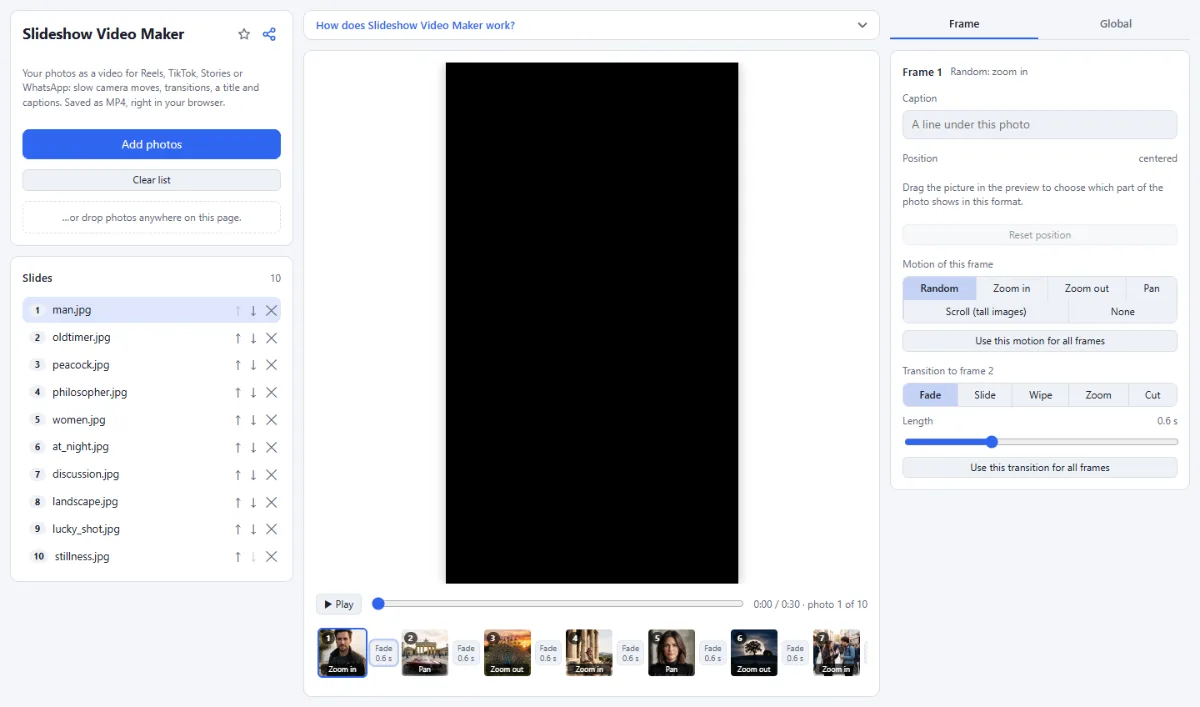
- Camera moves: "Zoom in", "Zoom out", "Pan", "Random", "None" for a still picture, or "Scroll (tall images)" for tall pictures such as comic pages, which travels from the top to the bottom of each one.
- Transitions: Fade, slide, wipe, zoom or a hard cut, with an adjustable length.
- Formats: 9:16 for Reels, TikTok and Stories, 4:5 and 1:1 for feeds, 16:9 for YouTube; fill the frame or show the whole photo on a blurred, black or white background.
- Title and captions: A big title over the first photo and a caption for every photo.
- Live preview: Play the slideshow and scrub through it before you save.
- From the Comic Maker: In the Comic Maker, click "Send to Video Maker" to open the finished pages here.
How To Use The App
- Open your photos: Click "Open photos" or drop them onto the page. They play in the order of the list.
- Arrange: Move photos up and down in the list, remove the ones you do not need.
- Style: Choose the "Format" and the "Seconds per photo" in the "Global" tab on the right. Motion, transition and caption are set for each frame in the "Frame" tab, which can also apply the motion and the transition to all frames.
- Add text: In the "Global" tab, type a "Title (over the first photo)". Then click a frame below the preview and type its "Caption" in the "Frame" tab.
- Save: Under "Save" in the "Global" tab, choose "MP4 video" or "GIF" and click "Save video". The file is downloaded as slideshow.mp4 or slideshow.gif.
Tips
- 3 to 4 seconds per photo feel calm; 1.5 to 2 seconds give a fast, energetic video.
- Add music in the app where you post the video (Instagram, TikTok): it offers licensed songs.
- Some browsers cannot write MP4; there you can save a GIF, or use Chrome or Edge.
Frequently asked questions
- How long will my video be?
- The length is the number of photos times "Seconds per photo" (1 to 10 seconds). Transitions, the title, the intro and the outro all happen within that time and add nothing, so 12 photos at 3 seconds make a 36-second video. The length is shown below the "Save video" button.
- Which resolution and codec does the MP4 have?
- It has 30 frames per second at 1080 × 1920 (9:16), 1080 × 1350 (4:5), 1080 × 1080 (1:1) or 1920 × 1080 (16:9). The video is encoded as H.264 where the browser can do that, otherwise as VP9, which may not play on iPhones; a note after saving tells you when VP9 was used. The file has no sound track.
- Can each photo have its own motion and transition?
- Yes. Click a frame in the strip below the preview and open the "Frame" tab: "Motion of this frame" sets its camera move, and the transition to the next frame gets its own type and "Length", up to half of the seconds per photo. "Use this motion for all frames" and "Use this transition for all frames" copy a setting to every frame.
- How do I choose which part of a photo is shown?
- Drag the picture in the preview while that photo is on screen. The position is saved for this frame and works with every motion except "Pan", which moves the photo sideways by itself; "Reset position" in the "Frame" tab centers it again. It matters most with "Fill the frame", where the video format cuts off part of the photo.
- Why is the GIF smaller and less sharp than the MP4?
- Because GIFs are saved 480 pixels wide at 12 frames per second, with one palette of 256 colors taken from the middle of every photo. That keeps the file small enough to send, but gradients and fine detail suffer. Choose "MP4 video" whenever the place you post to accepts video.
Related tools
- Comic Maker: Panels · Speech bubbles · PDF
- Sequence to Video: Frames → MP4 or GIF
- Video to GIF: MP4 → animated GIF
- Collage Maker: Grids & mosaics · 2–9 photos