Filter Lab
Build your own looks from 35+ filters (curves, HSL, film grain, halftone, glitch …) and apply them to one photo or a whole folder. Export the grade as a .cube LUT or share the look as a file.
Filter Lab tutorial
Functionality
Filter Lab is where you build your own photo looks. A look is a chain of filters (exposure, curves, HSL, split toning, film grain, halation, halftone, glitch and more than 30 others) that runs from top to bottom, and the preview shows the result on your photo as you change it. You can start from one of the built-in looks or from an empty one.
When the look is ready, apply it to a single photo or to every image in a folder, export its color part as a .cube LUT for Photoshop, Premiere Pro, DaVinci Resolve or Final Cut Pro, or share it as a look file or link. Your photos are processed locally in your browser and never uploaded.
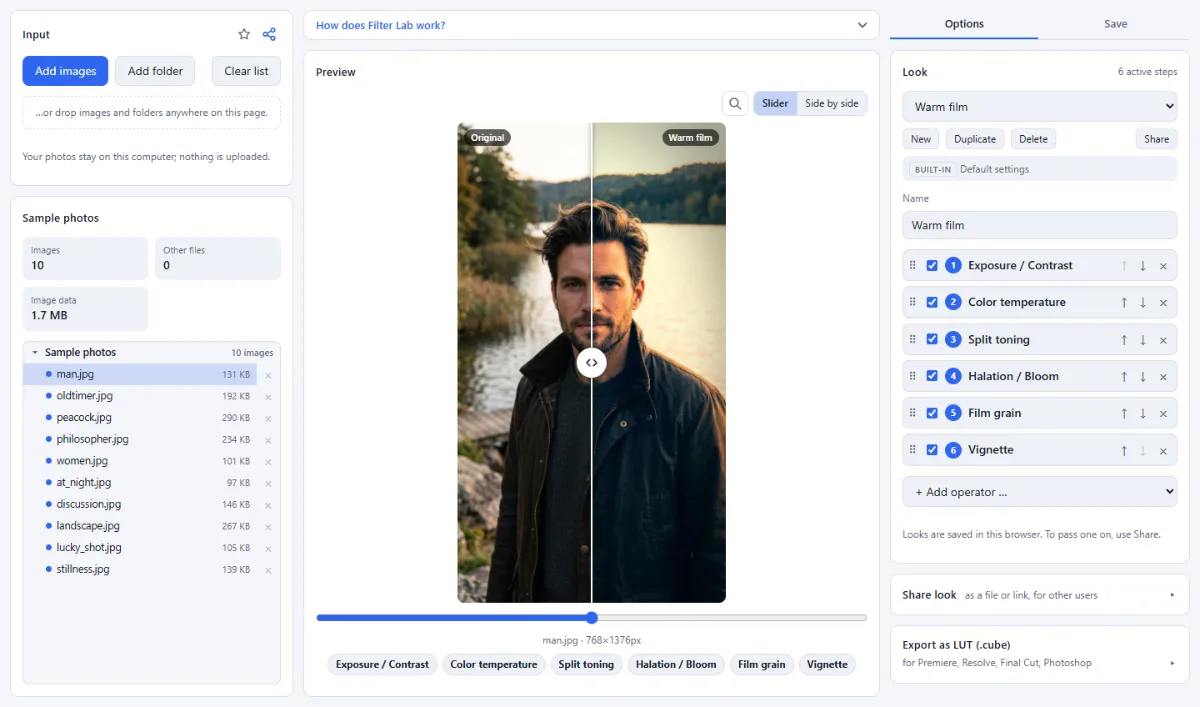
- Built-in looks: The "Built-in looks" group in the look menu contains ready-made looks such as "Warm film", "Cinematic teal & orange", "Vintage Polaroid", "Noir", "VHS tape", "Golden hour", "Night vision" and "Manga Overlay", which turns a photo into black-and-white ink with screentone dots. Edit them freely: a changed built-in look is marked "(modified)" and "Reset to default" brings back the original settings.
- Filters in five groups: The "+ Add operator …" menu sorts the filters into "Transform", "Color & Tone", "Detail & Blur", "Analog & Optics" and "Stylize & Degradation". It includes Curves with RGB, R, G and B channels, an HSL / color mixer with eight color ranges, Split toning, Duotone, Film grain, Halation / Bloom, Light leaks, Tilt-shift, Oil paint, Pencil sketch, Halftone, Posterize, Threshold, Pixel sorting and Glitch.
- Bypass, opacity and order: Each step has a checkbox to bypass it without deleting it and a "Reset to defaults" link; all steps except the Transform ones also have an "Opacity" slider that blends the step with the image before it. Drag a step by its handle or use the ↑ and ↓ buttons to change the order, and × to remove it.
- Before/after preview: The preview shows the selected image as "Original" next to the look. Switch between "Slider", where you drag a divider across the image, and "Side by side". It updates a moment after each change.
- One image or a whole folder: "Export current image" saves only the selected photo. "Process all images" applies the look to every loaded image and writes the results into an output folder, keeping the folder structure, or into one ZIP file.
- LUT export and import: The "Export as LUT (.cube)" panel bakes the color steps of the look into a .cube file with a grid size of 17³, 33³ (standard) or 65³. Steps a LUT cannot hold, such as grain, blur or vignettes, are tagged "not in LUT", and "LUT result" in the preview shows what the LUT alone does. "Import a .cube as a new look" turns an existing LUT into a look with an "Apply LUT (.cube)" step.
- Share looks: The "Share look" panel saves the look as a small .look.json file or copies a share link that carries the look itself. Unlike a LUT, a look file keeps every step and setting. Files and links contain only the settings, never your photos.
- Your look library: Your own looks appear under "My looks" and are saved in this browser, so they are still there on your next visit. "New" starts an empty look, "Duplicate" copies the current one and "Delete" removes it.
How To Use The App
- Open your photos: Click "Open images" or "Open folder", or drop images and folders anywhere on the page. JPG, PNG, WebP, AVIF, GIF, BMP, TIFF and camera RAW files are supported. Pick an image in the file tree to preview it.
- Choose a look: In the "Look" panel, open the menu and pick a look under "Built-in looks" or "My looks", or click "New" to start from scratch. Type a name into the "Name" field.
- Add and adjust filters: Choose a filter from "+ Add operator …". It is added at the end of the chain and opens its settings right away. Click a step’s name to open or close its settings.
- Fine-tune the chain: Untick a step’s checkbox to compare the look with and without it, lower its "Opacity" to soften it, and drag steps or use ↑ and ↓ to change the order. Check the result with the "Slider" or "Side by side" view in the preview.
- Set format and target: Open the "Save" tab. In the "Run" panel, pick the "Format" ("Same as source", "PNG (lossless)", "JPEG" or "WebP") and, for JPEG and WebP, the quality. Under "Target", click "Choose output folder" (Chrome and Edge) or "ZIP download".
- Apply the look: Click "Export current image" for the selected photo; it goes into the chosen folder or straight to your downloads. Click "Process all images" to apply the look to every loaded image; a ZIP is named after the folder and the look.
- Export a LUT if you need one: Open "Export as LUT (.cube)", optionally enter a name, pick the "Grid size" and click "Download .cube LUT". Use the file in Photoshop (Color Lookup), Premiere Pro (Lumetri → Look), DaVinci Resolve, Final Cut Pro, CapCut or OBS.
- Share the look: Click "Share" in the "Look" panel. "Save look file" downloads a .look.json file, and "Copy share link" copies a link that opens the look in Filter Lab. To use a look someone sent you, click "Open look file …" or drop the .look.json or .cube file onto the page.
Tips
- A share link cannot hold a look that contains a LUT, because it would be too long. Save a look file instead.
- LUTs are made for Rec.709/sRGB photos and footage, not for log footage. Imported LUTs larger than 33³ are stored as 33³.
- In the Curves editor you can click the curve to add a point (up to 16 per curve) and double-click a point to remove it. With the keyboard, Tab to a point and move it with the arrow keys (Shift for 10 steps).
- With "Same as source", TIFF files are saved as PNG and RAW files as JPG, because browsers cannot write those formats.
- The ZIP download is limited to 4 GB and 65,535 files. For large folders, use "Choose output folder".
Frequently asked questions
- Can I save the edited photos into the folder with my originals?
- No. If the output folder is the source folder or a folder inside it, the export stops, so your originals cannot be overwritten. Choose a separate folder or the ZIP download. In the chosen folder, files with the same name from an earlier run are replaced, and the subfolders of the source are recreated.
- Are the photos processed at full resolution?
- Yes. The preview is scaled down for speed, but "Export current image" and "Process all images" apply the look to every pixel of the original. The size only changes when the look contains "Crop" with "Keep cropped size" or "Scale" with "Resize image". Photos with a wide color space, such as iPhone pictures in Display P3, are converted to sRGB.
- Does Filter Lab edit the sensor data of RAW files?
- No. Camera RAW files such as CR3, NEF, ARW or DNG are read through the JPEG preview the camera embeds, which for most current cameras has the full sensor resolution. The look works on this camera-rendered image, so there is no extra highlight or shadow range as in a RAW converter. With "Same as source" the result is saved as JPG.
- Where are my looks stored, and how do I back them up?
- Your own looks are stored in this browser on this device, not in an online account. Another browser or computer does not see them, and deleting the site data removes them. To keep a copy or move a look, use "Save look file" under "Share look" and open the file later with "Open look file …" or by dropping it onto the page.
- Can I use my looks in other tools of this site?
- Yes. Photo Effects shows your looks as one-click effects next to the built-in ones, Look Stack applies several looks one after another, and Before / After compares a photo with its look in "Photo + look" mode. All three use the same looks, so a change made in Filter Lab appears there too.
Related tools
- Photo Effects: Film · Vintage · Noir · Manga
- Look Stack: Several looks in one pass
- LUT Creator: Color grades as .cube LUTs
- Before / After: Sliders · Wipe videos · GIF