LUT Creator
Grade with curves, HSL mixer, split toning and more, then export the look as a .cube LUT for Photoshop, Premiere, DaVinci Resolve or Final Cut, or import LUTs and apply them to photos.
LUT Creator tutorial
Functionality
A LUT (lookup table) stores a color grade as a table: for a grid of input colors it lists the color each one becomes, and the program that applies it interpolates the colors in between. Saved as a .cube file, which is plain text, one grade can be loaded into Photoshop, Premiere Pro, DaVinci Resolve, Final Cut Pro, CapCut or OBS, so photos and video clips get the same look.
The LUT Creator is the Filter Lab opened with its "Export as LUT (.cube)" panel. Build a grade from color steps such as "Curves", "HSL / color mixer", "Split toning" or "Color temperature", judge it on your own photos and download it as a .cube file. The page also works the other way round: import a .cube from another program or a LUT pack and apply it to one photo or to a whole folder. The LUT is calculated in your browser, and your photos are never uploaded.
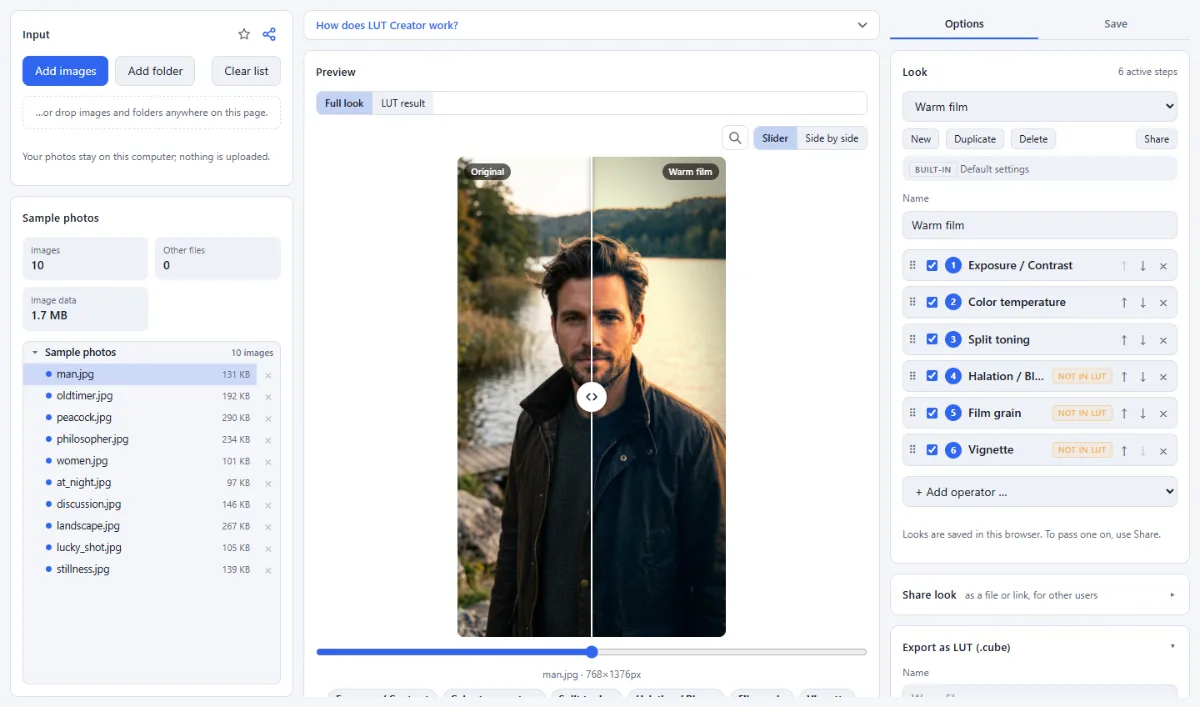
- Color steps go into the file: A LUT can only hold changes that turn each input color into exactly one output color. "Curves", "HSL / color mixer", "Split toning", "Duotone", "Color temperature", "Exposure / Contrast", "Brightness", "Color jitter", "HSV shift", "Grayscale", "Invert" and "Apply LUT (.cube)" qualify, as do "Posterize" with "Levels per channel" and no dithering, and "Threshold" with a "Manual" cutoff. While the LUT panel is open, every other step shows a "not in LUT" tag in the "Look" panel and is listed after "Not in the LUT:" in the LUT panel. Bypassed steps are left out as well, while the "Opacity" of a color step is baked in.
- Preview of the LUT alone: While the LUT panel is open and the look contains a step that is not in the LUT, a switch with "Full look" and "LUT result" appears above the preview image. "LUT result" renders only the steps that go into the file, and the label of the result changes from the look name to the name followed by "· LUT". With "Slider" or "Side by side" you compare it with "Original".
- Import as a new look: "Import a .cube as a new look" creates a look whose only step is "Apply LUT (.cube)", holding the file, and selects it right away. The look is named after the TITLE line of the file, or after the file name if there is none, with a number added when the name is taken. To bring in several LUTs at once, drop the .cube files onto the page or select them with "Open look file …" in the "Share look" panel; each becomes a look of its own under "My looks".
- LUTs inside any look: "Apply LUT (.cube)" is also listed under "Color & Tone" in "+ Add operator …", so a LUT can sit at any position of a look. Open the step and click "Load .cube …" to fill it, or "Replace …" to swap the file. Because the step is a color step itself, two LUTs in one look, or a LUT followed by a "Curves" correction, are merged into one new .cube when you export.
- Grade photos with a LUT: An imported LUT works like any other look: apply it to the selected photo or to every image of an opened folder, saved as "JPEG", "WebP", "PNG (lossless)" or "Same as source". The look is also available in Photo Effects, Look Stack and Before / After, which compares a photo with its LUT version in "Photo + look" mode.
- File for editors, look file for this site: The .cube file is meant for other programs and contains only the color steps, baked into one table. To give someone the complete look, for example an imported LUT plus film grain, use "Save look file" in the "Share look" panel instead: the .look.json file keeps the "Apply LUT (.cube)" step with its "Strength" and every other step, and opens again in the LUT Creator or the Filter Lab.
How To Use The App
- Load photos to judge the grade: Click "Open images" or "Open folder", or drop images anywhere on the page; "No images at hand? Try sample photos" loads a set of examples. Use pictures with different subjects and light, because the LUT treats all of them the same way, and switch between them in the file list.
- Start a look: In the "Look" panel, click "New" for an empty look, or choose a built-in look such as "Cinematic teal & orange" as a base: its "Halation / Bloom", "Vignette" and "Film grain" steps are tagged "not in LUT", the three color steps above them are not. Enter a name in the "Name" field.
- Build the grade from color steps: Pick steps from the "Color & Tone" group of "+ Add operator …", for example "Curves" for contrast and channel balance, "HSL / color mixer" for single colors and "Split toning" for tinted shadows and highlights. Keep an eye on the tags: a step marked "not in LUT" changes the preview but not the file.
- Compare with the LUT result: If any step is tagged, click "LUT result" above the preview to see only the steps that go into the file, and "Full look" to return. Drag the divider in "Slider" view or switch to "Side by side" to compare it with "Original".
- Name the file and pick a grid size: In "Export as LUT (.cube)", type a "Name" or leave the field empty to use the name of the look, then choose the "Grid size": 17³, 33³ (standard, preselected) or 65³.
- Download the .cube: Click "Download .cube LUT". The button reads "Baking …" until the file is ready; then it is downloaded, and a line in the panel confirms the grid size and how many color steps it contains. Load it in your photo or video editor as a creative LUT.
- Or use a LUT you already have: Click "Import a .cube as a new look" or drop the file onto the page. Click the "Apply LUT (.cube)" step to open it and lower "Strength" if the effect is too strong, then click "Export current image", or choose a "Target" and click "Process all … images" (the label shows the number of loaded images) to grade the whole folder.
Tips
- Put the color steps first and texture such as "Film grain", "Vignette" or "Halation / Bloom" last. Then "LUT result" equals the full look without the texture, and you can add the same effects after the LUT in your video editor.
- The "not in LUT" tags and the "Full look" / "LUT result" switch are shown only while "Export as LUT (.cube)" is open; click the panel heading to fold it away.
- "Download .cube LUT" stays disabled until the look has at least one color step that is switched on.
- Special characters are dropped from the file name and spaces become underscores: a LUT named "Teal & orange" is saved as Teal_orange.cube.
Frequently asked questions
- Which grid size should I choose for my LUT?
- Under "Grid size", 33³ is the standard and fits most grades; the file is about 1 MB. 65³ reproduces steep curves, strong HSL shifts or "Posterize" more exactly, because the program that applies the LUT has to interpolate less between the grid points, but the file grows to about 7 MB. 17³ (about 130 KB) is enough for gentle color corrections.
- Why is my "Contrast" step marked "not in LUT"?
- Because "Contrast" scales the colors around the average brightness of each photo, so one input color can give different results in different images, and a LUT stores one fixed output per color. The same applies to "Histogram equalization (CLAHE)", "Threshold" with "Automatic (Otsu)" and "Posterize" with "Palette (k-means)" or dithering. Use "Exposure / Contrast" for contrast that goes into the LUT.
- How closely does the LUT match the preview?
- Very closely for the color steps. The LUT is made by running those steps through the same engine as the preview over an image that contains every grid color, at 8-bit precision. Steps that are not in the LUT are missing from the file, so switch the preview to "LUT result" to see what the LUT will do before you download it.
- Which .cube files can I import?
- Both 3D LUTs with 2 to 65 grid points per axis and 1D LUTs can be imported; 1D LUTs are converted into a 3D LUT. Files with their own input range (DOMAIN_MIN and DOMAIN_MAX, or LUT_3D_INPUT_RANGE) are resampled to the range 0 to 1. Other LUT formats such as .3dl are not read, and files larger than 40 MB are refused.
- Why does an imported LUT look different here than in my video editor?
- Often because it was made for log footage: conversion LUTs for S-Log, V-Log and similar camera profiles expect flat, low-contrast clips, so on normal photos they look far too contrasty and saturated. Use creative LUTs made for Rec.709 instead. Small differences can also come from resampling, because LUTs larger than 33³ are stored as 33³, and from the interpolation between grid points, which some editors do differently.
- What exactly is in the exported .cube file?
- It is a plain text file in the common .cube format: a TITLE line with the name, LUT_3D_SIZE 17, 33 or 65, DOMAIN_MIN 0.0 0.0 0.0 and DOMAIN_MAX 1.0 1.0 1.0, then one line of red, green and blue output values per grid point. The values assume sRGB or Rec.709 input, so on log footage apply the LUT after the conversion to Rec.709.
Related tools
- Filter Lab: Own looks · 35+ filters · LUTs
- Before / After: Sliders · Wipe videos · GIF
- Color Palette: Colors from any image
- Social Media Studio: All formats · Carousels · Grids