Sequence to Video
Turn an image sequence into an MP4 video or an animated GIF: frames in name order, at the frame rate you choose, encoded in your browser.
Sequence to Video tutorial
Functionality
Sequence to Video turns numbered images, such as frame_0001.png, frame_0002.png …, into an MP4 video or an animated GIF. Typical uses are time-lapses, stop motion, renders and animations from single frames.
The frames are used in name order and encoded by your browser's own video encoder (WebCodecs) with H.264, so the MP4 plays everywhere. Nothing is uploaded, and each image is loaded only when the video reaches it, so long sequences work too.
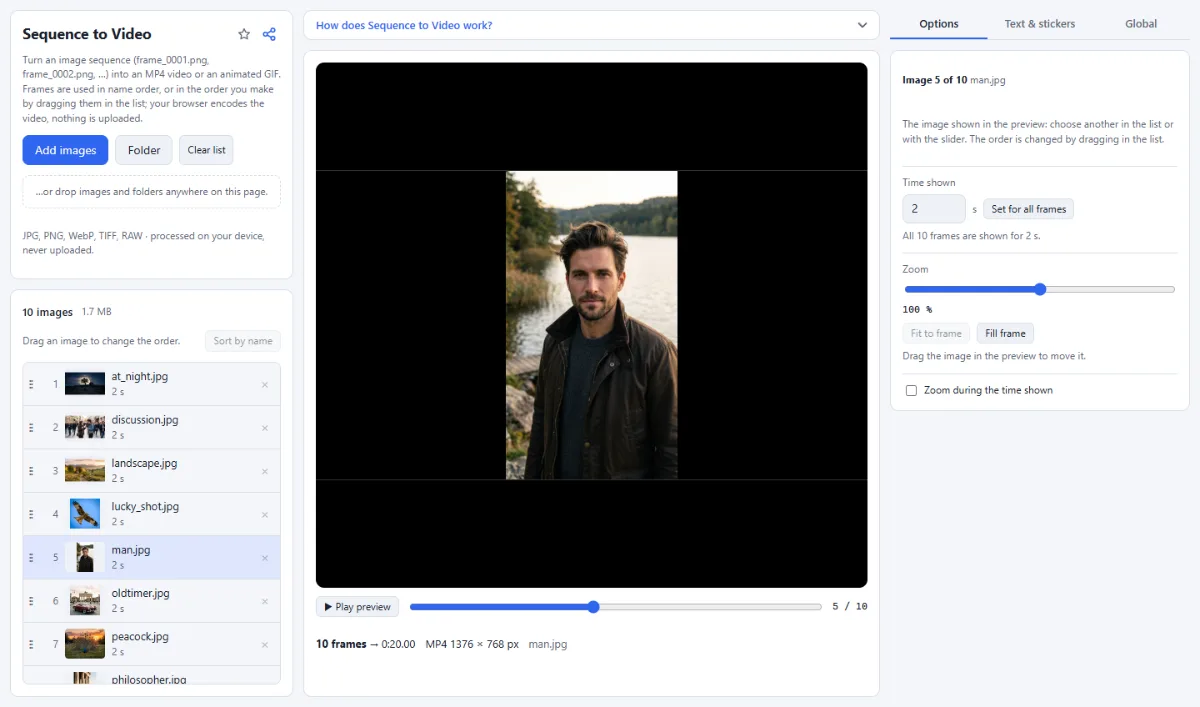
- Three tabs: "Options" holds what belongs to the image shown: its place in the video, how long it is shown and its zoom. "Text & stickers" adds texts, speech bubbles and emoji to it. "Global" holds what applies to the whole video (frame rate, format, size, quality, background) and the button that creates it.
- MP4 or GIF: Under "Format" in the "Global" tab, "MP4 video" gives small, high-quality files for every player and social network; "Animated GIF" works where only images are allowed, at up to 800 pixels wide.
- Frame rate: "Frames per second" (1, 5, 10, 15, 24, 25, 30 or 60, in "Global") sets how smooth zooms and fades run and the shortest time an image can be shown, one frame of the video: at 24 fps, 100 images shown for one frame each make about 4 seconds of video. The preview shows the resulting length.
- Time per image: Every image is shown for 2 seconds until you change it. In "Options", "Time shown" sets how long the image shown stays on screen, for example 3 seconds for a slideshow or 0.125 seconds (3 frames at 24 fps) for a time-lapse. "Set for all frames" gives every image that time. In an animated GIF, every image is one frame with its own delay.
- Your own order: The list on the left shows the images in the order of the video, each with a small picture and its time. Drag an image to another place to change the order (or press Alt and the arrow keys with the list focused); a line shows where it will go. A click shows the image in the preview, and "Sort by name" brings the order by name back (numbers in order, so frame_2 comes before frame_10). "Reverse order (last frame first)" in "Global" plays the sequence backwards.
- Fade between images: Tick "Fade between the images" in the "Global" tab for a soft cross-fade instead of a hard cut: each image fades in over the one before, for half a second, or half of its time if that is shorter. It takes place inside the time of the image, so the video does not get longer. "▶ Play preview" shows it, and in a GIF the fades add a few frames.
- Move and zoom: The preview shows the video frame. Drag an image to move it, and use "Zoom" in "Options" to make it larger or smaller. "Fit to frame" puts the whole image back, as large as the frame allows, "Fill frame" makes it cover the whole frame, and what sticks out is cut off. Every image keeps its own place.
- Zoom animation: Tick "Zoom during the time shown" and set "Zoom to": the image zooms from its zoom at the start to this one while it is on screen, around its center, like a slow camera move. "Slow zoom in" and "Slow zoom out" set it in one click (to 105 % or 95 % of the starting zoom), "Apply to all frames" gives every image the same movement, and "▶ Play preview" shows it. In a GIF, such an image becomes several frames.
- Text, speech bubbles and stickers: The "Text & stickers" tab works like the Thumbnail Maker and the Comic Maker: add text, speech, thought and shout bubbles, captions, subtitles, emoji and arrows to the image shown, drag them in the preview, resize them with the corner handle and change font, colors, outline and shadow. Every image has its own; "Apply to all frames" gives all images the same, for example a watermark or a subtitle.
- Mixed sizes: The first frame sets the aspect ratio. Frames of another shape are fitted in whole, as large as the frame allows, and centered on the "Background" color; they are never stretched, and cropped only when you move or zoom them or click "Fill frame".
- Size and quality: "Size (long side)" (in "Global") uses the size of the first frame or limits it to 4K, 1080p or 720p. "Quality" (High, Standard, Small file) sets the bitrate of the MP4.
- Preview player: "▶ Play preview" plays the sequence from the image shown, every image for its own time, with its zoom movement, texts and stickers; the slider steps through the frames.
How To Use The App
- Add the frames: Click "Choose images" or "Folder" and select the images of the sequence, or drop the folder onto the page. JPG, PNG, WebP, TIFF and RAW frames work.
- Check and change the order: Click "▶ Play preview" or drag the slider. If the sequence runs backwards, tick "Reverse order (last frame first)" in the "Global" tab; to move single images, drag them in the list to another place.
- Set the time of the images: Every image is shown for 2 seconds. In "Options", choose an image (click it in the list or move the slider), set "Time shown" and click "Set for all frames", for example 0.125 seconds (3 frames at 24 fps) for a time-lapse. Give single images their own time afterwards, for example a longer one for the title image.
- Place and zoom the images: If an image does not suit the frame, drag it in the preview, use "Zoom", or click "Fit to frame" or "Fill frame". For a moving picture, tick "Zoom during the time shown" and set "Zoom to".
- Add text and stickers: Open the "Text & stickers" tab, choose the image in the list or with the slider and add text, a speech bubble or an emoji. Drag it into place and change it in the same tab.
- Set frame rate, format and size: Open the "Global" tab: pick the "Frames per second", choose "MP4 video" or "Animated GIF", the "Size (long side)" and, for MP4, the "Quality". Pick a "Background" for frames with another aspect ratio, and tick "Fade between the images" for soft transitions.
- Create the video: Click "Create video (… frames)" (or "Create GIF (… frames)") in the "Global" tab. The file is named after the folder and saved straight to your downloads.
Tips
- MP4 export needs a browser with WebCodecs: current Chrome, Edge, Safari and Firefox. Chrome and Edge on a computer create H.264; where only VP9 is available, the preview tells you, because such MP4s do not play on iPhones.
- Use the same size for all frames for the best result; renders and camera time-lapses usually are.
- The times, places, zoom movements, texts, stickers and the order are not saved: a new list starts again with every image fitted into the frame, shown for 2 seconds and in the order by name.
- The first image sets the size and shape of the video; moving or zooming it changes only where it sits in that frame. No image can be shown shorter than one frame of the video: at 24 fps, the shortest time is 0.04 seconds, so set a higher frame rate for a fast time-lapse.
- Times are rounded to whole frames of the video: at 24 fps, 0.1 s alternates between 2 and 3 frames. For an even time-lapse, use a whole number of frames, e.g. 0.125 s at 24 fps or 0.1 s at 10 or 30 fps.
- Frames from a video can be extracted with Video to Sequence, edited, and turned back into a video here.
Frequently asked questions
- How do I turn the frames into a smooth animation instead of a slideshow?
- Show every image for exactly one frame of the video. Pick the "Frames per second" in "Global" first, then enter 0 under "Time shown" in "Options": it is raised to the shortest possible time, one video frame (0.04 s at 24 fps). Click "Set for all frames". At 24 fps, 24 images then make one second of video.
- Can I add music or sound to the video?
- No. The MP4 contains only the picture, without a sound track, and a GIF cannot hold sound at all. Add music afterwards in a video editor or in the app where you post the video.
- How large will the MP4 file be?
- Roughly the bit rate times the length. The bit rate follows size, frame rate and "Quality": at 1080p and 24 fps, "Standard" aims at about 6 Mbit/s (about 45 MB per minute), "High" at about 10 and "Small file" at about 3 Mbit/s, never more than 16 Mbit/s. Images that stand still for seconds usually need less, so slideshows often come out smaller.
- What changes when I choose "Animated GIF"?
- The GIF is at most 800 pixels wide and always loops. It has one palette of 256 colors, taken from the start and the middle of the sequence, so colors that appear only elsewhere can come out slightly off. Each image becomes one GIF frame with its own delay, so an image held for seconds does not make the file larger; zooms and fades add frames.
- Which browsers can create the MP4?
- Browsers with the WebCodecs video encoder, such as current Chrome, Edge, Safari and Firefox. Without it, the preview shows "This browser cannot encode video", and "Animated GIF" still works. Where a browser can only encode VP9, the preview warns that the MP4 will not play on iPhones; Chrome or Edge on a computer create H.264.
- Are my frames uploaded to make the video?
- No. The images are read from your disk one at a time, drawn in your browser and encoded by its own video encoder, and the finished MP4 or GIF is saved straight to your device. Nothing is sent to a server.
Related tools
- Video to Sequence: Video → PNG, JPG frames
- Video to GIF: MP4 → animated GIF
- Before / After: Sliders · Wipe videos · GIF
- Resize Images: By pixels, percent or long side