Annotation Studio
Open YOLO or COCO datasets, edit and draw bounding boxes, polygons, pose keypoints and pixel-wise semantic masks, then export as YOLO or COCO.
Annotation Studio tutorial
Functionality
The Annotation Studio opens YOLO and COCO datasets in your browser, lets you review and correct their labels, and draws new bounding boxes, polygons, pose keypoints and pixel-wise semantic masks. When you are done, you export the dataset as YOLO or COCO, into a folder or as a ZIP, so you can also convert between the two formats.
There is no server and no account: images and labels are read directly from your disk and never uploaded. Your original files are never changed either; edits live in the browser tab until you export them as a new dataset.
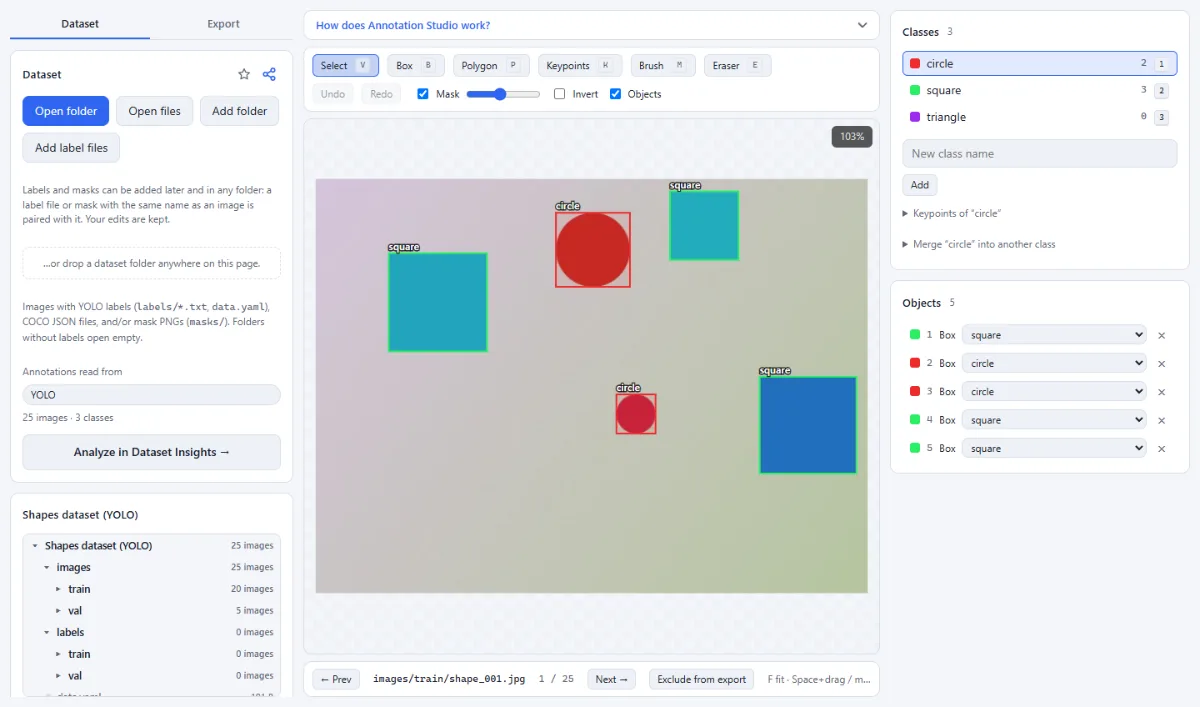
- YOLO, COCO and masks: The studio reads YOLO labels (labels/*.txt with data.yaml or classes.txt), COCO JSON files with boxes, polygons, RLE masks and keypoints, and semantic mask PNGs from a masks/ folder. Folders without labels open empty, ready for labeling from scratch.
- Four kinds of annotation: Draw bounding boxes, polygons (YOLO segmentation), pose keypoints with named points and a skeleton, and paint semantic masks with a brush and eraser. All of them can be combined in one dataset.
- Edit existing labels: With the "Select" tool you move objects, resize boxes by their handles, drag polygon vertices and keypoints, and add or remove polygon points. In the "Objects" panel you change the class of an object, delete it, or set the visibility of each keypoint.
- Exclude images from the export: "Exclude from export" leaves the current image and its annotations out of the exported dataset. The image is never removed from your original folder; "Include in export" brings it back.
- Export as YOLO or COCO: The export keeps the splits of the source dataset (train, val, test). YOLO gets images/ and labels/ per split plus data.yaml (with kpt_shape for poses, but no flip_idx) and classes.txt; COCO gets annotations/instances_<split>.json per split. "Only classes that occur" leaves unused classes out (YOLO ids are renumbered). Masks are written as grayscale PNGs (YOLO) or as RLE regions (COCO). A YOLO export has one kind of line: with keypoints, polygons become their box; otherwise boxes become rectangular polygons once there is a polygon.
- Linked to Dataset Insights: "Analyze in Dataset Insights →" checks the session as it is in the studio, including edits you have not exported yet. Excluded images are left out of the analysis, and Insights analyzes again when you return after further changes.
How To Use The App
- Open a dataset: In the "Dataset" tab, click "Open folder" (or "Open files"), or drop a dataset folder anywhere on the page. "Add folder" adds a further folder to the same dataset, and "Add label files" adds labels or masks later (they pair with the images by name, in any folder; your edits are kept). YOLO, COCO and mask files are detected automatically; to try the studio first, click "No dataset at hand? Try a sample dataset". The file tree lists all images, and a click opens one in the editor.
- Check the annotation source: Under "Annotations read from" you see the detected format with the number of images and classes, plus warnings such as a missing data.yaml. If the folder contains both YOLO and COCO labels, switch between "YOLO" and "COCO" there; switching discards unsaved edits after a confirmation.
- Set up the classes: The "Classes" panel lists the classes the dataset uses with their object count on the current image; "Show all classes" also lists declared classes without labels. Type a name into "New class name" and click "Add", double-click a class to rename it, and press 1–9 to make a class active. Click the key next to a class and press another key to give the class a hotkey of its own (remembered per class name). "Merge … into another class" moves all objects and mask pixels of the selected class to another class in the whole dataset and removes it. For pose labels, open "Keypoints of …" and enter the point names in order (comma-separated) and the skeleton as 1-based pairs such as 1-2, 2-3.
- Draw boxes, polygons and keypoints: Choose "Box" (B) and drag a rectangle. With "Polygon" (P), click the points and close the shape on the first point or with Enter; Backspace removes the last point and Esc cancels. With "Keypoints" (K), click the points of the active class in order: Shift+click marks a point as occluded, N skips a point, Enter finishes early.
- Paint semantic masks: Choose "Brush" (M) to paint the mask with the active class and "Eraser" (E) to set pixels back to unlabeled. Set the brush "Size" with the slider or with [ and ]. The "Mask" checkbox and slider control the mask overlay and its opacity, "Invert" colors the unlabeled pixels instead, and "Objects" shows or hides the vector shapes.
- Select, correct and delete: With "Select" (V), click an object to select it and drag it, its box handles, polygon vertices or keypoints. Double-click a polygon edge to add a point, Alt+click a vertex to remove it, drag the round handle above a polygon or pose to rotate it (Shift snaps to 15°), and press Delete to remove the selected object. In the "Objects" panel you can change the class or set a keypoint to "Visible", "Occluded" or "Not labeled".
- Move through the images: Use "← Prev" and "Next →" below the canvas, or A/D and the arrow keys. Edited images get a dot after their name. Click "Exclude from export" to leave the current image out of the export; it stays in your original dataset and is marked "Excluded".
- Export or analyze the result: Open the "Export" tab, choose "YOLO" or "COCO", decide whether to "Copy images into the export", and pick "Choose output folder" or "ZIP download". Click "Export … images as YOLO" (or COCO); the dataset is written to a new folder or ZIP. To check it first, click "Analyze in Dataset Insights →" in the "Dataset" tab.
Tips
- Navigation: F fits the image, the mouse wheel zooms around the pointer, and Space+drag or the middle mouse button pans. With the "Select" tool, dragging the empty background pans as well.
- Ctrl+Z undoes and Ctrl+Y or Ctrl+Shift+Z redoes. The undo history belongs to the current image and is cleared when you switch images; your edits themselves are kept.
- Unexported edits exist only in this browser tab. The browser warns before you close or reload it, and opening another dataset asks whether to export first or discard the edits.
- Chrome and Edge can open a folder and write the export straight into a folder. Firefox and Safari work as well and save the export as a ZIP.
- YOLO pose datasets share one keypoint count across all classes, so define the same number of keypoints for every pose class.
Frequently asked questions
- Which label formats are supported?
- YOLO detection, segmentation and pose labels (txt files, class names from data.yaml) and COCO JSON with bounding boxes, polygons, RLE masks and keypoints. Semantic masks are read from a masks folder.
- Can I convert COCO to YOLO or YOLO to COCO?
- Yes: open the dataset and export it in the other format. Classes, splits and annotations are converted; a YOLO export gets one kind of label line, as Ultralytics needs: with keypoints every line is a pose line and polygons become their box, otherwise boxes become rectangular polygons once the dataset has a polygon; in COCO exports each split gets its own instances file. For pose datasets the YOLO data.yaml gets only kpt_shape: keypoint names, the skeleton and flip_idx are not written, so add flip_idx by hand before training with horizontal flips.
- Are my images and labels uploaded?
- No. The studio reads the folder directly from your disk and writes the export to a new folder or ZIP of your choice. No image or label leaves your computer.
- Which browser works best?
- Chrome or Edge: they can open a folder and save the export straight into a folder. Firefox and Safari work as well and save the export as a ZIP.
- What happens to my edits when I open another dataset?
- The studio asks first, so you can export them or discard them deliberately.
Guides
Related tools
- Annotations from Masks: Segmentation masks → COCO / YOLO
- Image Augmentation: Randomly augmented training data
- Dataset Insights: Label errors, balance, leakage
- Resize Images: By pixels, percent or long side