Watermark Images
Add a text or logo watermark (single or tiled), a border or instant-photo frame, and author/copyright metadata, to one photo or a folder.
Watermark Images tutorial
Functionality
Watermark Images marks your photos as yours before you post or send them. You add a text or logo watermark, either once at a chosen position or repeated across the whole image, plus an optional border or instant-photo frame. Your name and a copyright notice can also be written into the file metadata, so the credit travels with the image.
The same settings are applied to a single photo or a whole folder at once. Sizes and distances are relative to each image, so the mark looks the same on a large camera photo and on a small screenshot. All processing happens locally in your browser; your photos are never uploaded.
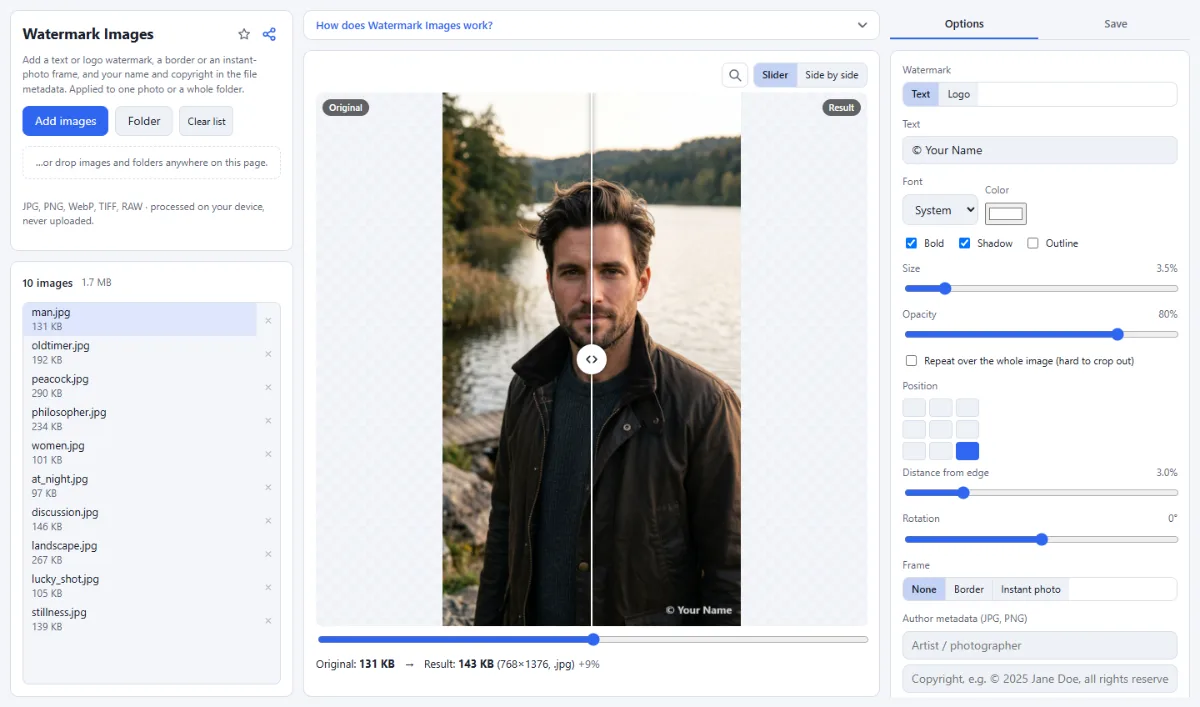
- Text watermarks: Type up to 120 characters (the default is "© Your Name"), choose one of seven fonts (System, Arial, Georgia, Times, Courier, Impact, Script) and a color, and switch on "Bold", "Shadow" or "Outline". The outline is dark for light text and light for dark text, so the mark stays readable on busy backgrounds.
- Logo watermarks: Use your logo as PNG, SVG, JPG or any other supported image; a PNG or SVG with transparency works best. "Size (of the image width)" scales the logo from 3% to 60% of the photo width. The logo is remembered in this browser, so you do not have to pick it again next time.
- Single mark or tiled: Place the mark at one of nine positions with an adjustable "Distance from edge", or tick "Repeat over the whole image (hard to crop out)" to cover the photo with copies of the mark. "Opacity" and "Rotation" (−90° to 90°) work in both modes.
- Grid or random pattern: Repeated marks follow a "Regular grid" of rows and columns, or a "Random" scatter that looks less mechanical and is harder to retouch. In both, "Spacing" is the gap between two marks (a multiple of the shorter side of the mark): on the grid it is the exact distance between neighbors, in the random pattern no two marks ever come closer. "Shuffle" picks another random pattern, and "Horizontal offset" and "Vertical offset" move the whole pattern by up to half the image width or height. Under "Rotate", "Whole pattern" turns rows and marks together, "Each mark" turns every mark on its own center and keeps the rows level.
- Border and instant-photo frame: Under "Frame", "Border" adds an even border around the photo and "Instant photo" adds a frame with a wide bottom edge. Width and color are adjustable, and the frame enlarges the canvas, so no part of the photo is covered.
- Copyright in the metadata: The two fields under "Author metadata (JPG, PNG)" take the artist or photographer and a copyright notice. They are written into JPG and PNG files; WebP output gets no author data. Other metadata such as the GPS location and camera details is not carried over.
- Output format: "Save as" keeps the source format ("Same") or converts to "JPG", "PNG" or "WebP", with a "Quality" slider for JPG and WebP. With "Same", RAW files become JPG and TIFF becomes PNG, because browsers cannot write those formats.
How To Use The App
- Add your photos: Click "Choose images" or "Folder", or drop images and folders anywhere on the page. JPG, PNG, WebP, TIFF and camera RAW files are accepted, and every loaded image appears in the file list.
- Choose text or logo: Under "Watermark", select "Text" and type your text, then set "Font", "Color" and "Size". For a logo, select "Logo", click "Choose logo" and set "Size (of the image width)".
- Place the watermark: Click one of the nine squares under "Position" and adjust "Distance from edge", or tick "Repeat over the whole image (hard to crop out)", choose "Regular grid" or "Random" and set the "Spacing" (with "Shuffle" for another random pattern and the two offset sliders to move the pattern). Then fine-tune "Opacity" and "Rotation".
- Add a frame and your credit: Optionally pick "Border" or "Instant photo" under "Frame" and set its width and color. Enter your name and copyright in the fields under "Author metadata (JPG, PNG)".
- Check the preview: The preview shows the selected image with all settings applied. Drag the slider to compare "Original" and "Result", or switch to "Side by side"; click other files in the list to check them as well.
- Choose format and target: Open the "Save" tab in the right sidebar and set "Save as" and "Quality"; for several images, choose "ZIP download" under "Target", or "Choose output folder" in Chrome and Edge to write the files straight into a folder.
- Save the images: Click "Watermark & download" for a single image; with several images the button shows the count, for example "Watermark … images". Files keep their names and folder structure; only the extension changes if you convert the format.
Tips
- Your settings are remembered in this browser, so the same watermark is ready the next time you open the tool.
- A tiled watermark at low opacity is the hardest to crop out; a small mark in a corner disturbs the photo least.
- The ZIP download is limited to 4 GB or 65,535 files. For very large folders, use "Choose output folder" in Chrome or Edge.
- When saving to a folder, files with the same name are overwritten, and the output folder must not be the source folder.
Frequently asked questions
- Can someone remove my watermark?
- Yes. With enough effort, a single mark in a corner can be cropped off or painted over with retouching tools. Marks repeated with "Repeat over the whole image (hard to crop out)", especially in the "Random" pattern at low opacity, are far more work to remove. The author and copyright metadata can be stripped by any metadata tool, so it is a credit, not a protection.
- Why is the watermark smaller on portrait photos?
- Because the size is measured against the width of each photo: "Size" sets the text height and "Size (of the image width)" the logo width as a share of the image width. A portrait photo is narrower than a landscape photo of the same height, so the same setting gives a smaller mark. Process portrait and landscape photos in separate runs if the marks should match.
- Can my name in the metadata contain accents or other scripts?
- Yes. Artist and copyright are written as UTF-8, as current photo programs expect: ä, é, ñ, the © sign, ł, Greek, Cyrillic or Chinese all come out as typed. In PNG files they go into text fields of the PNG format, in JPG files into the EXIF data; WebP files get no author data. The text watermark on the image itself can use any character your fonts can display.
- Is the resolution of my photos changed?
- No. The watermark is drawn at the full pixel size of each photo, and a frame only adds pixels around it. The image is compressed again when it is saved: JPG and WebP at the "Quality" you set (92 by default), PNG losslessly.
- Why does my text watermark look different on another device?
- The fonts are those installed on the device that saves the images: "Script" uses Brush Script MT or Segoe Script, "Impact" uses Impact, and a device without them substitutes a similar font. Once saved, the mark is part of the pixels and looks the same everywhere, so check the preview when you save on a phone or tablet.
- Where is my watermark logo stored?
- Only in this browser: the logo is kept in its local storage (IndexedDB) so that it is ready next time, and it is never uploaded. In another browser, on another device or after clearing the site data, choose it again.
Related tools
- Blur & Redact: Hide faces, plates, text
- Remove EXIF & GPS: Share photos without location
- Resize Images: By pixels, percent or long side
- Social Media Studio: All formats · Carousels · Grids