Favicon & App Icons
Turn a logo (PNG or SVG) into favicon.ico, PNG favicons, Apple touch icon, Android/PWA icons incl. maskable, web manifest and HTML snippet.
Favicon & App Icons tutorial
Functionality
Favicon & App Icons turns one logo into the full set of icons a website needs: favicon.ico for browser tabs, PNG favicons, the Apple touch icon for iPhone and iPad home screens, Android and PWA icons including a maskable version, a web manifest and a ready-to-paste HTML snippet.
SVG and PNG files with transparency work best, and square artwork gives the cleanest result; other shapes are centered. A live preview shows your icon in a browser tab and at the important sizes. The icons are rendered locally in your browser; your logo is never uploaded.
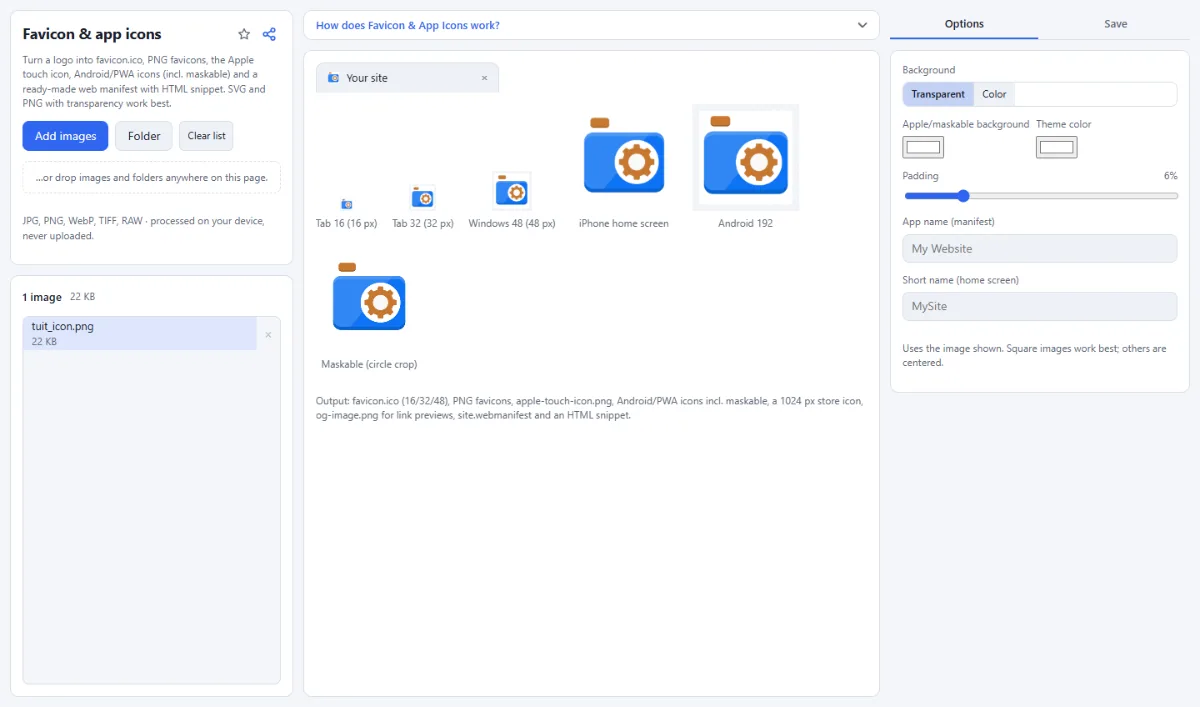
- Complete icon set: You get favicon.ico (16, 32 and 48 px), favicon-16x16.png, favicon-32x32.png, favicon-48x48.png, apple-touch-icon.png (180 px), android-chrome-192x192.png, android-chrome-512x512.png, maskable-icon-512x512.png, app-icon-1024x1024.png for the app stores, og-image.png (1200 × 630 px) for link previews, site.webmanifest and head-snippet.html. An SVG source is included as favicon.svg as well.
- Live preview: The preview shows a browser tab with your icon and app name, and the icon at 16, 32 and 48 px, as iPhone home screen icon, at 192 px for Android and as maskable icon with the circle crop.
- Background, padding and corners: "Background" can be "Transparent" or "Color". "Padding" adds 0% to 30% empty space around the artwork, and with a colored background "Corner radius" rounds the corners, up to a full circle.
- Apple and maskable icons: iOS shows transparent areas as black and Android launchers crop maskable icons to a circle or similar shape, so these two icons always get a solid background and extra padding. With a transparent background, you set their color under "Apple/maskable background".
- Web manifest and snippet: "App name (manifest)", "Short name (home screen)" and "Theme color" go into site.webmanifest. head-snippet.html contains the link tags for the favicons, the Apple touch icon and the manifest (which lists the Android icons) and the theme-color meta tag, plus a commented line for the link preview image (it needs an absolute URL with your domain).
How To Use The App
- Add your logo: Click "Choose images" or drop a PNG, SVG or other image onto the page. If you load several files, the icon set is made from the image shown in the preview; click another file in the list to use it.
- Set the background: Choose "Transparent" or "Color" under "Background" and pick the color next to it. Adjust "Padding" and, with a colored background, "Corner radius".
- Enter the app details: Fill in "App name (manifest)" and "Short name (home screen)", and choose a "Theme color".
- Check the small sizes: Look closely at the 16 px and 32 px previews: thin lines and small text often disappear at tab size. Reduce the padding or use a simpler version of the logo if needed.
- Choose the target: Open the "Save" tab and, under "Target", pick "ZIP download" or, in Chrome and Edge, "Choose output folder" to write the files straight into a folder.
- Create and install the icons: Click "Create icon set (ZIP)". Copy the files into the root folder of your website and paste the lines from head-snippet.html into the head section of your pages.
Tips
- The snippet refers to the files at the site root (for example /favicon.ico); if you place them in a subfolder, adjust the paths.
- An SVG source is also saved as favicon.svg, with the same background, padding and corners as the other icons; modern browsers display it sharply at any size.
- app-icon-1024x1024.png is opaque and not rounded, because the App Store and Google Play apply their own corners.
- The 16 px icon uses at most 6% padding, so the artwork stays as large as possible at the smallest size.
Frequently asked questions
- How large should my logo be?
- At least 1024 pixels on the long side, or an SVG. The set includes a 1024 px app icon and 512 px Android icons, and a smaller source is enlarged for them, which makes them soft. Large sources are reduced in steps, so the 16 and 32 px favicons stay crisp. An SVG is drawn at 1024 px, large enough for every size.
- Do the background and padding settings apply to favicon.svg?
- Yes. favicon.svg gets the same background color, padding and rounded corners as the PNG icons, with your SVG placed inside it unchanged, so browsers that use the SVG favicon in the tab show the icon of the preview. With a transparent background and no padding it is your SVG file as it is.
- Which icons keep a transparent background?
- With "Background" on "Transparent", favicon.ico, the PNG favicons and the two Android icons stay transparent. apple-touch-icon.png, maskable-icon-512x512.png, app-icon-1024x1024.png and og-image.png always get a solid background in the color under "Apple/maskable background", white by default. The same color becomes background_color in site.webmanifest.
- Can I use a JPG logo?
- Yes. A JPG has no transparency, though, so its white or colored background becomes a square in every icon. For a transparent favicon, use a PNG or SVG, or first make the background transparent with Remove White Background, whose "Send to Favicon & App Icons" button brings the result straight back here.
- Does favicon.ico work in all browsers?
- Yes. favicon.ico contains the 16, 32 and 48 px icons as PNG images inside the ICO container, a form that every current browser and Windows since Vista can read. Through the lines in head-snippet.html, modern browsers can also use the PNG favicons and, if you started from an SVG, favicon.svg.
- Is my logo uploaded to create the icons?
- No. Every icon size is drawn from your logo in your browser, and the ZIP or the files in your folder are written on your device. Unreleased logos and brand drafts never leave your computer.
Related tools
- Remove White Background: Transparent PNG in one click
- Resize Images: By pixels, percent or long side
- Convert Images: JPG · PNG · WebP
- Color Palette: Colors from any image