Dataset Insights
Health check for YOLO and COCO datasets: label errors, class balance per split, object sizes vs. imgsz, duplicates and train/val leakage, with drill-down to every affected image.
Dataset Insights tutorial
Functionality
Dataset Insights is a health check for YOLO and COCO datasets before you train. It finds label errors, class imbalance per split, objects that become too small at your training resolution, corrupt or blurry images, duplicates and leakage between train and val, and combines everything into a health score.
Every finding links to the affected images, which you can open in the Annotation Studio to fix them. You can export the results as a report and write a cleaned copy of the dataset with duplicates removed, labels repaired and a new stratified split. Everything is analyzed locally; nothing is uploaded.
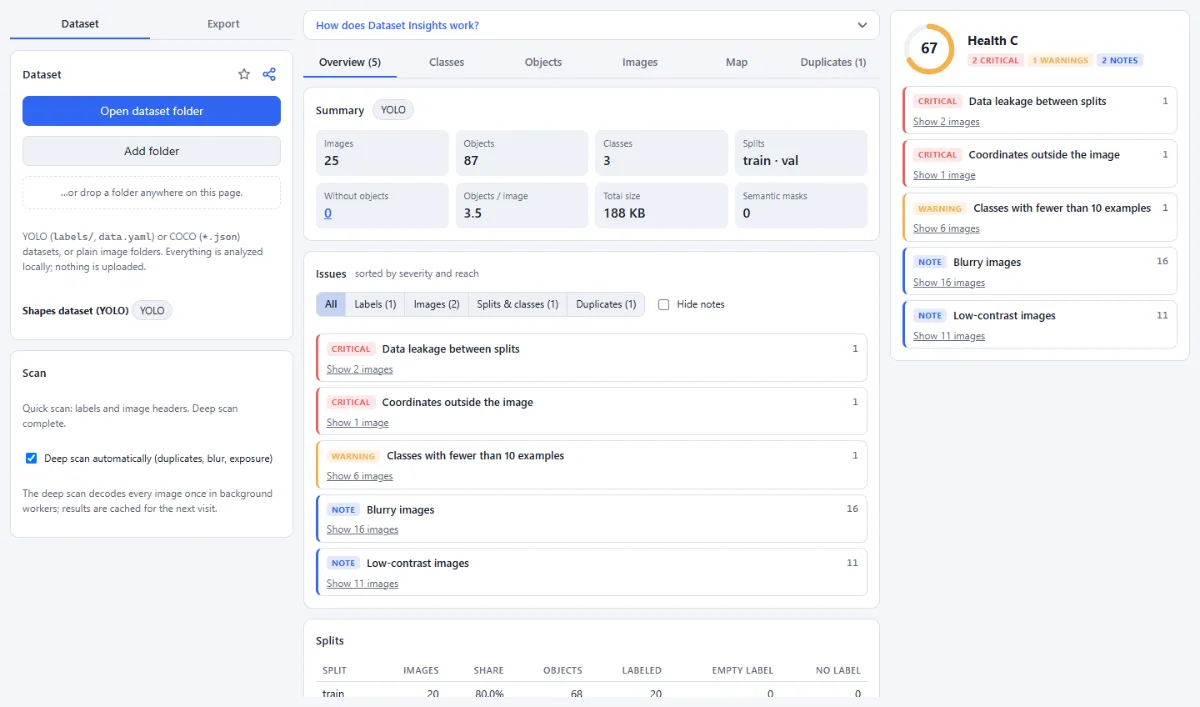
- Quick scan and deep scan: The quick scan reads the labels and image headers and starts as soon as you open a folder. The deep scan decodes every image once in background workers to compute file and perceptual hashes, brightness, contrast and sharpness; its results are cached for the next visit.
- Health score and findings: The health score from 0 to 100 (grades A to F) drops with every finding, weighted by severity and by the share of affected images. Findings are sorted into "Critical", "Warning" and "Note", and each one explains why it matters and how to fix it.
- Six analysis tabs: "Overview" shows the summary, all issues and the splits. "Classes" shows the class distribution per split and which classes appear together, "Objects" the object sizes, aspect ratios and center heatmap, "Images" resolutions, formats, cameras and image quality, "Map" all images placed by their look with the outliers, and "Duplicates" exact and near-duplicate groups.
- Object size vs. imgsz: In the "Objects" tab you set your "Training size (imgsz)" and the "Tiny below (px)" limit. The app shows how many objects shrink below that size after letterboxing and recommends a larger imgsz or tiling when needed.
- Drill-down to every image: Issues, chart bars, histogram bins, heatmap cells and duplicate groups open an image browser with thumbnails and boxes. Click an image to open it in the Annotation Studio, or save the list with "Export list (CSV)".
- Cleaned dataset copy: The "Export" tab writes a new copy of the dataset without undecodable images and duplicates, with repaired labels and, if you want, a new stratified train/val/test split that keeps duplicate groups in one split. Your original files are never modified.
- Linked with the Annotation Studio: Started from the studio with "Analyze in Dataset Insights →", the analysis includes the studio’s unexported edits and leaves excluded images out. A banner shows the link, and when you come back after further changes in the studio, the analysis runs again automatically.
How To Use The App
- Open a dataset folder: Click "Open dataset folder" or drop a folder anywhere on the page. YOLO (labels/, data.yaml), COCO (*.json) and plain image folders are supported; "Try it with a sample dataset (with a few planted problems)" shows how it works. The quick scan starts right away.
- Run the deep scan: With "Deep scan automatically (duplicates, blur, exposure)" ticked (the default), the deep scan follows the quick scan. Otherwise click "Run deep scan" in the "Scan" panel; "Stop deep scan" keeps the partial results. Pixel checks and duplicate detection need the deep scan.
- Read the overview: The health card shows the score, grade and the number of critical findings, warnings and notes. In the "Overview" tab, click a finding such as "Data leakage between splits" or "Coordinates outside the image" to see why it matters and what to do, and check the "Splits" table for empty and missing labels.
- Explore classes, objects and images: In "Classes", switch between "Objects" and "Images" and between "By count" and "By id"; tags mark rare, undeclared and "not in val" classes. In "Objects", set "Training size (imgsz)" to your training value. In "Duplicates", adjust the "Near-duplicate tolerance" and filter by "Across splits", "Different labels", "Exact" or "Near".
- Drill down and fix in the studio: Click "Show … images" under a finding, or a bar or bin in any chart, to open the affected images. Click a thumbnail to open that image in the Annotation Studio and correct it there; "← Back" returns to the charts.
- Export the report: In the "Export" tab, under "Report", click "HTML report" for a self-contained dataset card, "Problem list (CSV)" for one row per affected file and issue, or "Full data (JSON)" for all statistics in machine-readable form.
- Write a cleaned copy: Under "Cleaned dataset copy", choose what to remove ("Images that cannot be decoded", "Exact duplicates (one copy stays)", "Near duplicates (one per group stays)") and whether to "Fix labels". Under "Splits", keep the current split or choose "New stratified split" with train/val/test percentages and a seed. Pick "YOLO" or "COCO" and a folder or ZIP, then click "Export … images".
Tips
- When duplicates are removed, the copy in train is kept (this removes leakage from val and test), otherwise the one with the most objects.
- "Fix labels" clips objects to the image and drops zero-area objects, objects of undeclared classes and duplicate objects of the same class.
- The deep scan results are cached in the browser by path, size and modification date, so a second visit to the same folder is much faster.
- Opening another folder in Dataset Insights ends the link with the Annotation Studio. "← Back to Annotation Studio" in the banner returns to your session.
Frequently asked questions
- How does Dataset Insights recognize train, val and test?
- From the folder names in each image path: train or training, val, valid, validation or dev, and test or testing, also with a number such as val2017. That covers both the images/train and the train/images layout. COCO images can also take the split from the JSON file name, such as instances_val2017.json. Images outside such folders count as unsplit.
- How are duplicates and data leakage detected?
- The deep scan computes a SHA-256 hash for exact copies and a 64-bit perceptual hash (pHash) for near duplicates; "Near-duplicate tolerance" sets how many bits may differ (0 to 10, default 4). A duplicate group that spans two splits is reported as leakage. Numbered video frames whose neighbors sit in another split are reported separately.
- Does it use a neural network to judge the images?
- No. All checks are model-free. Blur is the variance of the Laplacian compared with the median of your dataset, the "Map" tab places images by 58 simple features (color histogram, brightness layout, edge directions, fine texture) reduced to two axes by principal component analysis, and "Objects that look like another class" compares colors and texture inside the boxes.
- How is the recommended imgsz calculated?
- For every object, the app works out the training size at which its shorter side, after the long image side is scaled to imgsz, reaches the "Tiny below (px)" limit (8 px by default). It recommends the size that keeps 90 % of the objects above that limit, rounded up to a multiple of 32. Above 1920 it suggests training on tiles instead.
- How does "New stratified split" avoid leakage?
- Every class gets its share in each split, and images that belong together stay in one split: duplicate groups and the numbered frames of one video sequence, both found by the deep scan. The default is 80/10/10 with seed 1, and the same seed gives the same split again. The copy is written with images/train, images/val and images/test.
- Is my dataset uploaded for the deep scan?
- No. The deep scan decodes the images in background workers inside your browser. Its results are stored only in this browser, keyed by file path, size and modification date, so reopening the folder is faster. Reports and the cleaned copy are written directly to your disk.
Guides
Related tools
- Annotation Studio: Boxes, polygons, keypoints & masks
- Annotations from Masks: Segmentation masks → COCO / YOLO
- Image Augmentation: Randomly augmented training data
- Resize Images: By pixels, percent or long side