Remove White Background
Make the white or plain background of product shots, logos and signatures transparent, with clean, smoothed edges. Or replace it with a color.
Remove White Background tutorial
Functionality
Remove White Background makes the plain background of product shots, logos, signatures and scanned drawings transparent. It works by color, without AI: pixels close to the background color are removed, and the edges get soft, partial transparency.
The edges are also cleaned of the old background color, so cut-outs show no white halo on dark backgrounds. Instead of transparency, you can put the subject on a new color. One image or a whole folder is processed locally in your browser, without uploading anything.
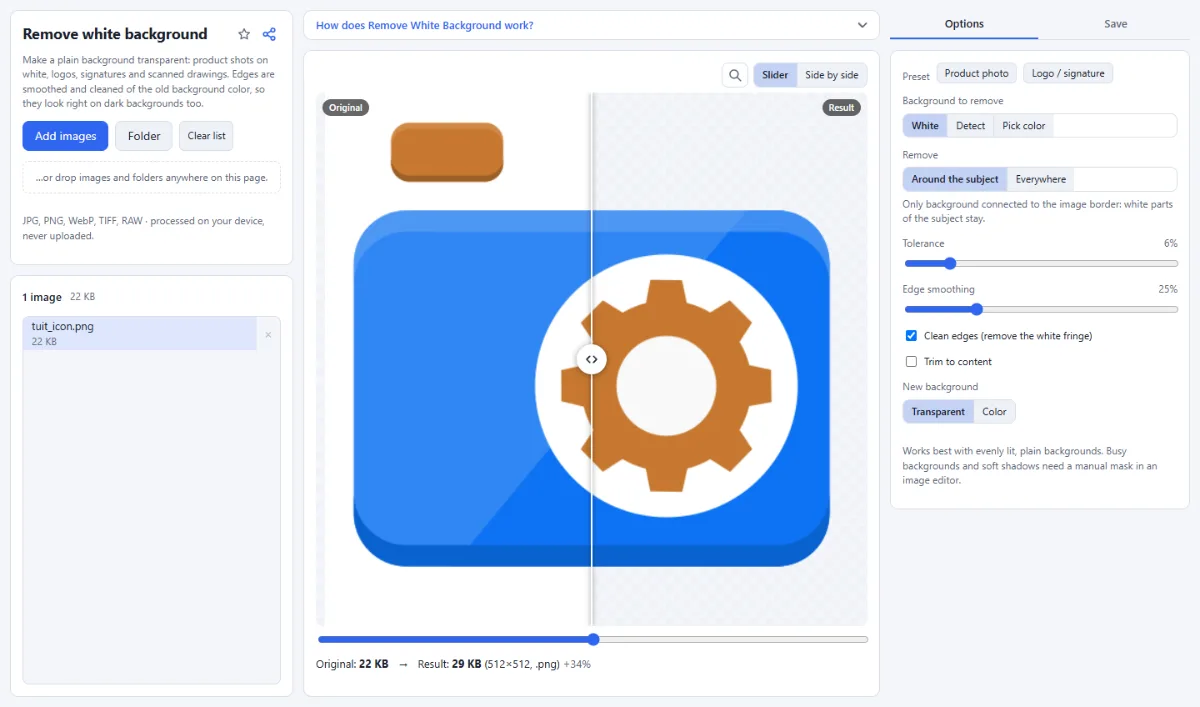
- Two presets: "Product photo" removes only the background around the subject, with a short soft edge. "Logo / signature" sets "White" and a tolerance of 12%: near-white paper is removed completely, every other light pixel, including the insides of letters, becomes proportionally transparent for clean line art.
- Background color: "Background to remove" is "White" by default. "Detect" uses the most common color along the image border, such as a gray studio backdrop, and "Pick color" lets you choose any color.
- Around the subject or everywhere: "Around the subject" removes only background that is connected to the image border, so white parts of the subject stay. "Everywhere" removes every matching pixel, including enclosed areas inside letters or between fingers.
- Tolerance and edges: "Tolerance" (0% to 40%) sets how far a color may differ from the background and still be removed completely; "Edge smoothing" sets the range of partially transparent edge pixels. "Clean edges (remove the white fringe)" takes the background color out of those edge pixels.
- Trim and new background: "Trim to content" crops the result to the remaining subject. Under "New background", keep "Transparent" or choose "Color" to fill the removed area with a color of your choice.
- Output formats: Transparent results are saved as PNG or WebP. With a new background color, JPG is available too; "Quality" applies to JPG and WebP.
How To Use The App
- Add your images: Click "Choose images" or "Folder", or drop images and folders onto the page. The first image appears in the preview; click another file in the list to check it.
- Pick a preset: Click "Product photo" for objects photographed on white, or "Logo / signature" for dark artwork, signatures and scans on white paper.
- Set the background color: Keep "White" (also for scans on gray or yellowed paper, then raise "Tolerance"), choose "Detect" for a colored or gray studio backdrop, or "Pick color" to select the exact color.
- Fine-tune the result: Raise "Tolerance" if traces of the background remain, and lower it if parts of the subject disappear. Adjust "Edge smoothing" and the "Remove" mode, and compare "Original" and "Result" with the slider or in "Side by side" view.
- Choose background and format: Under "New background", keep "Transparent" or pick "Color" and a color. In the "Save" tab, select the format under "Save as" and, for JPG or WebP, the "Quality".
- Choose the target: For several images, choose "ZIP download" or, in Chrome and Edge, "Choose output folder" under "Target". A single image goes straight to your downloads.
- Save the images: Click "Remove background & download"; with several images the button reads, for example, "Remove background from … images". Files keep their names, with the extension of the chosen format.
Tips
- Evenly lit, plain backgrounds give the best results. Busy backgrounds and soft shadows need a manual mask in an image editor.
- JPG cannot store transparency, so it is offered only when you fill the background with a color.
- Tick "Trim to content" for logos and signatures you want to place in documents: the empty margin around them is removed.
Frequently asked questions
- Why does part of my white product disappear too?
- Because parts of it are as light as the background and touch it without a darker outline, so the removal, which starts at the image border, runs into them. Lower "Tolerance" until the subject stays complete, and keep "Remove" on "Around the subject". A product that is almost white needs a darker or colored backdrop when you photograph it.
- Why do the holes in letters such as O, A or e stay white?
- Because "Remove" is set to "Around the subject": it removes only background that is connected to the image border, and the inside of an O is enclosed by the letter. Choose "Everywhere", or click the "Logo / signature" preset, which selects it together with settings for line art.
- Why does my scanned signature leave a faint gray haze?
- Because the scanned paper is not pure white, and every pixel that differs from white by more than the "Tolerance" stays partly visible. The "Logo / signature" preset uses 12%, which clears typical scanner paper; for gray or yellowed paper raise "Tolerance" until the paper disappears completely. Keep "Background to remove" on "White" for scans: with "Detect", the grain of the paper itself is taken for ink.
- Does removing the background reduce the resolution?
- No. The background is removed at the full resolution of the original, and the result keeps its pixel size unless "Trim to content" crops away the empty margin. The new file does not carry over metadata such as EXIF data or the GPS location.
- Can I turn the cut-out into a favicon?
- Yes. In the "Save" tab, "Send to Favicon & App Icons" opens the image shown in the preview, as a lossless PNG with its transparency, in Favicon & App Icons. There it becomes favicon.ico, the Apple touch icon, the PWA icons and a web manifest.
- Are my product photos sent to a server to remove the background?
- No. The background is removed in your browser by comparing colors, without an AI service. Your photos are read from your disk and the results are written back to it; nothing is uploaded.
Related tools
- Favicon & App Icons: ICO, Apple, Android, manifest
- Watermark Images: Text, logo, frame & copyright
- Color Palette: Colors from any image
- Combine Images: Side by side, stacked, grid