Color Palette
Extract the main colors of a photo or artwork. Copy HEX and CSS, or save a swatch card plus palettes for Adobe (ASE), GIMP, Krita and the web.
Color Palette tutorial
Functionality
Color Palette extracts the main colors of a photo, artwork or brand image. The colors appear as swatches with their HEX value and the share of the image they cover, and you can copy them with one click.
For design work, the palette can be saved as a swatch card (PNG), CSS variables, JSON, a .gpl palette for GIMP, Inkscape and Krita, and an Adobe Swatch Exchange file (.ase) for Photoshop and Illustrator. Images are analyzed locally in your browser and never uploaded.
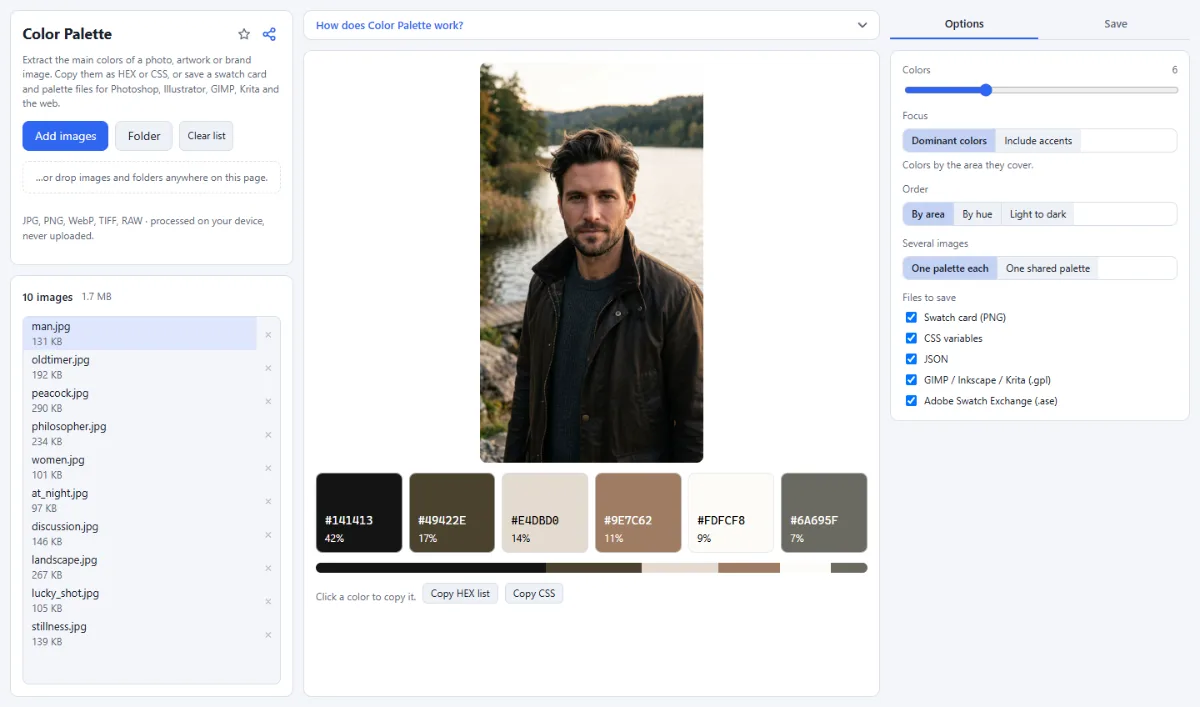
- Number of colors: "Colors" sets 2 to 16 colors (6 by default). The extraction is deterministic, so the same image always gives the same palette.
- Dominant colors or accents: "Dominant colors" ranks the colors by the area they cover. "Include accents" also gives small but vivid areas a place, such as a red jacket or a logo.
- Sorting: "Order" arranges the swatches "By area", "By hue" or "Light to dark". A bar below the swatches shows how much of the image each color covers.
- Copy to the clipboard: Click a swatch to copy its HEX value. "Copy HEX list" copies all values, one per line, and "Copy CSS" copies a :root block with the variables --color-1, --color-2 and so on.
- One palette or a shared one: With "One palette each", every image gets its own palette. "One shared palette" analyzes all images together, for example a photo series or a mood board; the preview uses the first 40 images, saving uses all of them.
- Palette files: Under "Files to save", choose any of "Swatch card (PNG)", "CSS variables", "JSON", "GIMP / Inkscape / Krita (.gpl)" and "Adobe Swatch Exchange (.ase)". The swatch card shows the image (or up to eight thumbnails for a shared palette), each color with HEX and RGB values, and the proportion bar.
How To Use The App
- Add your images: Click "Choose images" or "Folder", or drop images onto the page. The palette of the selected image appears right away; click another file in the list to see its colors.
- Adjust the palette: Set the number of "Colors", choose "Dominant colors" or "Include accents" under "Focus", and pick an "Order".
- Copy colors: Click a swatch to copy a single HEX value, or use "Copy HEX list" or "Copy CSS" for the whole palette.
- Choose what to save: For several images, choose "One palette each" or "One shared palette" under "Several images". Tick the formats you need under "Files to save".
- Choose the target: Open the "Save" tab and, under "Target", pick "ZIP download" or, in Chrome and Edge, "Choose output folder". If only one file results, it goes straight to your downloads.
- Save the palettes: Click "Save palette", or "Save … palettes" with several images. Files are named after the image with "-palette" added, for example beach-palette.ase; a shared palette is saved as palette.png, palette.css and so on.
Tips
- Transparent pixels are ignored, so a logo on a transparent background gives only the colors of the logo.
- Use "Include accents" for brand images and illustrations, where a small but important color would otherwise be lost.
- Your choices, including the file types, are remembered in this browser for the next visit.
Frequently asked questions
- Why do I get fewer colors than I set under "Colors"?
- Because the image does not contain that many clearly different colors. A color that is very close to one already in the palette (a CIELAB difference below 8) cannot start a new swatch, so flat graphics and nearly monochrome photos return fewer, distinct colors instead of several shades of the same one. Colors covering less than 0.1 % of the image, and blends under 1 % that sit between two larger palette colors (anti-aliased edges), are left out as well, also with "Include accents".
- Why is a HEX value slightly different from the exact color in my logo?
- Each swatch is an average of the pixels in its color group, and the image is analyzed at 200 pixels on its long side. Anti-aliased edges and JPEG noise can therefore shift the value a little. For an exact brand color, take the value from the original design file.
- How do I use the palette in Photoshop, Illustrator or GIMP?
- Save the "Adobe Swatch Exchange (.ase)" file and load it through the menu of the Swatches panel in Photoshop, Illustrator or InDesign; each color arrives as an RGB swatch named after its HEX value. For GIMP, Inkscape and Krita, import the "GIMP / Inkscape / Krita (.gpl)" file as a palette.
- Can I get RGB values instead of HEX?
- Yes. The swatch card shows the RGB values under each HEX code, the JSON file lists every color with hex, rgb and its share of the image, and the .gpl file stores the colors as RGB numbers. The copy buttons copy HEX values only.
- Does a large photo count more than a small one in a shared palette?
- No. Every image counts the same in a shared palette, whatever its size or shape: a large camera photo weighs as much as a small square logo. Transparent pixels are not counted at all.
- Is my image uploaded to read its colors?
- No. The colors are computed in your browser from a reduced copy of the image, and the palette files are written to your disk. Neither the image nor the palette is sent to a server.
Related tools
- Filter Lab: Own looks · 35+ filters · LUTs
- Remove White Background: Transparent PNG in one click
- Favicon & App Icons: ICO, Apple, Android, manifest
- Social Media Studio: All formats · Carousels · Grids